


Centralized Image Management/Editing for Confluence
March 9, 2026
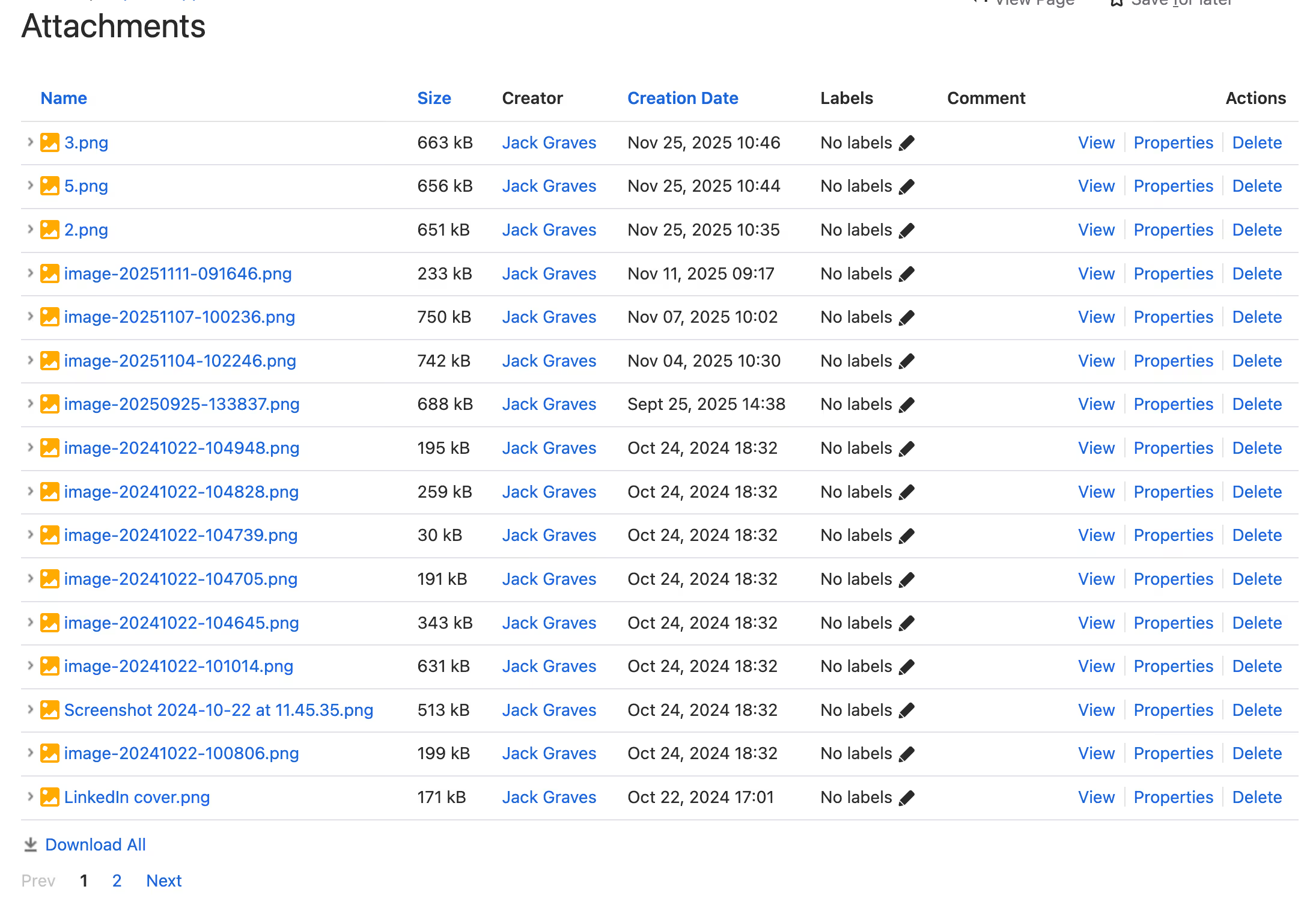
If you live in Confluence, your screenshots and images are probably everywhere: in page attachments, email threads, Slack, and a handful of half‑organized folders. When the product UI changes, tracking them all down is painful - and out‑of‑date visuals hang around in critical docs for far too long.
Capable’s Image Library for Confluence fixes that by giving you a centralized, reusable image library inside Confluence. And with our newest release, it becomes the only app you need to manage screenshots, images, and visual knowledge: update once, reuse everywhere, and now annotate and crop images without leaving your page.
The problem: screenshots don’t scale
Technical writers, product teams, and support engineers all hit the same wall as their Confluence space grows:
- The same screenshot is uploaded multiple times to different pages.
- No one is sure which version is “the latest” or where it’s used.
- Updating visuals after UI changes means manual, page‑by‑page edits.
Confluence gives you image attachments and some basic macros, but it doesn’t give you a proper, centralized image library with reuse and update‑once behavior built in.support.
Capable Image Library was built to solve exactly that.
Capable Image Library in one glance
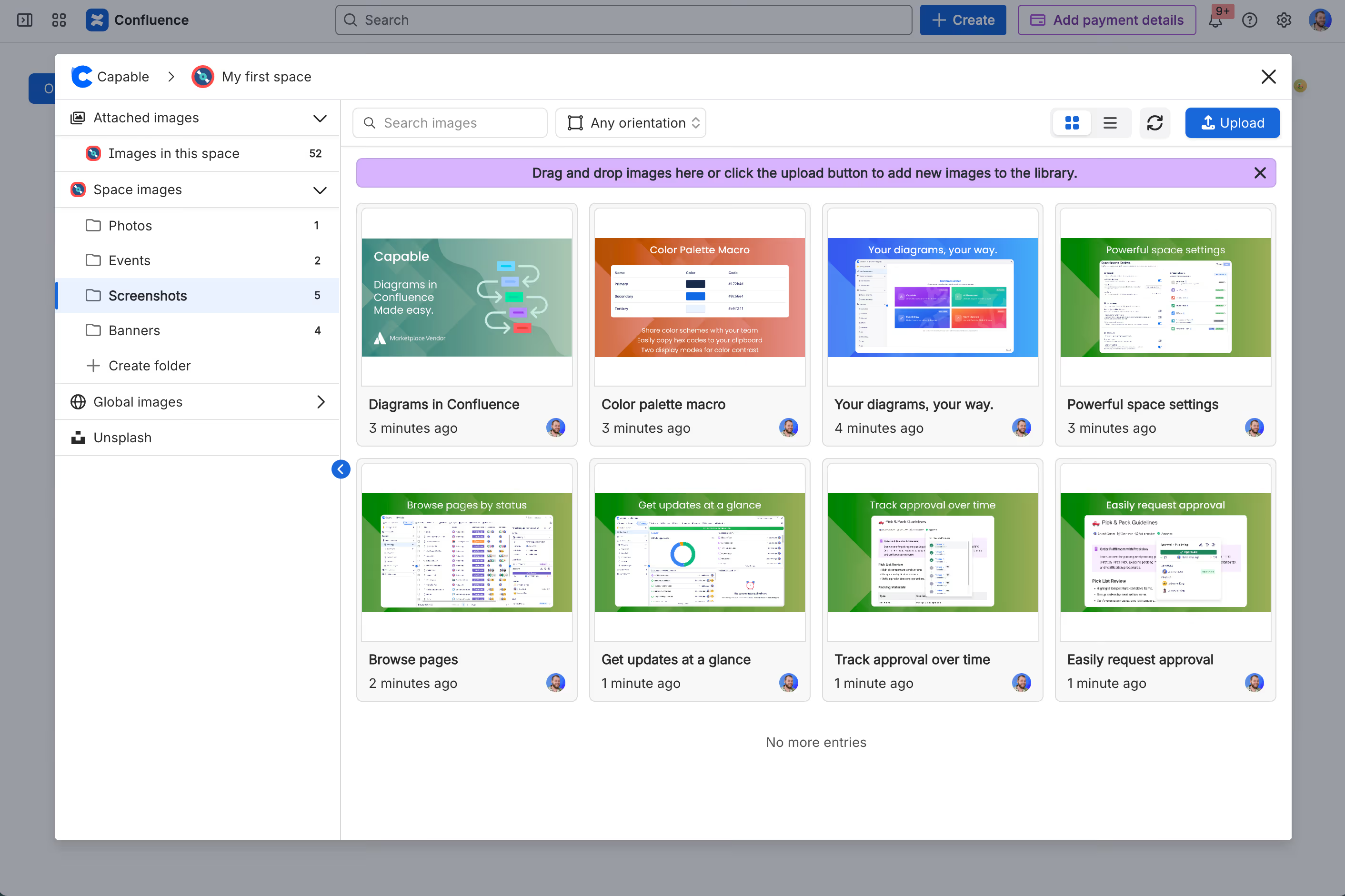
Image Library for Confluence (by Capable) turns your instance into a single, structured home for all your visual assets.
With it, teams can:
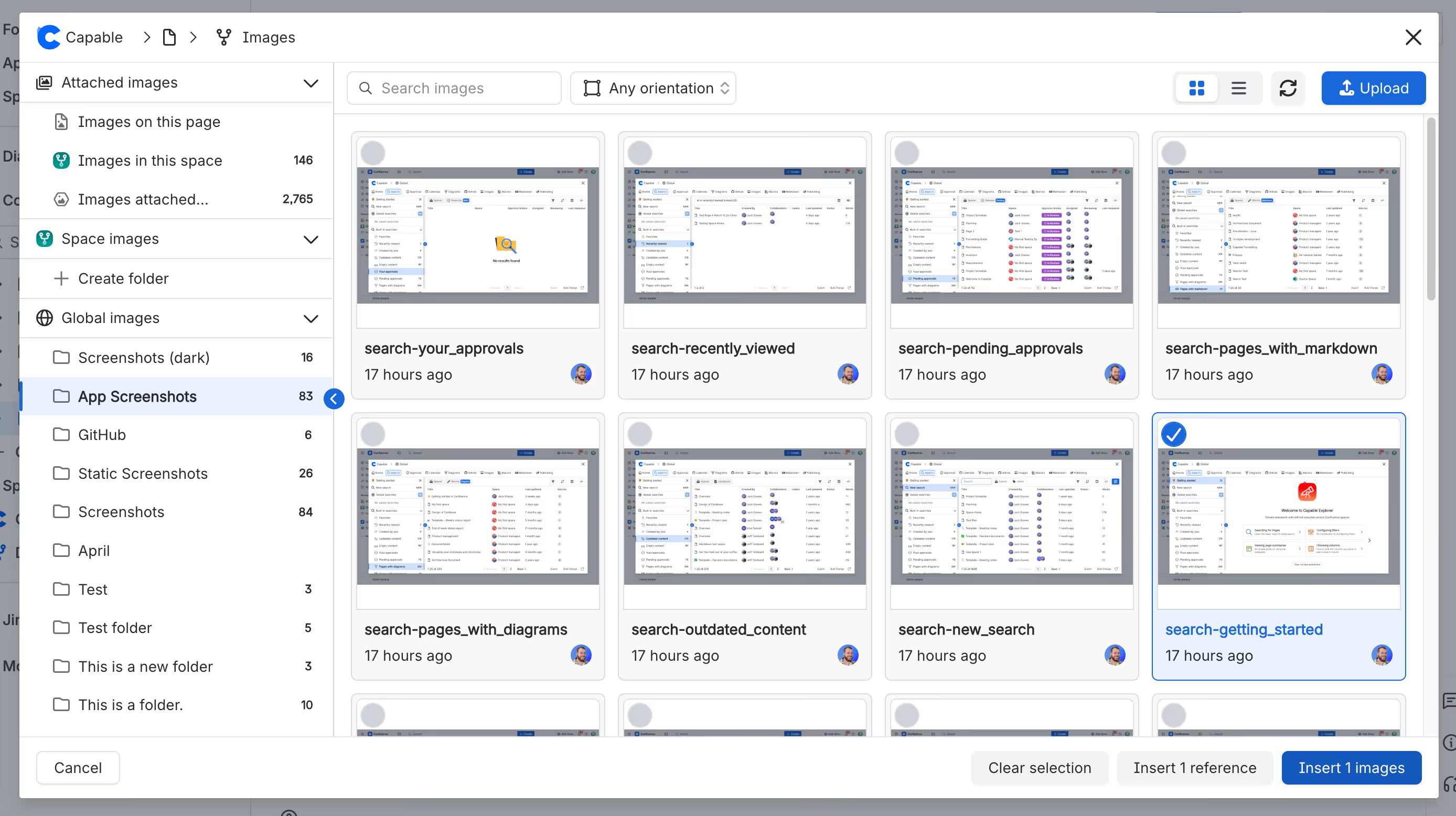
- Upload and store images directly in Confluence, at space or global level.
- Organize assets into folders like “UI Screenshots”, “Brand”, “Marketing”, “Training”.
- Reuse the same image on many pages via a reference macro, instead of making copies
- Quickly find assets using search and filters.
- Pull in stock images from a library of millions of Unsplash photos without leaving Confluence.
All of that already replaces ad‑hoc attachments and external drives with a proper, searchable image library inside Confluence.
Annotate and crop right in Confluence
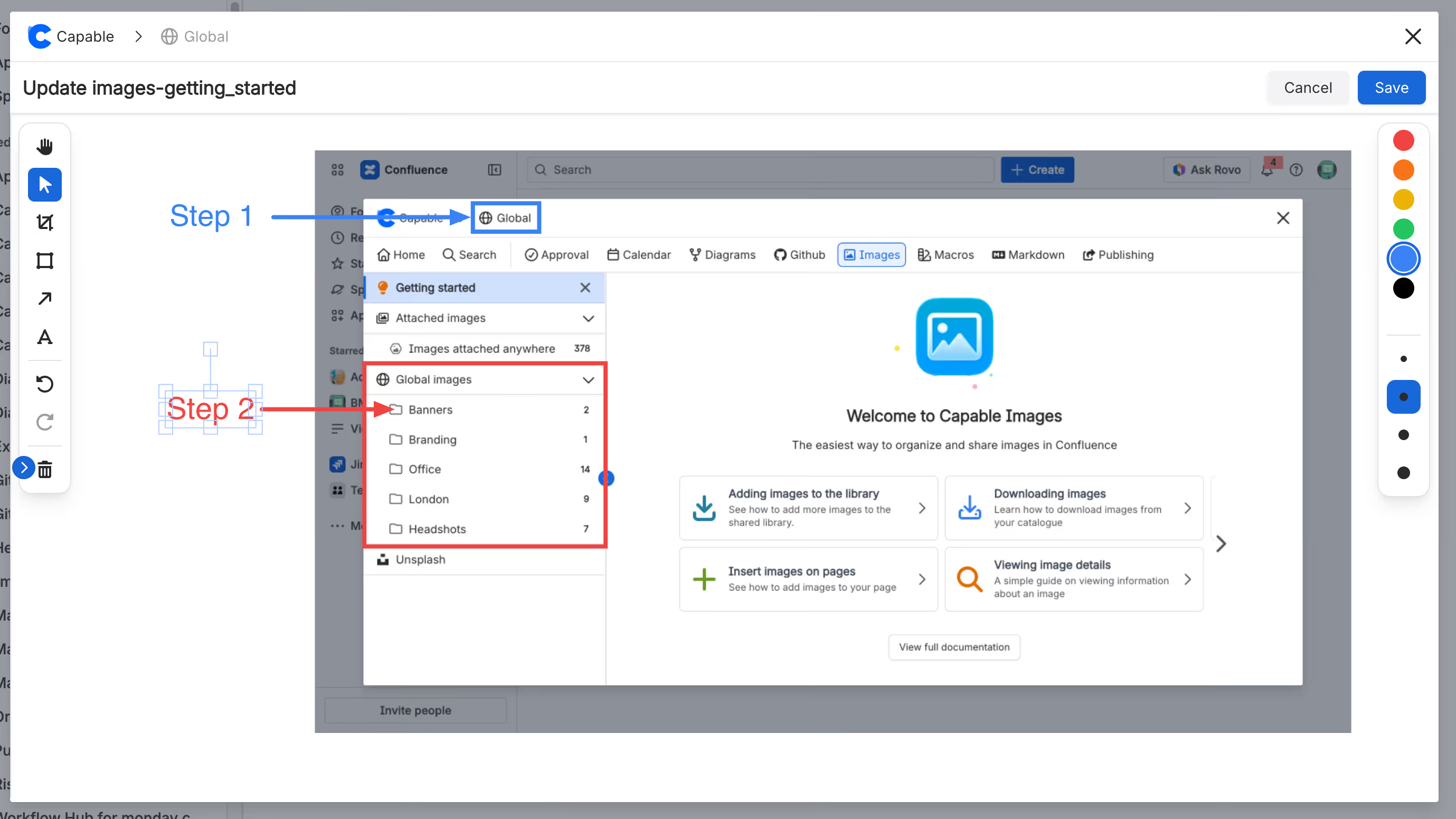
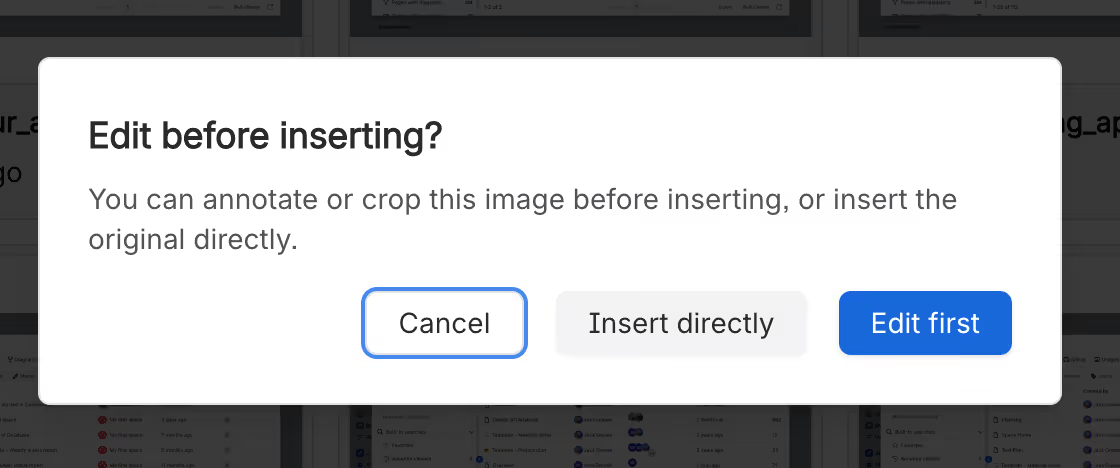
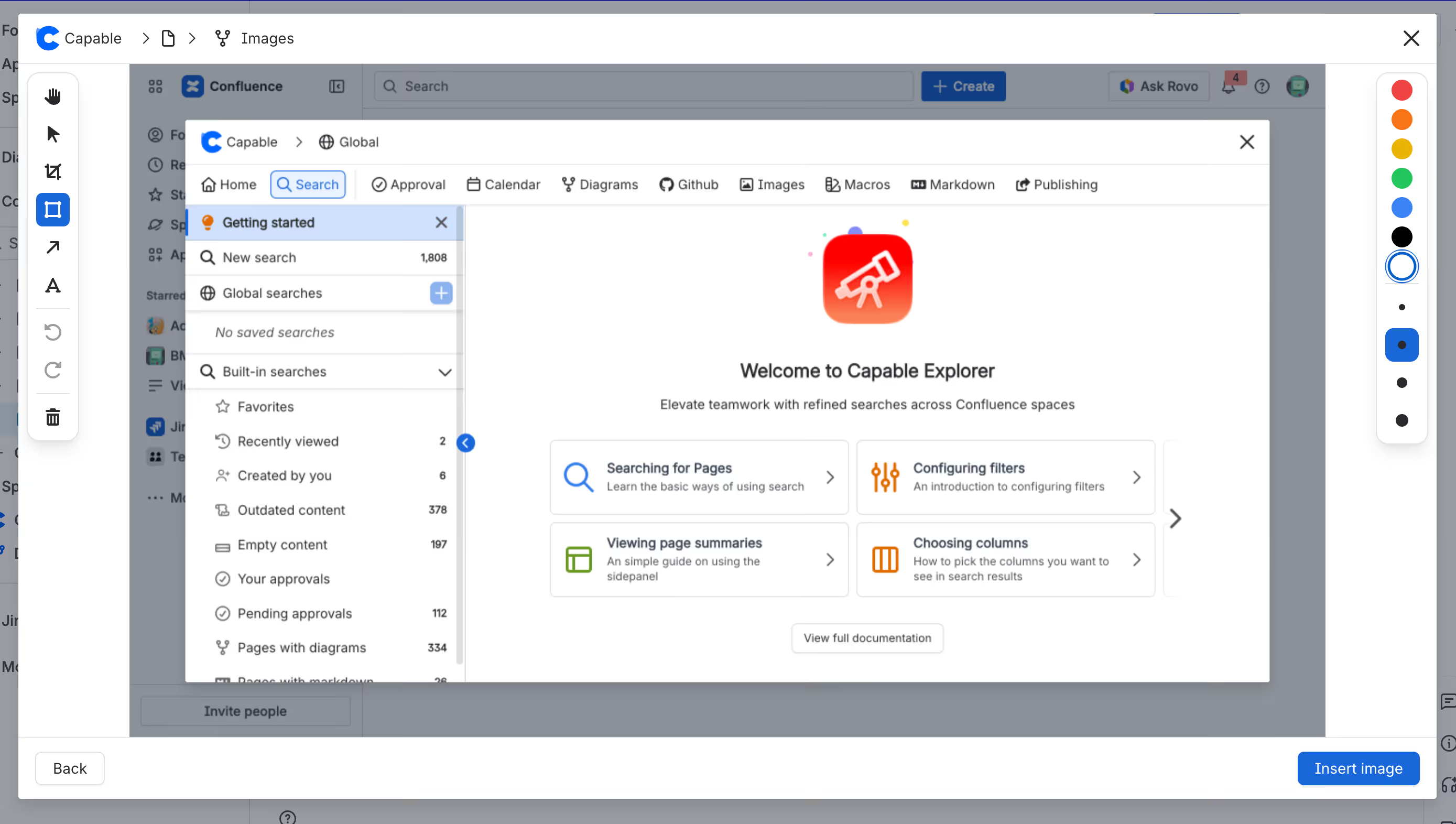
The newest feature release adds a complete annotation and cropping toolset on top of the library. You can now edit images as you insert them into pages or directly in the library, without round‑tripping through external tools.
You can:
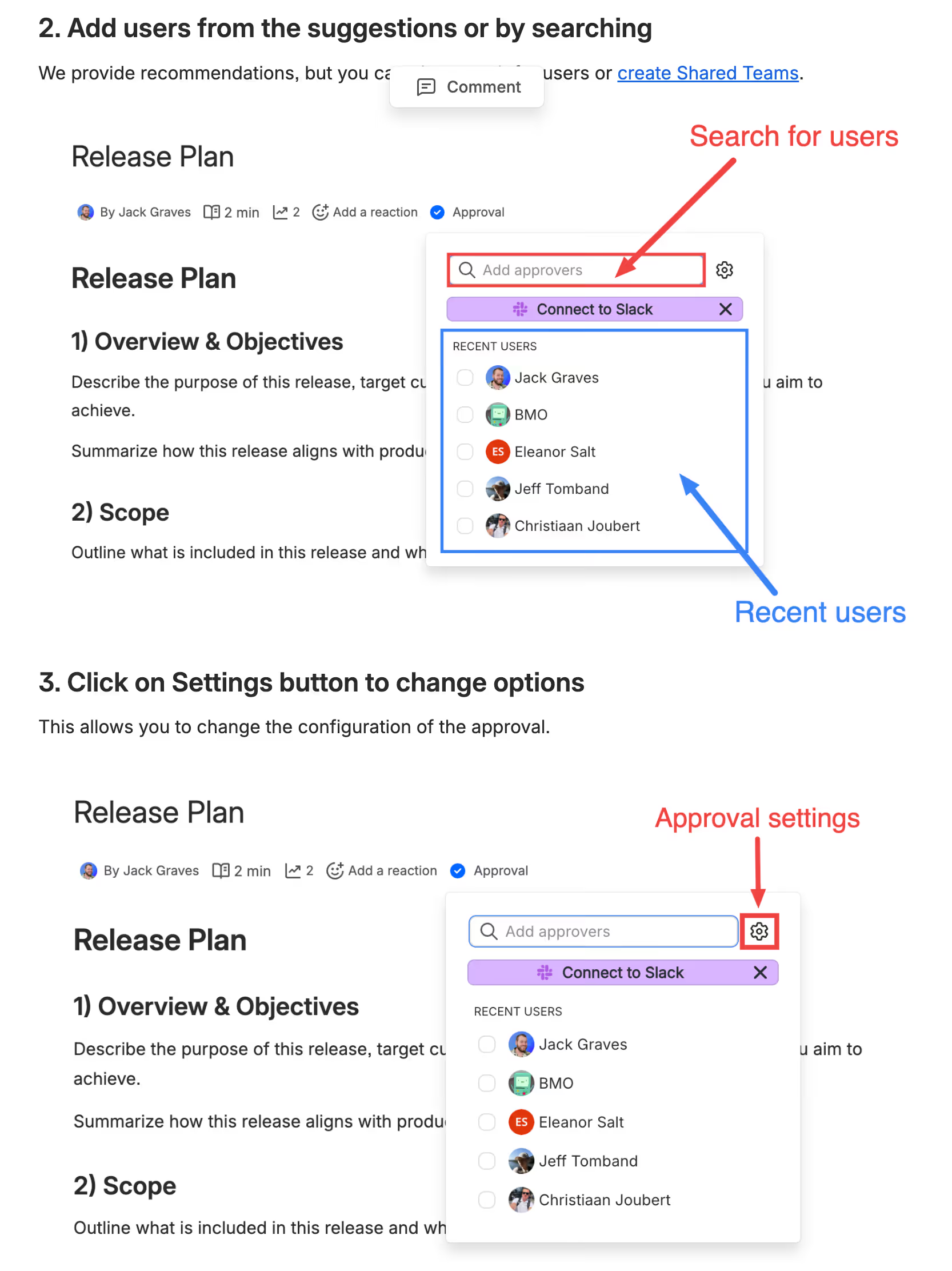
- Draw arrows to highlight key UI elements.
- Add boxes to focus attention on part of the screen.
- Insert text labels and notes directly onto screenshots.
- Crop images to zoom into what matters.
No export to another tool. No “final‑final‑v7.png” re‑uploads. Everything stays within Confluence and within your Capable Image Library.
Update once, reflect everywhere
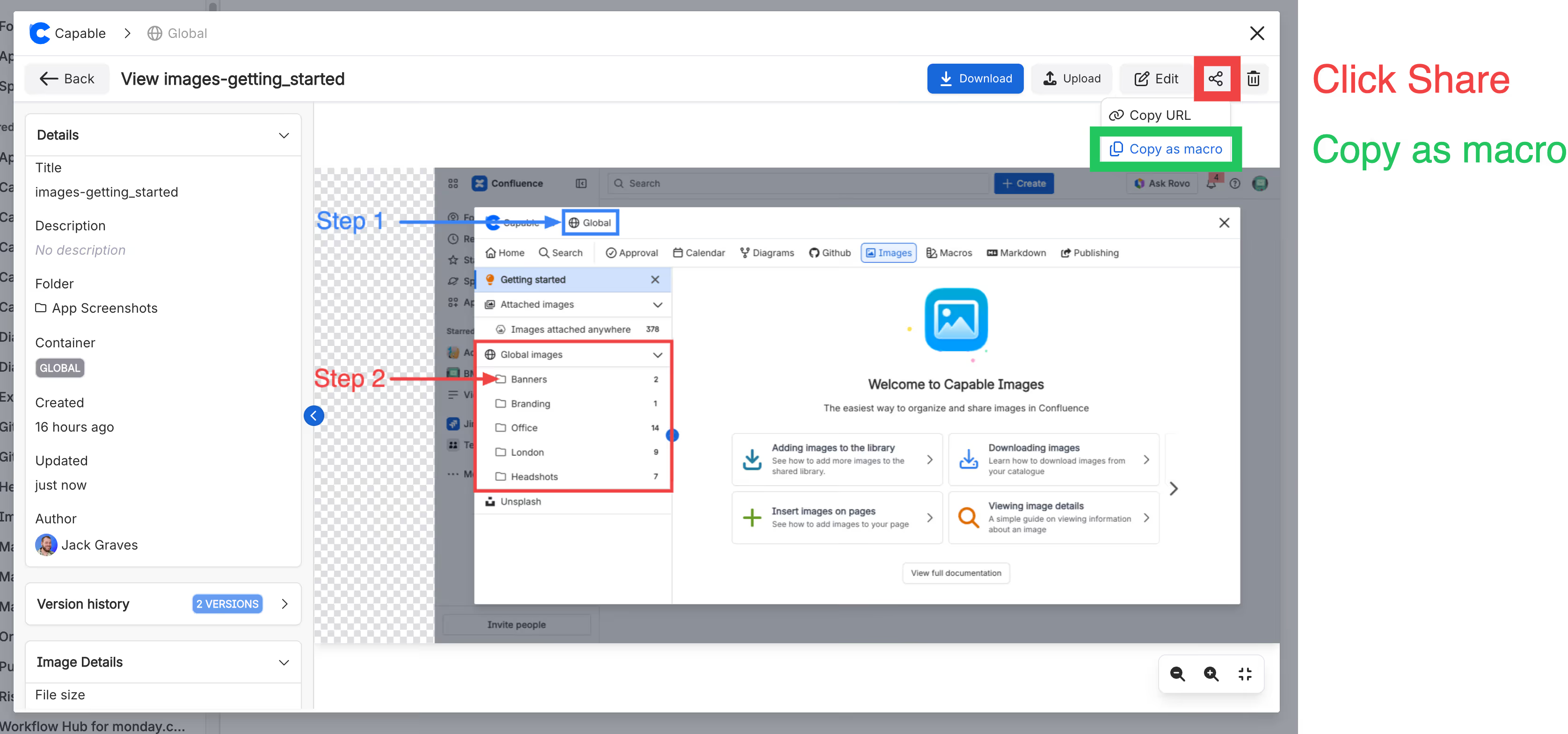
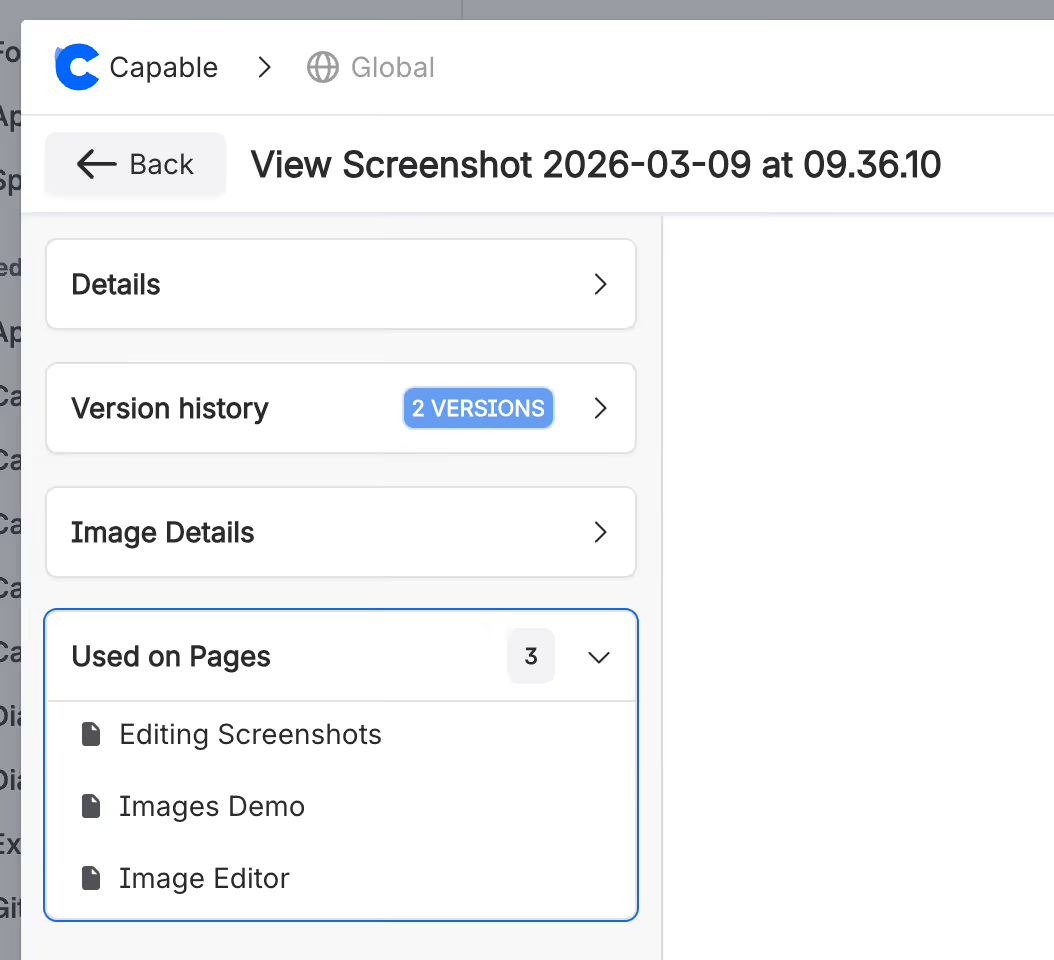
The cornerstone of Capable Image Library is the reference macro that lets you reuse the same asset across multiple pages while keeping it linked to a single source in the library.
When you:
- Save an image in Capable Image Library.
- Insert it into pages using the reference macro.
…those pages stay connected to that library asset. If you later update the image in the library — for example, to match a product UI change — every page that references that image is updated automatically.
This gives your team a true “single source of truth” for screenshots, diagrams, and other visuals, instead of a sprawl of slightly different copies.
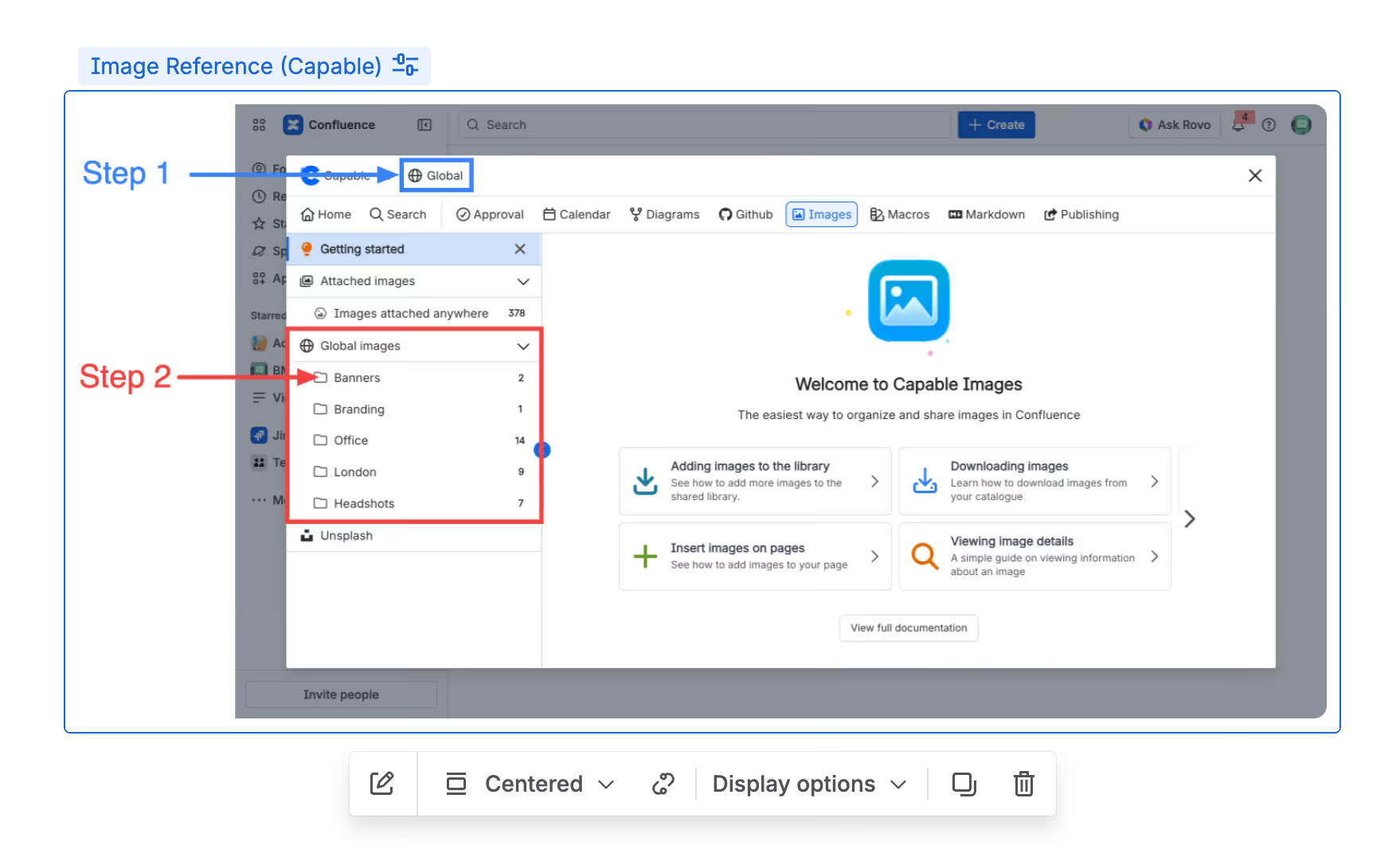
Snapshots vs linked images
With annotations, there are now two distinct ways to work with images — and they’re both useful in different scenarios.
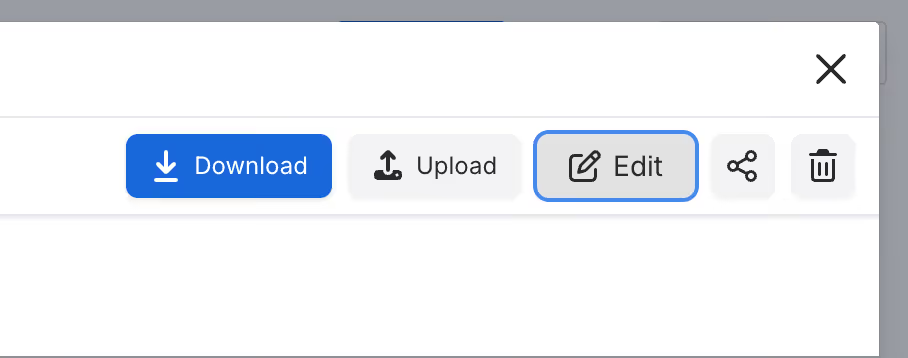
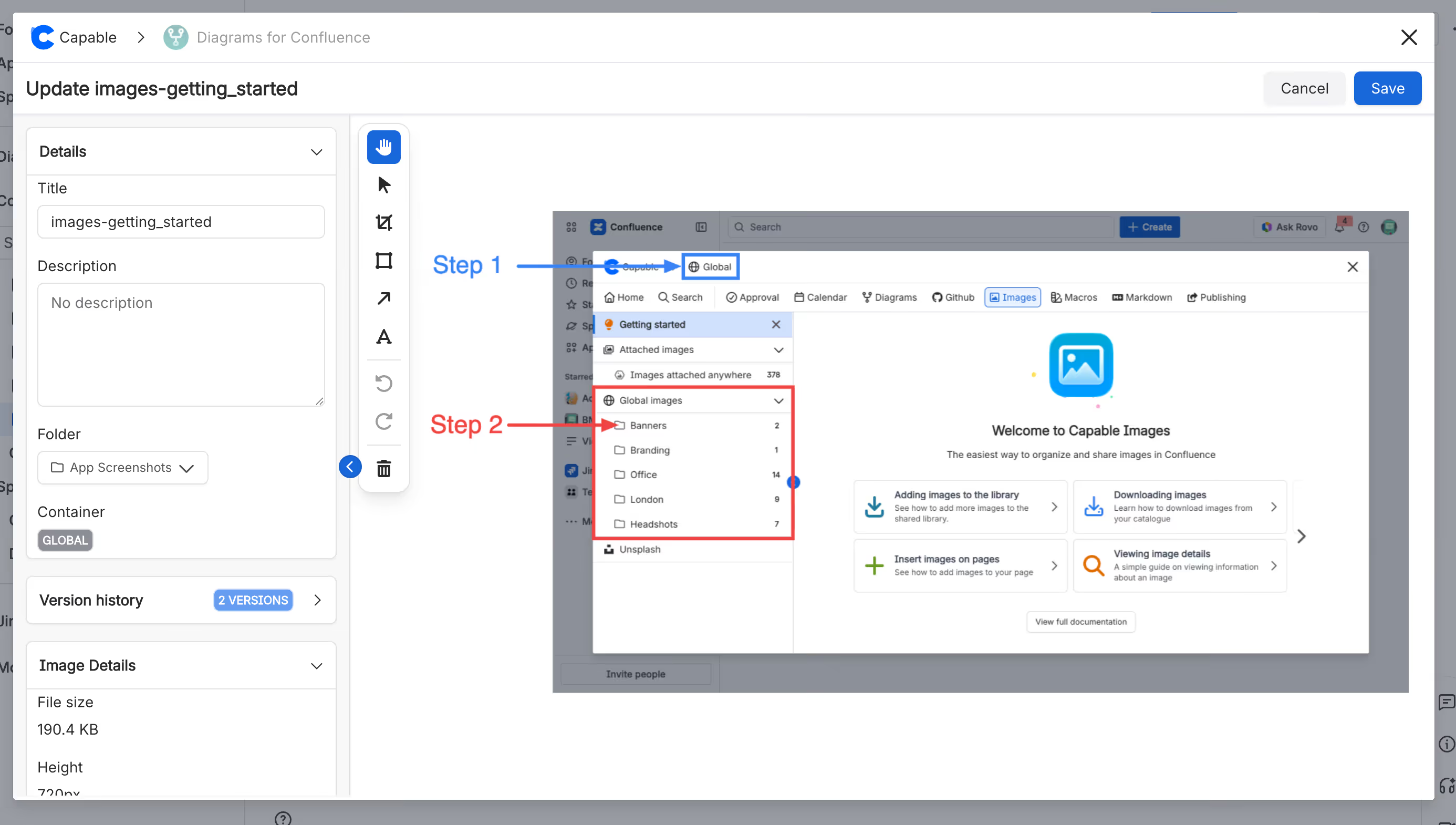
1. Annotating in the library (link and sync)
When you open an image in Capable Image Library itself and add annotations there, you are editing the source asset.
- Any page that uses this image via the reference macro will always show the latest annotated version.
- If you later change those annotations in the library (e.g., move an arrow, update a label), those changes propagate to all referencing pages.
Use this when you want a canonical annotated screenshot that should look the same across your docs.
2. Annotating on insertion (snapshot)
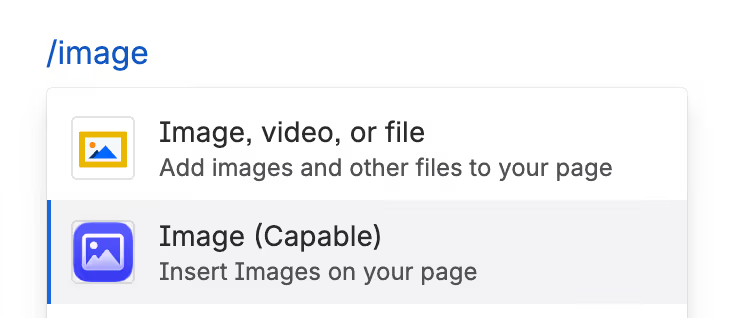
When you insert an image into a page and annotate it at insertion time, you’re working with a snapshot.
- The image on that page takes a snapshot of the asset at the moment you annotate and save.
- Future changes to the image in the library will not overwrite that specific on‑page annotated version.
This is perfect when you want a page‑specific variation — for example, a training guide that calls out slightly different areas of the same UI, or a one‑off internal doc that needs custom highlighting.
You can think of it like this:
- Library annotations = shared, always in sync.
- On‑page annotations = local snapshot, frozen in time.
Ideal for guides and walkthroughs
Technical writers rarely use a screenshot once. The same view often appears across:
- Onboarding and “Getting Started” guides.
- Detailed admin how‑tos.
- Release notes and changelogs.
With the new behavior:
- Keep a single base screenshot in Capable Image Library.
- Reuse it across multiple pages via the reference macro.
- On one page, annotate in the library for a shared, canonical explanation.
- On another, annotate on insertion to create a snapshot with step‑specific callouts.
If the UI changes, you can update the base screenshot in the library once, and your linked usages stay current while snapshots preserve exactly what they looked like at the time you wrote the doc.marketplace.
End‑to‑end workflow
Here’s how the full flow looks when you adopt Capable Image Library for screenshots and image knowledge.
Step 1 - Centralize your assets
Upload your existing screenshots, brand images, and visuals into Capable Image Library, and group them into folders that match how your team works: “Product UI”, “Brand”, “Marketing”, “Support”, etc.

Step 2 - Insert via the macro
From a Confluence page, open the Capable Image Library picker, search/browse, and choose Insert as reference. This ensures the page always points back to the library asset.
Step 3 - Choose how to annotate
Decide whether this should be a shared or page‑specific view:
- Shared: Open and annotate the image in the library so all referencing pages benefit from the same annotations.
- Page‑specific: Annotate the image as you insert it on this page to create a snapshot tailored to that piece of content.
Step 4 - Keep everything in sync
When the product UI changes, or a process is updated:
- Open the relevant image(s) in Capable Image Library.
- Replace or update the base screenshot.
- Save once and let the reference macro propagate that change everywhere the image is linked.
Linked pages update automatically; snapshot pages remain as‑was, preserving historical context when needed.
Why Capable Image Library?
Most teams today juggle some combination of Confluence attachments, shared drives, design tools, and ad‑hoc screenshot editors just to keep documentation visuals usable.
Capable Image Library brings that entire workflow into a single Confluence‑native app:
- Centralized storage for screenshots and brand assets.
- Folder organization and search so you can actually find things.
- Reference macro to reuse images and update them once across many pages.
- Unsplash integration for instant access to millions of stock images.
- Built‑in annotations and cropping for both shared and page‑specific views.
For technical writers and knowledge teams, that means less time wrestling images and more time writing accurate, maintainable content.
Try it in your Confluence space
Image Library for Confluence is available now on the Atlassian Marketplace, with more details and install instructions on the listing and the Capable website. Existing customers get the new annotation and cropping capabilities as part of the latest release.
If you’re ready to stop hunting for screenshots and start treating images as first‑class knowledge in your Confluence base, this release gives you everything you need - in a single app.
.avif)





%20(800%20x%20200%20px).avif)
