


Keep Every Deadline in View: Embedding Project Calendars in Confluence
March 18, 2026
Picture a sprint planning session where someone asks: "When is the Q2 release?" Three people open three different tabs. One checks Jira. One scrolls through Slack. One opens a Confluence page that hasn't been updated in six weeks. Nobody gives a confident answer within the first thirty seconds.
This is the calendar problem in Confluence - not a shortage of dates, but a shortage of visibility. Dates are everywhere and nowhere at the same time. They're embedded in Jira tickets, buried in page properties, mentioned in comment threads, and occasionally written into a Confluence page that becomes stale almost as soon as it's published. The result is a team that has all the information but still can't see it clearly.
Capable Calendar for Confluence solves this by putting a shared, always-current calendar directly inside Confluence - and letting you embed it on any page your team already uses. Here's how to make it work for your projects.
Create a Space-Scoped Calendar for Your Project
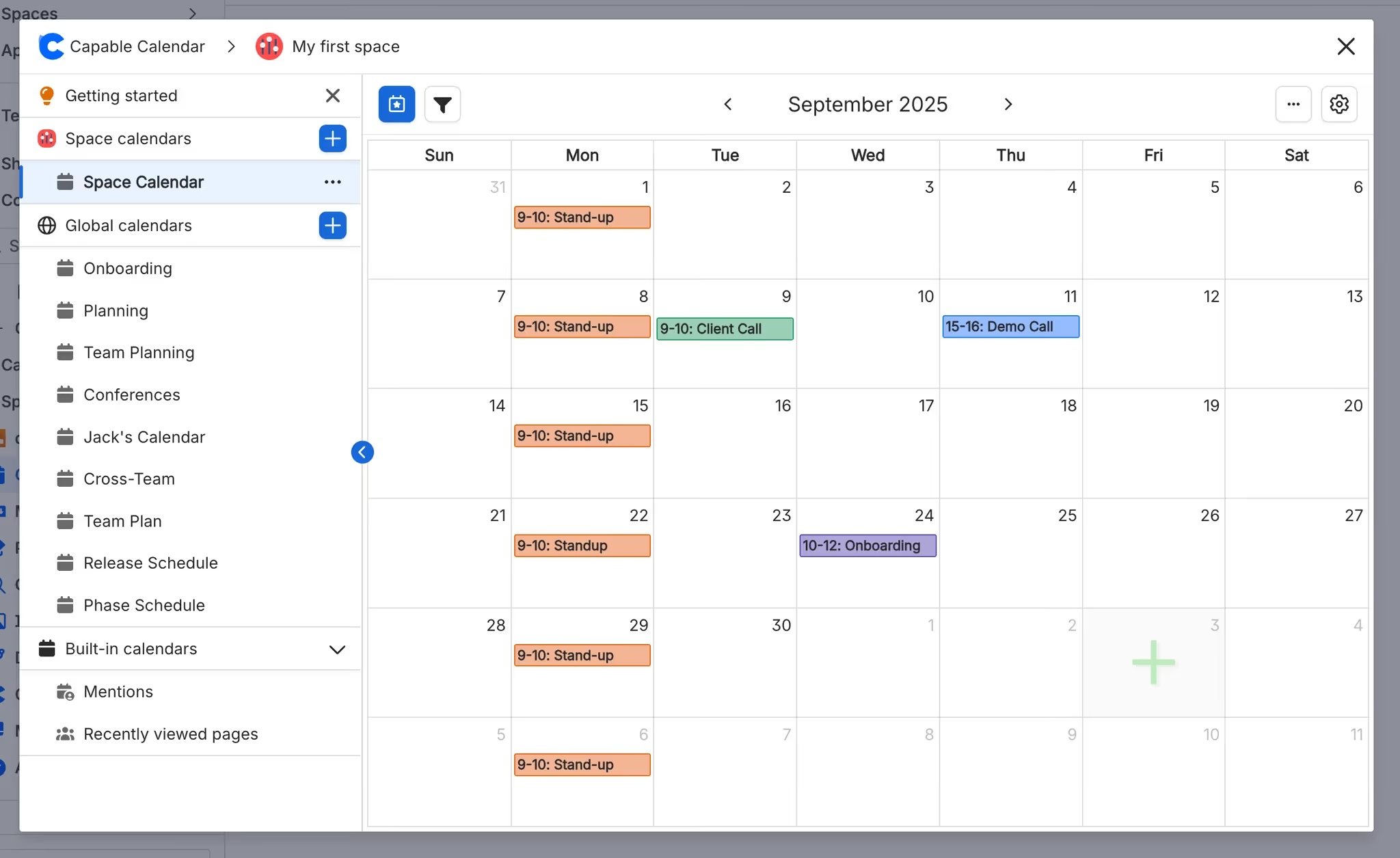
The first step is creating a calendar that lives where your project lives. Capable Calendar supports two scope levels: Global (available across your entire Confluence instance) and Space (visible to members of a specific space). For project work, a space-scoped calendar is almost always the right choice. It keeps your release dates, sprint milestones, and team meetings contained within the context of the project itself - no noise from other teams, no accidental edits from outside the space.
Setting up a space calendar is straightforward: navigate to the Capable Calendar section of your space, create a new calendar, and choose Space as the scope. You can give it a name that makes its purpose immediately obvious - "Q2 Release Schedule" or "Platform Team Calendar" - so anyone landing on the space understands its role at a glance.
Once the calendar exists, you can start adding events by clicking directly on any date or dragging across a date range to create multi-day events. Each event supports a rich set of details: name, description, priority level, start and end times, timezone (critical for distributed teams), and attendees. This isn't a stripped-down reminder tool - it's a proper scheduling layer with the metadata your team actually needs to act on what they see.
Use Color-Coding and Tags to Bring Structure to Your Timeline
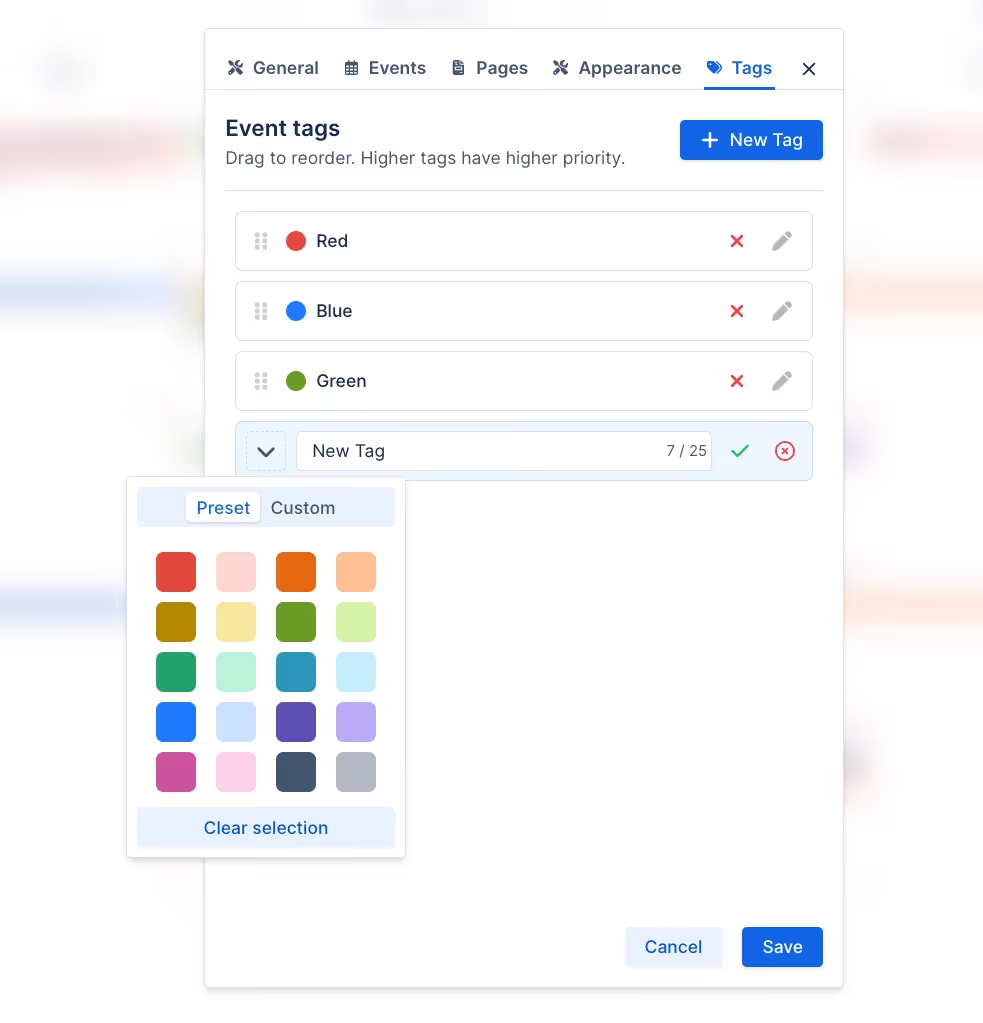
A calendar full of events in the same colour is just a list with a grid. Color-coding your events is one of the quickest ways to make a project calendar genuinely readable at a glance.
A practical approach for software teams: use one colour for release milestones (so they're instantly visible from across the room), a second for internal review deadlines, and a third for planned ceremonies like retrospectives or planning sessions. Within seconds of opening the calendar, anyone on the team can identify what type of commitment is coming up and when.
Tags add another dimension. If your team manages multiple work streams - say, frontend, backend, and infrastructure - tagging events by stream lets people filter to what's relevant to them without losing sight of the full project picture. A frontend developer can see their own deadlines in focus while still being aware that the infrastructure team has a freeze next Tuesday.
Embed the Calendar Directly on Your Project Hub Page
This is where Capable Calendar earns its place in your documentation workflow. Rather than requiring team members to navigate to a separate calendar view, you can use the Calendar macro to embed a live, interactive version of your calendar directly inside any Confluence page.
For most teams, the natural place for this is the project hub - the top-level Confluence page that serves as the starting point for anyone working on or reviewing a project. Embedding the calendar there means that the same page where someone reads the project brief, finds the architecture decision log, or checks the team roster also shows them exactly what's coming up this week, this month, and this quarter. No context switching required.
The embedded calendar isn't a static snapshot - it updates in real time. When someone adds a new milestone or updates a date, the change appears on the hub page immediately. There's no "don't forget to update the calendar page" step in your process because the calendar is the page.
For important individual dates - a go-live deadline, a client presentation, a hard regulatory cutoff - the Event macro lets you surface a specific event inline within the body of any Confluence page. You can embed a key date directly beneath the section of a document that it relates to, giving readers the time context right where they need it rather than requiring them to cross-reference a separate calendar.

Practical Setup for Release Management
If your team manages product releases, here's a pattern that works well in practice. Create a space-scoped calendar named after your product or release stream. Add your key milestones: feature freeze, code freeze, QA handoff, staging deploy, production release. Assign each a distinct colour. Tag events by team (product, engineering, QA) so people can filter by their own responsibilities.
Then embed this calendar on your release notes page, your sprint planning page, and your team home page. Suddenly, every person who opens any of those pages - whether they're a project manager reviewing scope, a developer checking the freeze date, or a stakeholder asking about timelines - sees the same authoritative, current picture of what's happening and when.
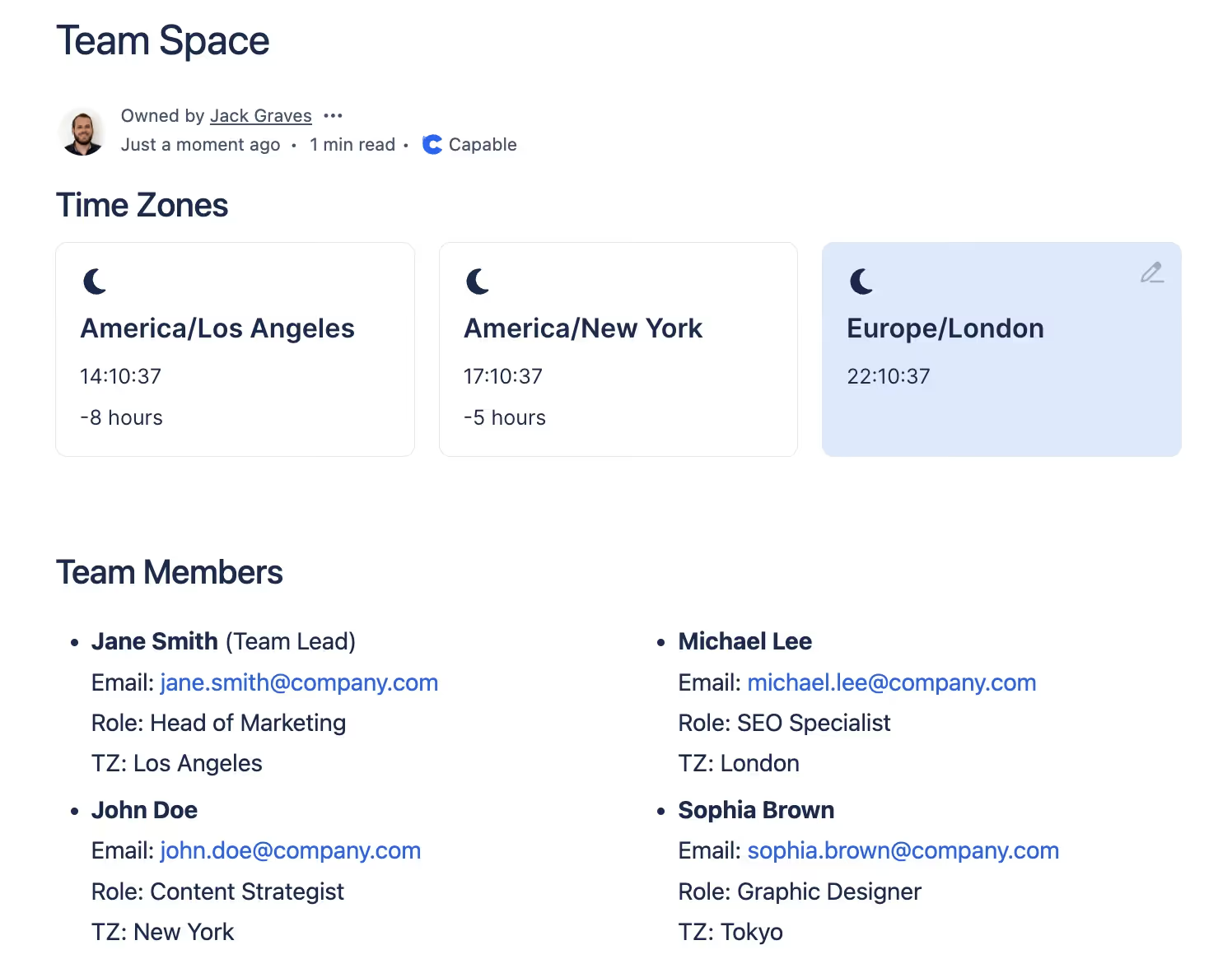
For distributed teams, use the Timezone macro alongside your embedded calendar to show a world clock. When your release is scheduled for 10 PM UTC, everyone on the page can immediately see what that means in their local time without breaking out a converter.
Your Actionable Starting Point
Pick your most active project space. Create a single space-scoped calendar in Capable Calendar, add the next three milestones that matter, apply colour-coding, and embed the Calendar macro on the project hub page. That's it - that's your starting point.
You don't need to migrate every date from every system on day one. Start with the three events that would cause the most confusion if missed, get the calendar embedded where your team already looks, and let the workflow build naturally from there. Within a sprint or two, you'll find that the calendar becomes the first place people check rather than the last.
Capable Calendar is part of the Capable suite of apps for Confluence. To explore the full range of features including view modes, event export, and search integration, visit the Capable Calendar Help Center.
.avif)






%20(800%20x%20200%20px).avif)