

Why Your Team Keeps Leaving Confluence Just to Add an Arrow to a Screenshot
March 5, 2026
Most teams have a version of this workflow. Someone takes a screenshot of an interface, opens a separate tool to draw a callout box or add a label, saves the image locally, and uploads it to a Confluence page. Two weeks later the UI changes. The whole process starts again - find the original file, open the annotation tool, redo the markup, re-upload. For a single screenshot it is manageable. Multiply that across every onboarding guide, every release note, every runbook, and every support article in a large Confluence instance, and the hidden cost of this back-and-forth becomes one of the most persistent drags on documentation quality in modern teams.
The frustrating part is that none of this friction is necessary. The annotations are not complex. The images do not require professional editing. What teams actually need is a way to mark up a screenshot, store it somewhere sensible, and trust that when the source image changes, the annotated version can be updated without starting over from scratch. That is precisely the problem Capable Images is designed to solve.
The Tool-Switching Tax
Every time someone leaves Confluence to annotate a screenshot, they are paying a small but real productivity tax. There is the context switch itself - opening a separate app, finding the right file, remembering which markup style the team uses for callouts versus warnings. There is the file management overhead - where does the annotated version live? Is it versioned? Can a colleague find it if the original author is on leave? And there is the consistency problem - different people reach for different tools, and the result is documentation where some screenshots have red circles, others have yellow highlights, and others have no annotations at all, leaving readers to guess what they are supposed to look at.
The deeper issue is that image assets in most Confluence instances are not managed at all. They are attached to specific pages, invisible to the rest of the team, and effectively lost the moment the page they live on becomes irrelevant. When a product is redesigned or a workflow changes, there is no central place to find and update the affected screenshots. Teams discover the problem only when someone reads an outdated guide and follows instructions that no longer match what they see on their screen.
Annotating Inside Confluence
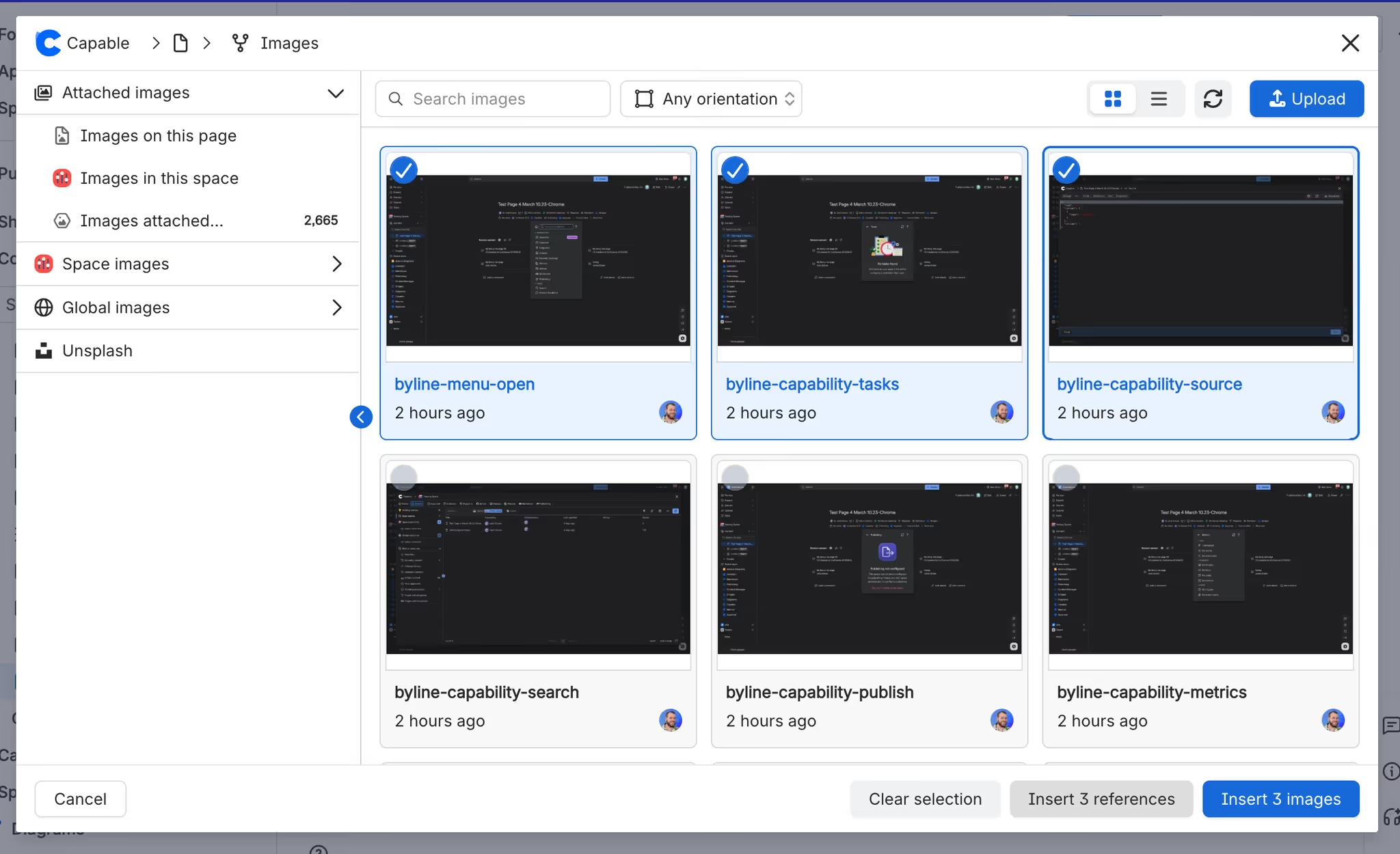
Capable Images changes the starting point. Rather than uploading images as dumb attachments, teams build a shared library - scoped to a space or available across the whole site - and manage their visual assets from there. Images can be uploaded in bulk, organized into folders like "UI Screenshots," "Onboarding," or "Release Notes," and given names and descriptions that make them discoverable through search. Any team member with the right permissions can find the asset they need, rather than hunting through page attachments or asking the person who originally uploaded it.
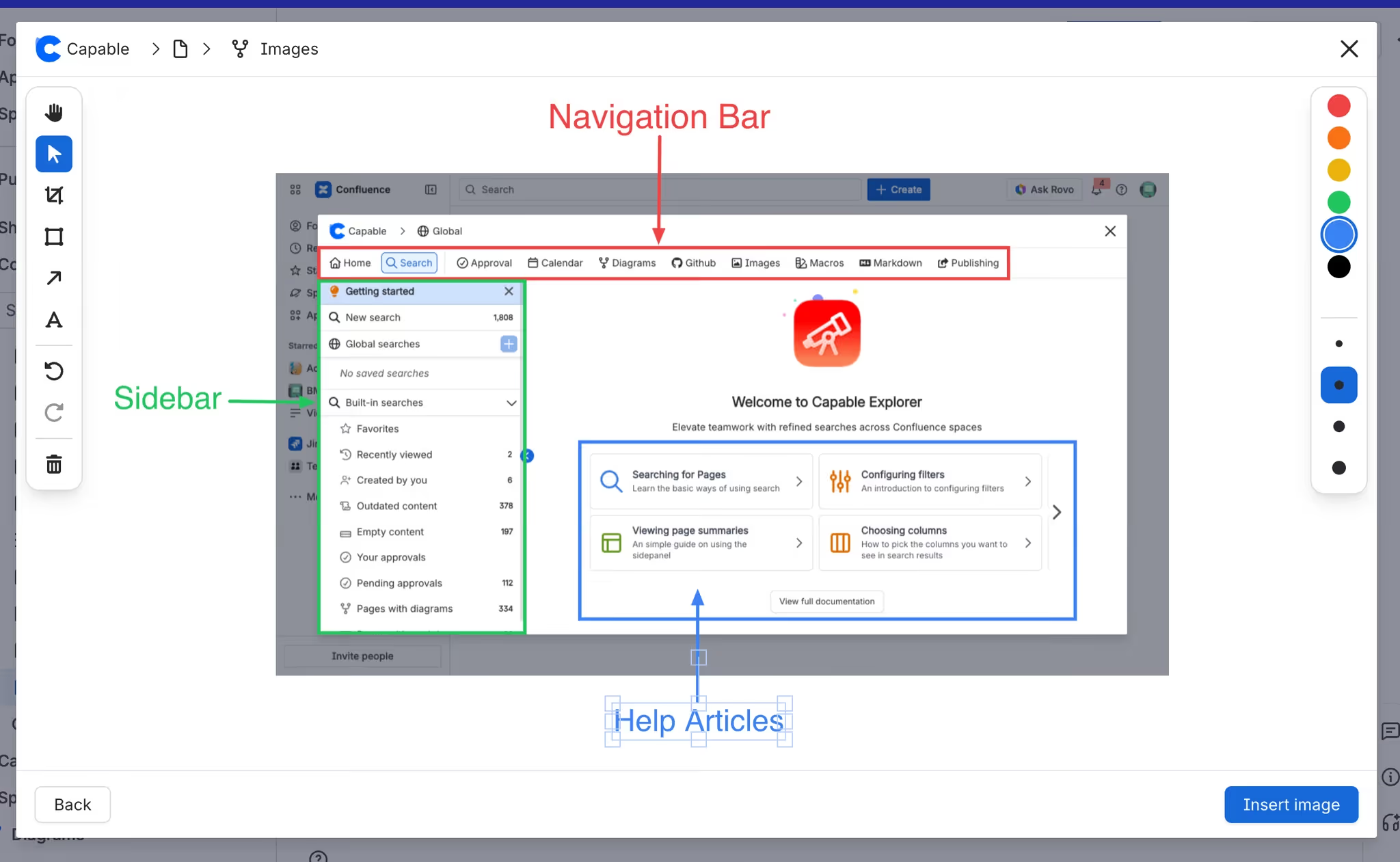
The annotation tools live inside this same environment. When inserting an image into a page or editing one already in the library, teams have access to a full markup toolset - arrows for directing attention, boxes for highlighting regions, text labels for explaining what the reader should do or notice. This means the first annotation happens inside Confluence, not in a third-party app, and subsequent edits happen there too.
There are two annotation approaches, and understanding the difference is what makes the workflow genuinely powerful. When a team annotates an image at the library level, those annotations become part of the stored asset. Any page that references that image using the reference macro - rather than embedding a static attachment - will automatically display the updated version whenever the library asset changes. This is the "update once, propagate everywhere" model, and it is what makes large documentation estates manageable. Updating a UI screenshot in the library pushes the change to every page that references it, without anyone needing to track down those pages manually.
The second approach is a snapshot annotation - applied at the point of insertion for a specific page. This creates a frozen version of the image with page-specific markup that will not be affected by future library updates. It is useful when a particular page needs a one-off callout that is not relevant elsewhere, or when a historical record of how something looked at a specific moment is important to preserve.
Keeping Documentation Honest Across Use Cases
The practical value of this model shows up most clearly in high-churn documentation. Release notes are a good example. Product teams updating a Confluence changelog each sprint typically include screenshots of new or changed features. With a managed library and reference macros, those screenshots can be swapped in the library when the feature ships to production, and every page referencing that asset reflects the update. The release note stays accurate without the author needing to return to it.
Onboarding guides benefit similarly. A new hire guide that walks someone through configuring a tool or navigating an internal system can easily become stale within months of being written. When the screenshots in that guide live in a shared library and are referenced rather than embedded, the person responsible for maintaining visual assets can update them in one pass - independent of the guide author. The guide itself does not need to be reopened or re-published. The images update, and the guide is current.
Incident runbooks present a similar case. When annotated screenshots mark the specific panels, fields, or alerts that responders need to check, those images need to be reliable under pressure. A screenshot that shows an outdated interface layout or refers to a deprecated field is worse than no screenshot at all. A library-based approach, where screenshots are owned and maintained centrally, keeps runbooks trustworthy without requiring constant editorial review.
A Practical First Step
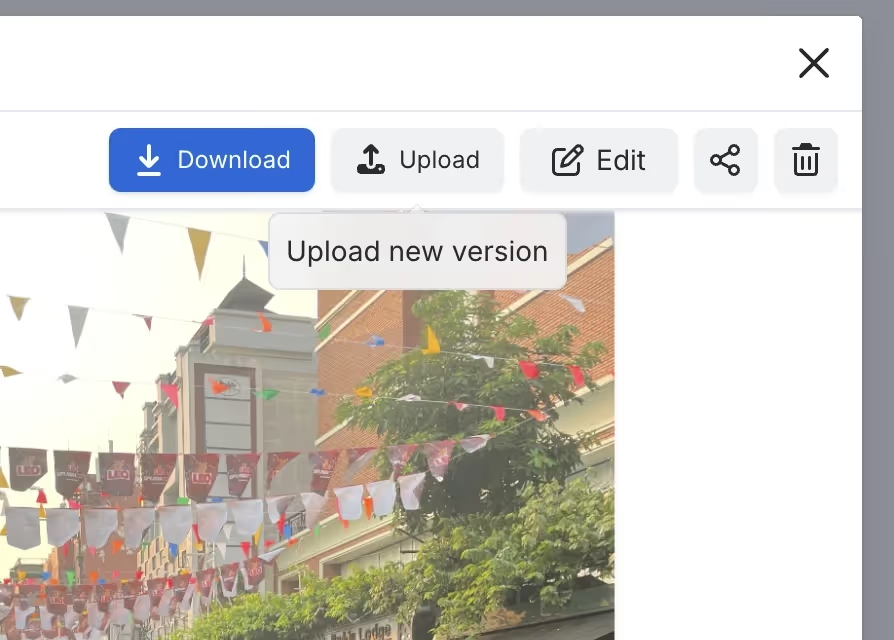
If your team is ready to reduce the annotation overhead in your documentation workflow, the most effective starting point is a single high-traffic space - the one with the most screenshots and the most frequent updates. Migrate those images into a Capable Images library, replace static attachments with reference macro insertions, and use the built-in annotation tools to add or refine any callouts that were previously added externally. The immediate payoff is that future updates to those screenshots happen once, in one place, without tracking down every page where the image appears.
Over time, the compounding benefit is a documentation estate where visual assets are owned, searchable, and maintained - rather than scattered across page attachments and nobody's mental model of where things live. Teams stop leaving Confluence to add an arrow to a screenshot because they never need to. To get started, visit gocapable.com or find Capable Images on the Atlassian Marketplace.
Capable Images is part of the Capable suite of apps for Confluence Cloud - helping teams plan, document, and collaborate without leaving the tools they already use.
.avif)






%20(800%20x%20200%20px).avif)