


New: Inline diagram comments in Confluence
October 26, 2026
Every diagram review in Confluence happens somewhere other than the diagram.
Someone screenshots the architecture, drops it into a chat thread and asks about “the box top-left.” Someone else replies by email with “see v3 attached.” A page comment at the bottom asks “which diagram?” because the page has four. By the time the change is agreed, nobody can say where it was agreed, and the next person to open the page has no idea the conversation ever happened.
Capable for Confluence now puts the conversation where it belongs: on the diagram itself.
What’s new
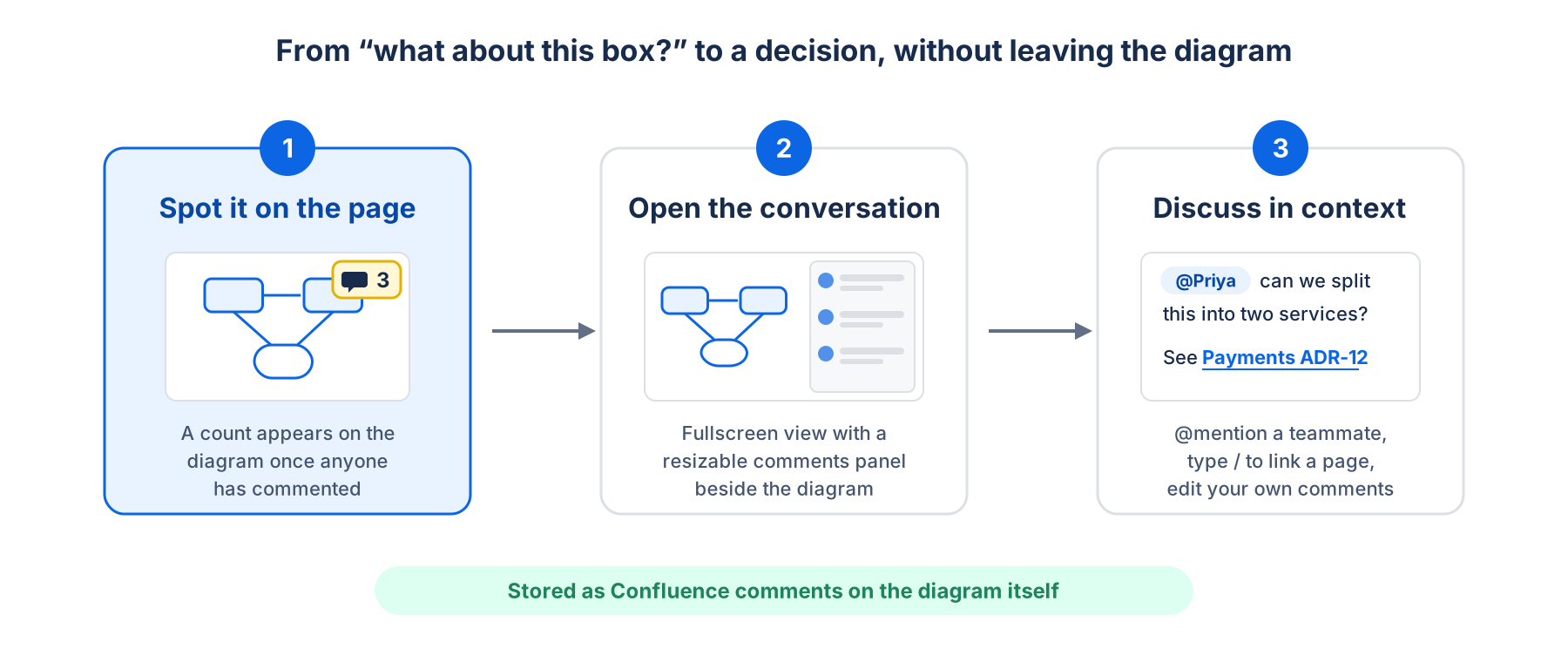
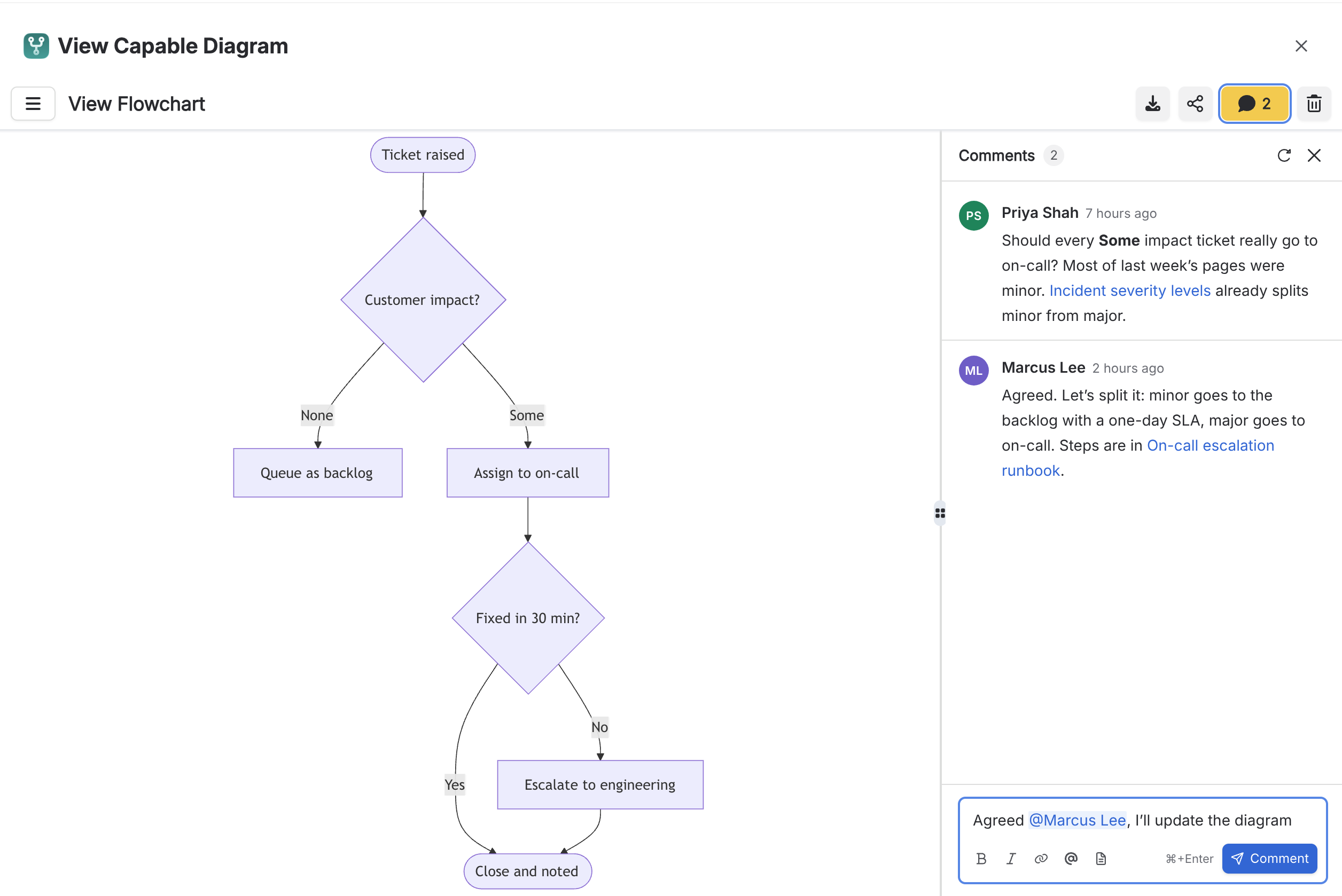
See that a conversation exists. Once a diagram has comments, a yellow comment count appears as the first button in the diagram’s toolbar on the page. Diagrams nobody has commented on stay clean, so the count is a signal, not decoration. Click it and the diagram opens fullscreen with the comments already showing.
Discuss beside the diagram, not under the page. In the fullscreen view, comments sit in a resizable side panel next to the drawing, so reviewers can read the question and look at the shape it is about at the same time. Newest comments arrive at the bottom, like any conversation, and you can search the thread by author or link.
Bring the right people and pages in. Type @ to mention a colleague, and Confluence notifies them as usual. Type / to link a Confluence page, such as the decision record or the runbook the diagram describes.
Write it properly. Comments support bold, italic, new paragraphs and links with your own label, and the box shows the formatting as you type. Send with Cmd+Enter (Ctrl+Enter on Windows), and edit your own comments later if you need to correct them.
One diagram, one conversation. A diagram shown on several pages through a reference keeps a single thread, wherever you open it. The same Comments button is there when you open a diagram from the Capable Diagrams catalogue or from a collection.
Built on Confluence, not bolted beside it
This is the part that matters to whoever signs off apps in your organisation. Diagram comments are not kept in a separate app database. They are stored as Confluence comments, attached to the diagram’s own content in Confluence.
- Confluence decides who sees them. Comments are read and written as the signed-in user, so Confluence enforces its own permissions. Someone who cannot see the diagram cannot read the conversation.
- Authorship is Confluence authorship. Names and times come from Confluence, not from the app, and mentions and page links are real Confluence mentions and links.
- Pickers respect access too. The @ and / searches run against Confluence as the person typing, so they only suggest people and pages that person can already see.
- No new data store to review. There is no extra place for comment content to live, which keeps the answer to “where does this data go?” the same as it is for the rest of your Confluence content.
- No new permissions to approve. Comments use the comment permissions the app already had, so there is no new scope for your admins to review.

Who can do what
Anyone who can view a diagram can read its comments. People who can edit the diagram can add comments, which keeps review threads to the people responsible for the drawing rather than opening a new channel to everyone with read access. Everyone else sees the conversation with a clear note that only people who can edit the diagram can comment. Only the author of a comment can edit it.
Where teams are using it first
- Architecture reviews. Questions about a specific service or flow stay attached to the diagram, not lost in a meeting chat.
- Process sign-off. Discuss the process map in comments, then request formal sign-off with Capable Approval on the page.
- Living runbooks and incident diagrams. Notes like “this step changed after the last incident” stay with the diagram the next on-call engineer will open.
Comments are not diagram versions: adding one never changes the drawing or its history. Pair comments with diagram version history and you can see both what changed and why it changed, in one place.
Getting started
There is nothing to configure. Open any saved diagram fullscreen with Maximize and select Comments, next to Download and Share. Diagram comments are available now in Capable for Confluence and in Capable Diagrams for Confluence.
See everything Capable Diagrams can do →
Read the Capable Diagrams docs →
Try Capable for Confluence free on the Atlassian Marketplace →
Atlassian and Confluence are trademarks of Atlassian Pty Ltd.
.avif)






%20(800%20x%20200%20px).avif)
