
Approval for Confluence
Ask people to approve a Confluence page, decide how many must agree, and keep a record of who approved which version. Edit the page and the approval starts again.
- Built on Forge
Works inside Cloud
Built on Atlassian Forge
Approvals are stored on your pages, in your Confluence site, under Confluence permissions.
Security and privacy
Capable is used by teams at







Live simulator
Try an approval
Send a sample page for approval, then answer as each reviewer. Watch the byline, the banner and the notification change.
People team Policies
Remote working policy
Who can work remotely
Anyone whose role allows it can work from home up to three days a week, agreed with their manager.
Equipment
We provide a laptop and a monitor. Claim other equipment through the expenses form.
Ask for approval
Respond as each reviewer:
- Ana RuizPending
- Ben OkaforPending
- Chen WeiPending
- Dara KellyPending
Latest notification
Nothing yet. Send a request and reviewers hear about it straight away.
What teams say
Excerpts from public reviews on the Atlassian Marketplace.
Slack Integration works pretty well and pings people really fast. Speeds up communication in our teams.
Sebastian GolzReview of Capable Approval for Confluence, Feb 2025 (opens in a new tab) approval and calendar features made confluence way more useful for coordinating our team
Evan CarlisleReview of Capable for Confluence, Jan 2025 (opens in a new tab)
What Approval does
Pick one to see it work.
Ask once, see who has answered
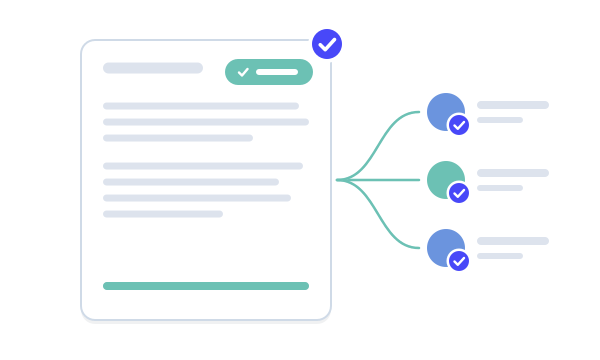
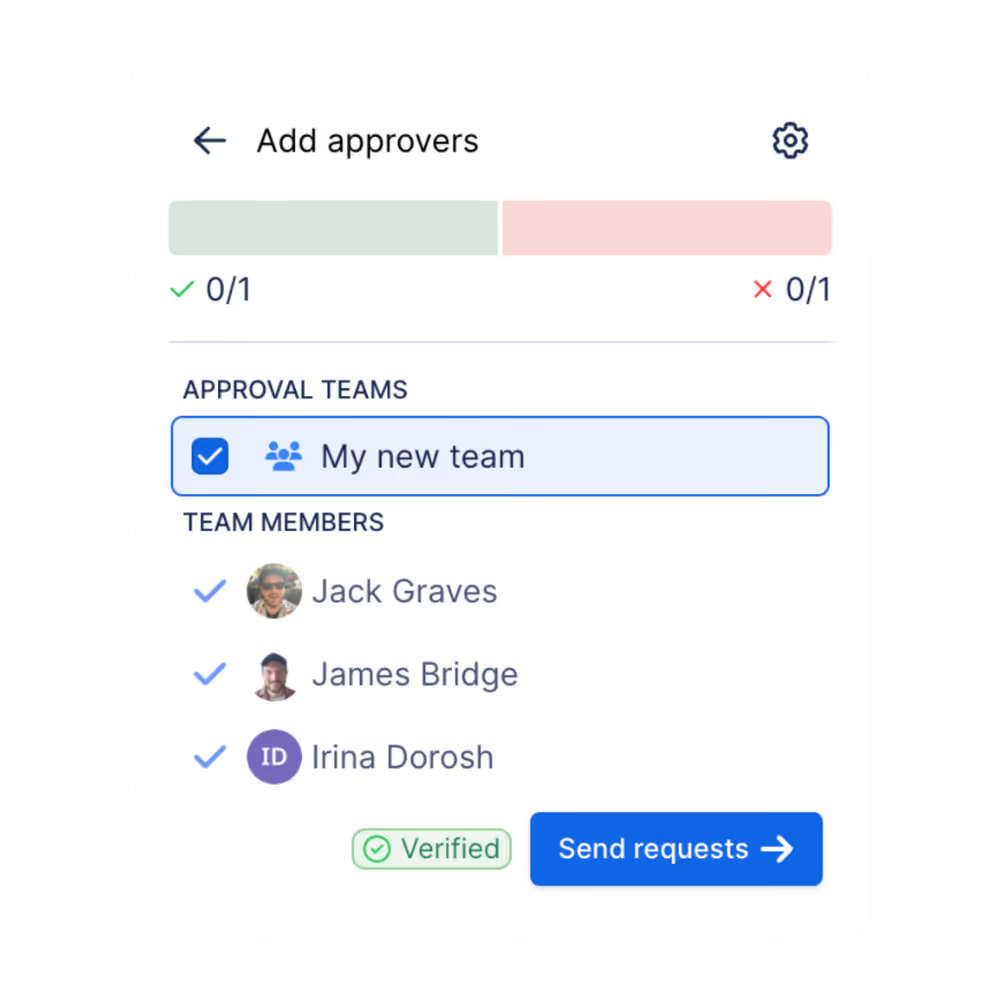
Pick reviewers one by one or as a team, then set how many must approve and how many rejections refuse the page. Notify a whole department and need only two of them.
- Minimum approvers and rejections
- Approve, reject or comment
- Dashboard of what waits on you
Requests where people already work
Reviewers hear about a request straight away by email, and in Slack once it is connected. An administrator can put Approve and Reject buttons on the Slack message, so answering takes one click.
- Direct messages and channel notifications
- Up to 50 watchers per space
Approvals that stay true
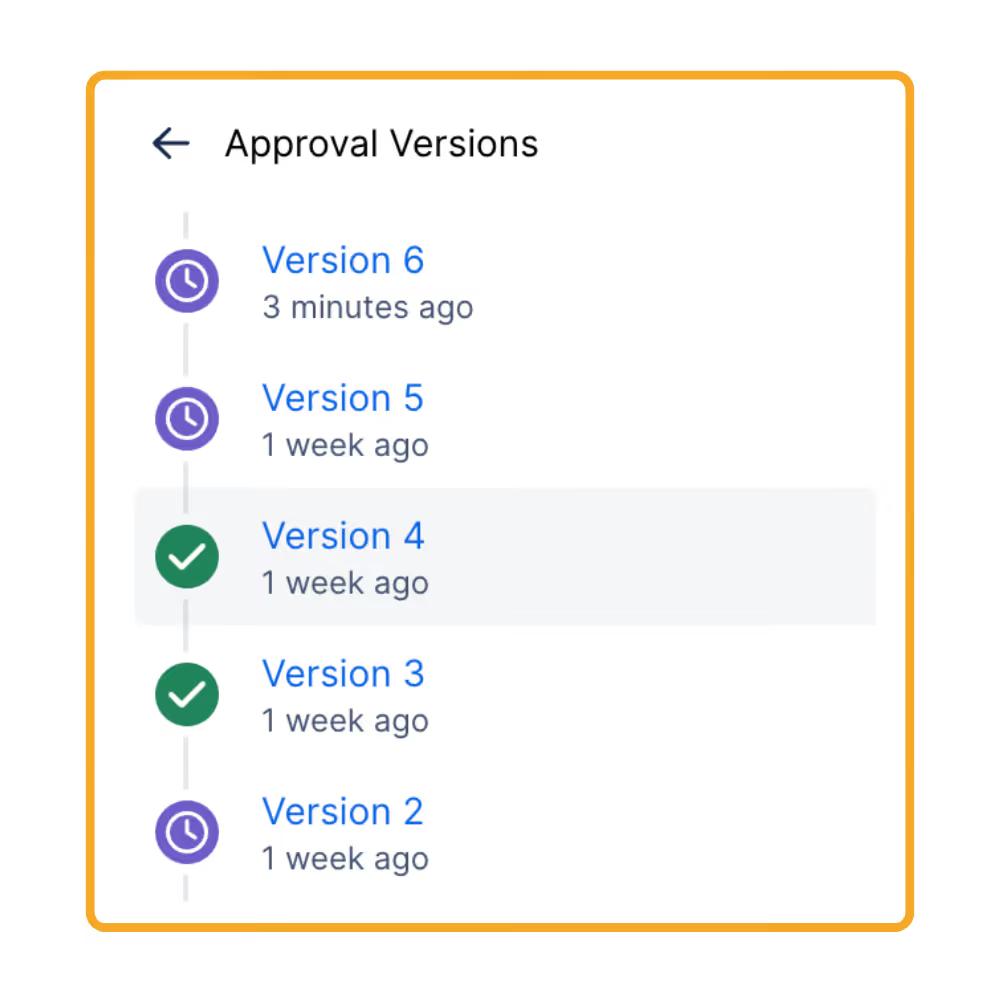
Edit an approved page and the review starts again on the new version. Set an expiry and approved pages come back for review on a schedule, with everyone told when they are due.
- 1, 3, 6 or 12 months, or an exact date
- Expiring approvals on the dashboard
A record you can show an auditor
The history keeps every request, answer, comment and expiry with who did it, when, and on which page version. Spaces can require a code from an authenticator app on every response.
- Append-only history
- Authenticator codes, no per-signature charge
- Export from search and reporting
The right reviewers, automatically
Save regular reviewers as a team, or point a team at a Confluence group. Spaces can raise an approval on every new or updated page, and route pages to teams by label.
- Global and space teams
- Approvals on page creation or update
Publish what was approved
Approval includes the full Publishing capability. Turn on publish on approval and the moment a page is approved, that exact version is copied to your published space.
- Fires on approval only
- Records who approved it
Requests reach reviewers where they work
Every request, answer and outcome goes out by email. Connect Slack or Microsoft Teams and reviewers hear there too.
- Email
Every step, by email
Reviewers hear about new requests, the requester hears when someone responds, and everyone hears when the page is approved, rejected or expires.
- Up to 50 watchers per space hear every outcome
- Slack
Approve from Slack
Connect Slack and requests arrive as direct messages or channel posts. An administrator can add Approve and Reject buttons, so answering takes one click.
- Direct messages and channel notifications
- Approve and Reject buttons
- Microsoft Teams
Approve from Microsoft Teams
Connect Microsoft Teams and requests arrive in a Teams chat with Approve and Reject buttons, so reviewers answer without leaving Teams.
- Requests in Teams chat
- Approve and Reject buttons


Coming from Comala or AppFox?
What moves across, what doesn’t, and what you pay. Approval data is state, not content, so the migration is careful on purpose.
From Approvals for Confluence (AppFox): page approvals convert. The migrator reads each page’s stored approval and recreates it in Capable with its status, approvers, history and expiry, leaving the page body untouched.
AppFox Approvals migrationAppFox section approvals and status macros, Comala Document Management and Page Approval (Appfire) are found and counted, so you can see how much you have, but not converted. They stay exactly as they are on the page.
Approval migratorsCapable Approval follows your Confluence user tier on the Marketplace. There is no charge per approval, per team, per approver or per signature.
Plans and pricingWorking to SOC 2, ISO 9001, ISO 27001 or 21 CFR Part 11? The compliance page sets out which requirements Approval covers, and which it doesn’t.
Compliance
Moving from
Tools and guides
- What can I migrate?Every app we migrate from, and which of its macros convert.
- Using the migration assistantRun a migration, check the report, and what to do with anything reported only.
- How much could I save?Compare what you pay for separate apps today with the suite.
App names are trade marks of their respective owners.
Sign-off that lives on the page
Most teams already have an approval process. It just lives in email threads, meeting notes and someone’s memory.
| Job | Today | With Approval |
|---|---|---|
| Chasing reviews | You ask four people to review a page. Three reply, one forgets, and nobody is sure who still owes an answer. | Ask everyone once, from the page. They hear by email and Slack, and the count under the page title shows who has answered.Source: Request an approval |
| Keeping sign-off true | The page is edited two weeks after sign-off, and nobody can say whether the version people read is the one anyone agreed to. | Every approval belongs to one page version. Publish a change and the review starts again, on the new version.Source: How approvals work |
| Proving it | An auditor asks who approved a policy, and the evidence is a screenshot and an email thread. | Every answer, comment and timestamp is kept against the version it was given for, and the history can be exported.Source: What is recorded |
Up and running in three steps
Step 1: Install
Install it from the Atlassian Marketplace. Installing starts a free trial with everything included, eSignatures and automation too.
Install Capable ApprovalStep 2: Set up a space
Optional, and worth it for a team: create reviewer teams, choose expiry and automation, and connect Slack.
Set up a space for approvalsStep 3: Ask for approval
Open Capable in the page byline, choose Approval, add reviewers and send. Track everything from the Approval dashboard.
Your first approval


Where teams use it
Teams
Also in the All-in-One
Get Approval with diagrams, calendars, search and publishing in one app and one licence. In the suite, approval status also shows up as columns and reports in Capable Search.




Docs and guides
Short, current pages from help.gocapable.com.
- Get startedInstall it, get a page approved, and know what it costs.help.gocapable.com/approval/get-started
- How approvals workWhat happens after you hit send, so nothing surprises you later.help.gocapable.com/approval/how-approvals-work
- The approval macroPut the approval inside the page itself, as a banner, a card, the history, or a place to respond.help.gocapable.com/approval/the-approval-macro
- ComplianceWhat Approval gives you toward SOC 2, ISO 9001, ISO 27001 and 21 CFR Part 11, and what it does not.help.gocapable.com/approval/compliance
Questions, answered from the docs
Each answer links to the page it comes from.
Does everyone I ask have to approve?
No. You set two numbers when you send a request: how many approvals you need, and how many rejections refuse the page. Neither is tied to the size of the list, so you can notify a whole department and need only two of them. One rejection refuses the page by default, and rejection wins a tie.
Source: How approvals work
What happens if someone edits an approved page?
The approval resets to In review on the new version, and everyone is asked again. An approval that survived an edit would be a signature on a document that has since changed. The old answers are kept in the history against the version they were given for.
Source: How approvals work
Who gets notified, and how?
Reviewers hear about new requests; the requester hears when someone responds; everyone hears when the page is approved, rejected or expires. Notifications go by email, and by Slack once it is connected. Space administrators can name up to 50 watchers who hear about every outcome in the space.
Source: Notifications
Can approvals expire?
Yes. Set an expiry of 1, 3, 6 or 12 months, a custom interval or an exact date, on one page, a team or a whole space. When it passes, every reviewer is reset to in review and everyone is notified. Expiry is checked once an hour.
Source: Expiry and re-approval
Can approvals count as signatures?
A space can require a six-digit code from an authenticator app on every approve, reject and comment, and the response is recorded as signed. It costs nothing extra. The compliance page is straight about the gaps, such as administrative changes not appearing in the approval history.
Source: Sign approvals with a code
Can an approved page be published automatically?
Yes. Approval includes the Publishing capability. With publish on approval switched on, the moment a page is approved its approved version is published to your target space, and the approvers are recorded. It fires on approval only, never on rejection or expiry.
Source: Publishing
How is it licensed?
Through the Atlassian Marketplace, following your Confluence user tier. Installing starts a free trial with everything available. Reviewers need a Confluence licence, as they do to read the page. If the licence lapses, approvals stop working but your records stay on your pages.
Source: Plans and pricing
Recognition

Try Approval free
Install it from the Atlassian Marketplace, or book a demo and we’ll show you round.