Confluence Page Approval: How to Request and Approve a Page
Confluence Cloud now has built-in page approvals on Premium and Enterprise. How to switch them on, request and give approval, and what to do on other plans.


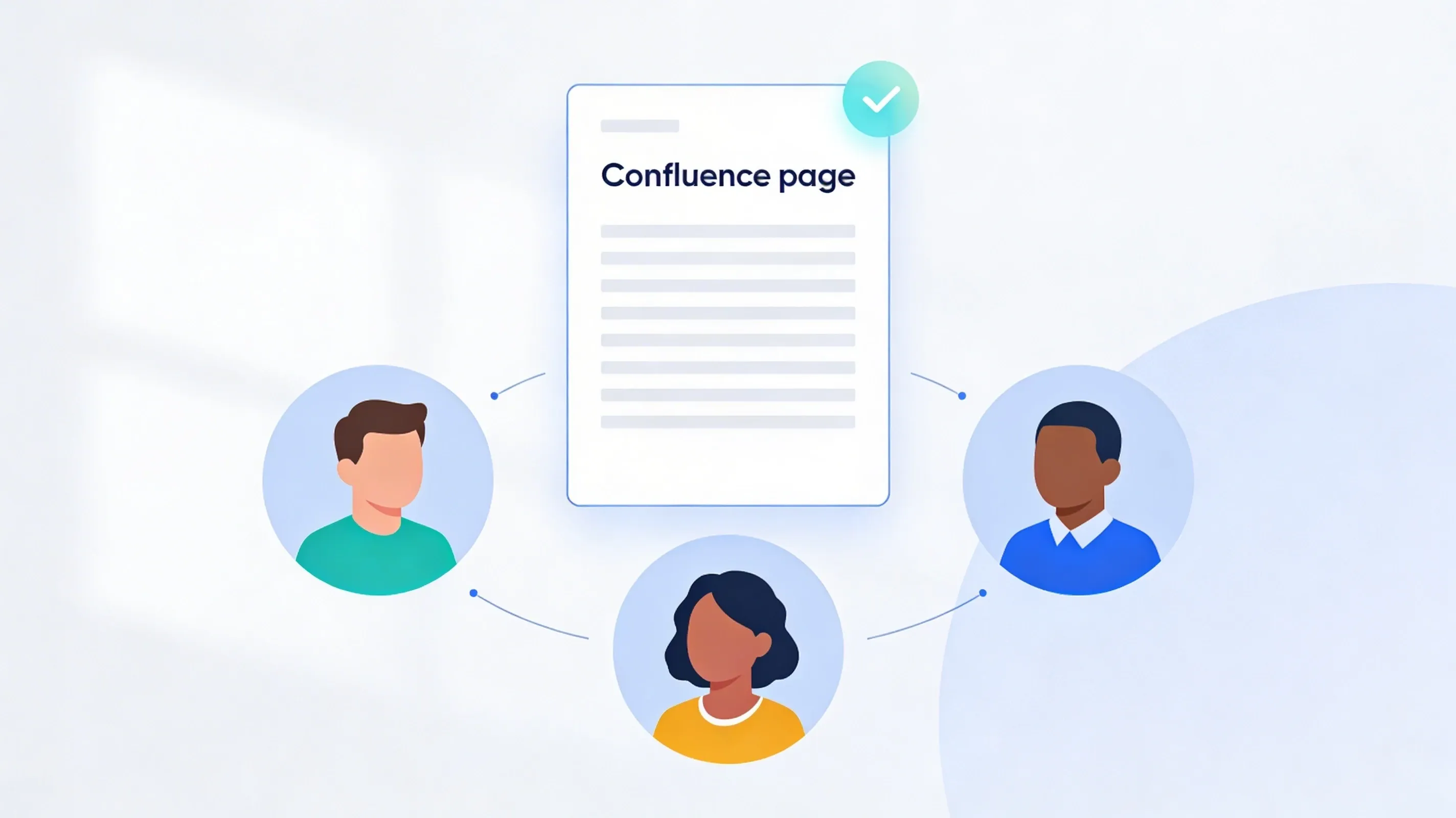
A policy, a press release or a design spec often needs a named person to say "yes, this is right" before it counts. For years Confluence had no answer beyond a status label and a comment thread. Confluence Cloud now has built-in page approval on its Premium and Enterprise plans, so on those plans you can ask for Confluence page approval and keep a record of who agreed.
This guide covers how to switch approvals on, how to request one, how to respond as a reviewer, what to use on Free and Standard plans, and where the built-in feature stops. The settings and the Start approval menu were checked on a Confluence Cloud site in October 2026. That site is on the Standard plan, where Start approval opens an upgrade prompt, so the steps after it come from Atlassian's documentation.
How Confluence page approval works
Atlassian's approvals documentation sets out the scope:
- Plans: Premium and Enterprise only.
- Content: pages only. Live docs and blog posts aren't supported yet.
- People: you need edit permission on a page to request an approval or respond to one.
- Status: the Confluence team's announcement described approvals as an open beta in July 2026 and was still calling it that when it was updated in October. Rollout is gradual, so the settings may not have reached your site yet.
An approval moves the page through statuses (In review, Changes requested, Approved), and the page keeps a history of every approval round.
How to turn on approvals
Two people have to switch it on, in this order.
- A product admin opens Confluence administration, goes to Configuration, then New features, and turns on Approvals.
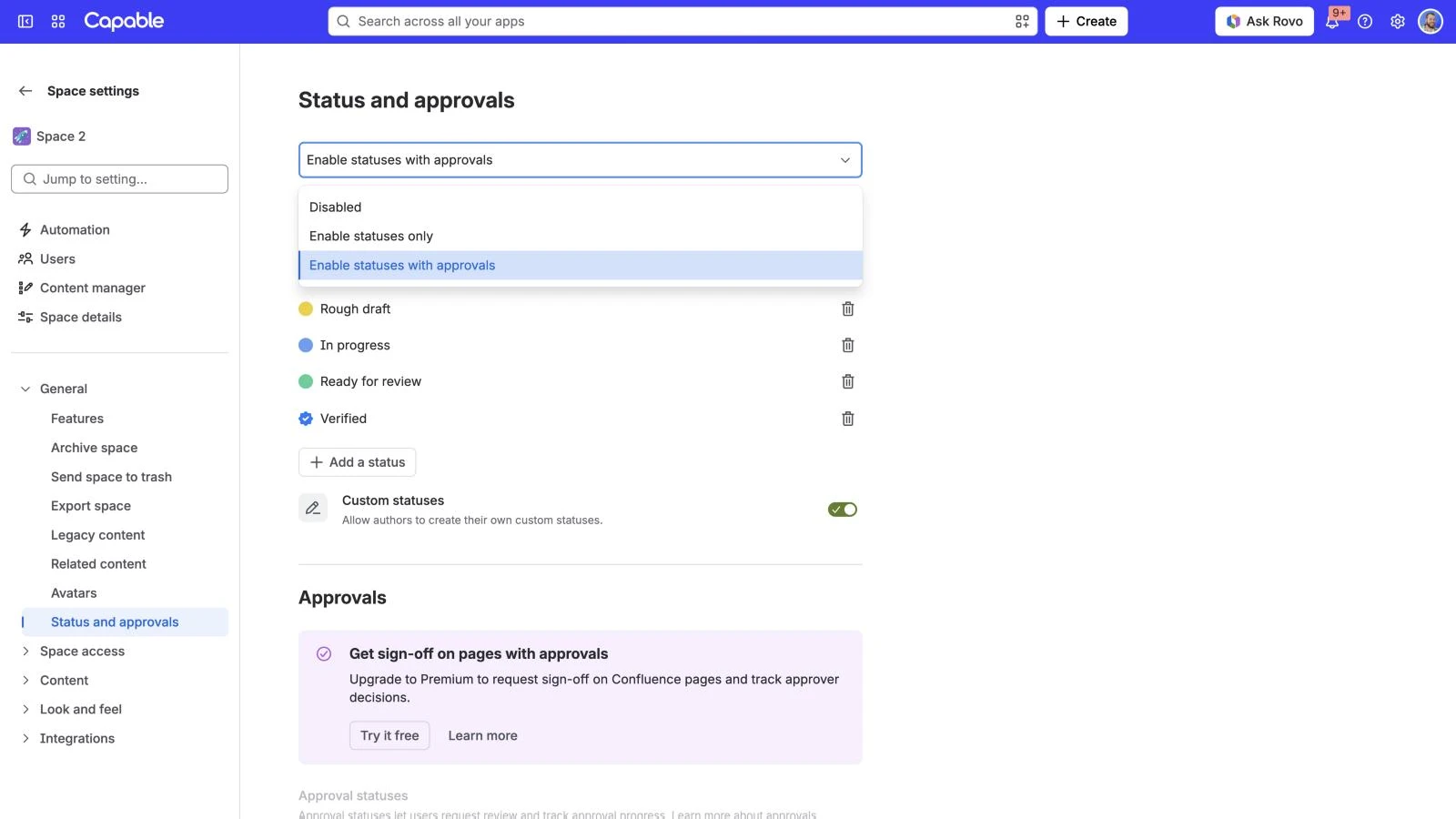
- A space admin opens Space settings, then Status and approvals, and sets the mode to Enable statuses with approvals. ("Enable statuses only" and "Disabled" hide the approval settings.)
- Optionally, in the same place, the space admin turns on Require approval before publishing ("Require new pages to be approved before they can be published"; it doesn't apply to live docs) and sets Required approvers (up to five people) to restrict who can approve in that space.
How to request approval on a Confluence page
- Open the page you want approved.
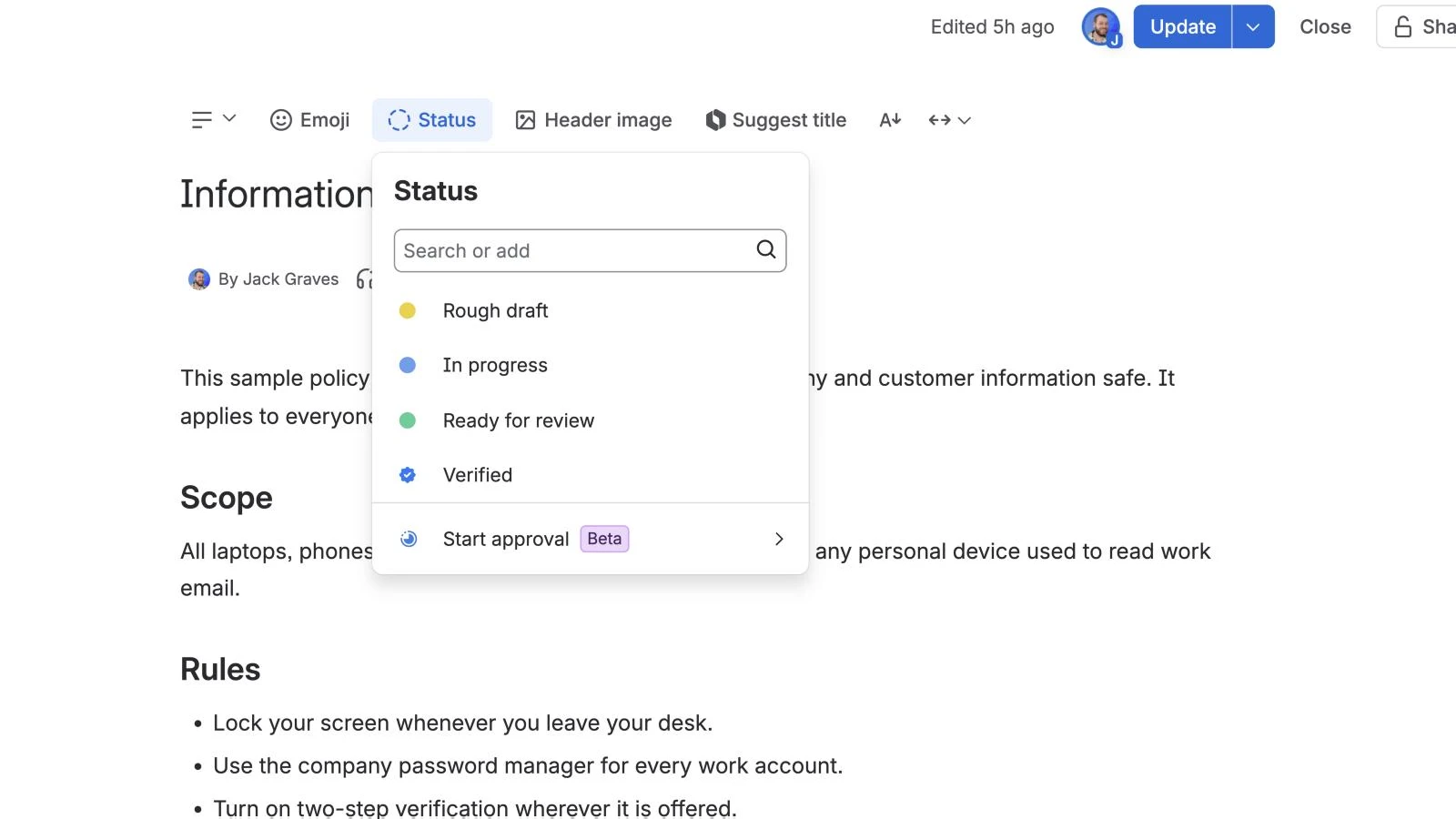
- Open the page's content status menu. In the editor, it's Status, above the title.
- Select Start approval (marked Beta), below the statuses.
- Add the approvers.
- Optionally, add a message and a due date.
- Select Start.
The approvers are notified, and the page shows the approval in progress. If the space requires approval before publishing, a draft in review stays locked until the approval ends or you cancel it.
How to approve a page in Confluence
- Open the page from the notification.
- Read it, then select Respond in the approval banner below the byline.
- Choose Approve or Request changes, and add a comment if you want to.
You can change your response until the approval is complete. Once everyone has approved, the page's status changes to Approved.
How to see who approved a Confluence page
The approval panel on the page shows who was asked, who has responded and who is still pending. The activity log keeps earlier approval rounds, with each decision, comment and timestamp, so you can show who signed off which round.
Page approval on the Free and Standard plans
Without Premium or Enterprise there's no built-in approval. Start approval still appears in the status menu on Standard, but selecting it opens an upgrade prompt instead of an approval.
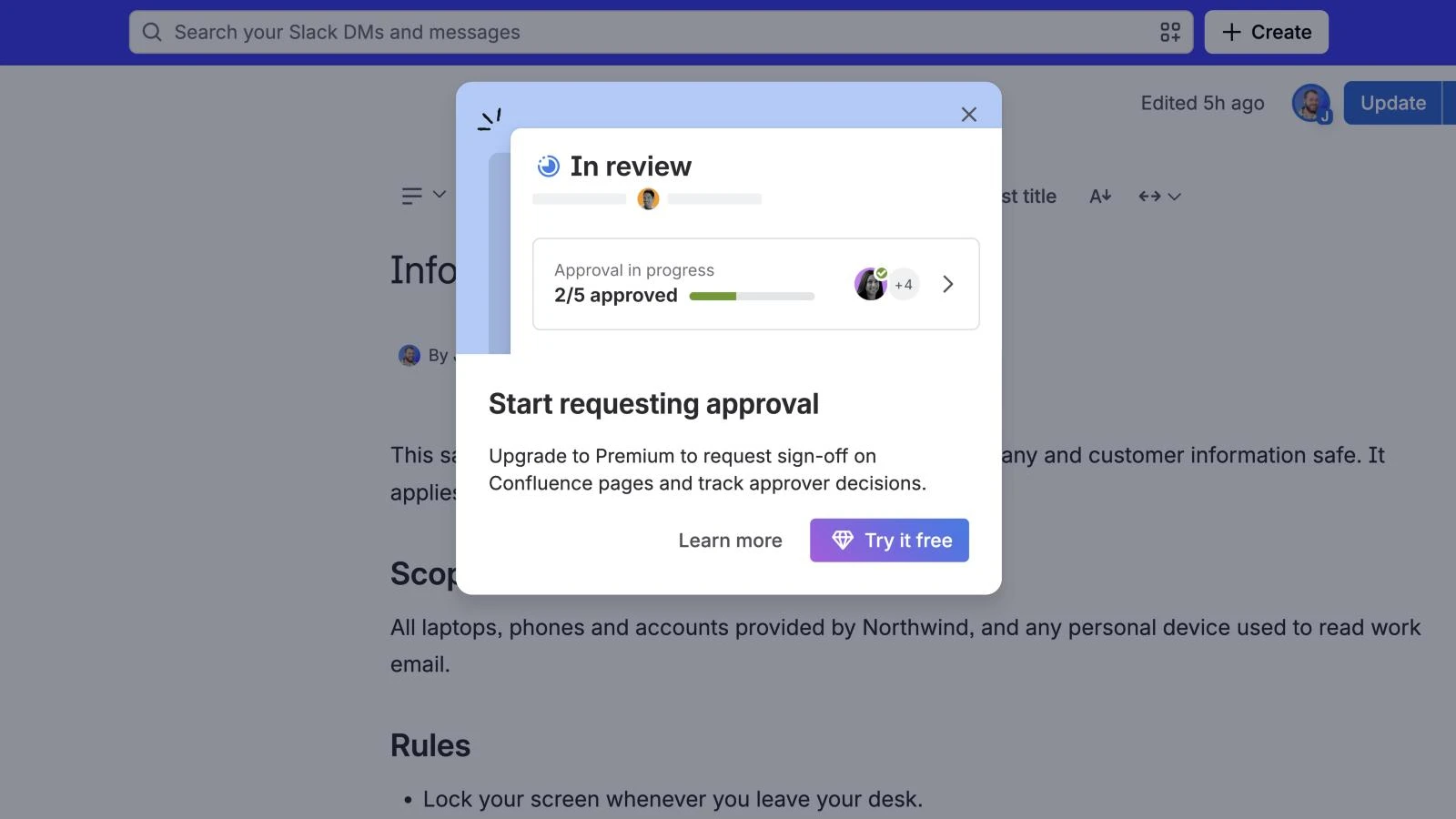
So on Free and Standard, teams piece an approval together:
- A content status. Statuses such as Rough draft, In progress and Ready for review are labels of up to 20 characters that anyone with edit permission can change (Atlassian's guide to statuses). They tell readers where a page stands. They don't record who agreed.
- A comment or an @mention. "Approved, Sam" in a comment is a record of sorts, but nothing ties it to the version Sam read.
- Page restrictions. Restricting who can edit keeps unapproved changes out. That controls access, not sign-off, and restrictions aren't on the Free plan.
- Jira approvals. Jira Service Management can add an approval step to a request. It approves the Jira work item, not the Confluence page.
If your team already argues about which version was signed off, our post on the Confluence document approval process covers designing one that holds up.
Where the native way runs out
Built-in approvals are a real step forward, and for a Premium team approving the odd page they may be all you need. The limits show up as approval becomes routine:
- Premium and Enterprise only, still in beta. Standard customers have asked for it; Atlassian staff said they had passed the request on, with no commitment.
- Pages only. Live docs and blog posts can't be approved yet.
- Reviewers are picked by hand each time. A space can force a fixed set of required approvers, but Atlassian staff say rule-based assignment "isn't there yet".
- One version at a time. Staff confirm you can't hold several versions from publishing; a draft in review is locked until the review ends.
- No automation trigger. You can't start an automation rule when a page is approved. The request, CONFCLOUD-85157, was opened in September 2026.
- Not documented: approvals that expire after a set time, or "any two of these four" rules. Atlassian's documentation doesn't describe either.
The shorter way: approvals on any page with Capable Approval
Capable Approval adds sign-off to Confluence pages as a Marketplace app. Its documentation describes a request as "four clicks and about thirty seconds":
- Click Approval under the page title (with Capable for Confluence, it's under Capable).
- Choose the approvers (type a name or tick a recent user).
- Optionally, open the settings cog.
- Select Send requests.
What it adds on top of the basics:
- Decide how many must agree. Set a minimum number of approvals, and how many rejections refuse the page (one, by default), independent of how many people you ask.
- Teams instead of names. Save a reviewer list as a team, or point a team at a Confluence group, and request the team.
- Approvals that expire. Make an approval lapse after 1, 3, 6 or 12 months or on a set date, so policies come back for review on time. Editing the page restarts the review on the new version.
- An approval macro. Type
/approvalto show the approval on the page itself, as a status strip, a full card, the history or a place to respond. - Notifications where reviewers are. Email, plus Slack or Microsoft Teams if connected, and an inbox of everything waiting for you.
- A record that can't be edited. Approval history is append-only, with optional signing using an authenticator code.
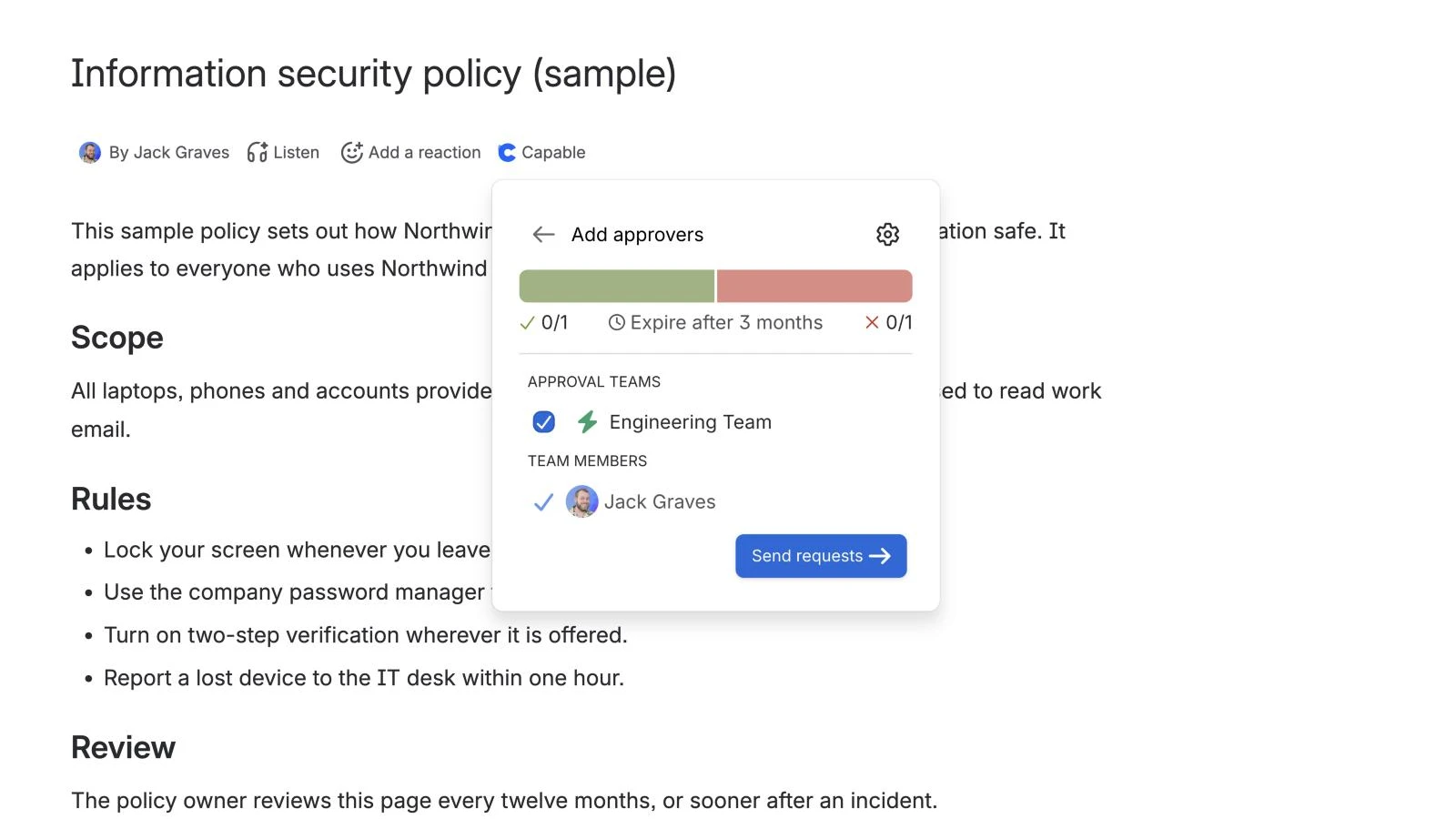
Licensing follows your Confluence user tier, with no charge per approval or per approver. Request an approval in the docs walks through the first one.
Try Capable Approval free on the Atlassian Marketplace
See everything Capable Approval does
Frequently asked questions
Does Confluence have built-in page approval?
Yes, on Premium and Enterprise plans. Atlassian calls it Approvals, it works on pages (not live docs or blog posts), and the Confluence team still described it as an open beta in October 2026. A product admin and a space admin both have to switch it on.
How do I request approval on a Confluence page?
Open the page, open its content status menu and select Start approval. Add the approvers, optionally a message and a due date, then select Start. The approvers are notified and the page shows the approval's progress.
How do I approve a page in Confluence?
Open the page, select Respond in the approval banner below the byline, then choose Approve or Request changes, with an optional comment. You can change your response until the approval is complete.
Is there a Confluence approval macro?
Not from Atlassian: native approvals show in a banner and a panel on the page rather than as a macro you place. Marketplace apps add one; Capable Approval's /approval macro shows an approval's status, full card, history or a place to respond.
Can I get page approval on the Confluence Standard plan?
Not natively: Atlassian's documentation says approvals are available only on Premium and Enterprise. On Standard, teams use a content status such as Ready for review plus comments, which labels a page but doesn't record a sign-off, or a Marketplace app.
Atlassian, Confluence, Jira and Jira Service Management are trademarks of Atlassian Pty Ltd. Slack is a trademark of Slack Technologies, LLC; Microsoft Teams is a trademark of Microsoft Corporation. Capable Works Limited is not affiliated with Atlassian, Slack or Microsoft.