Attached in a Flash: Finding Media Fast with Capable Search
No more endless scrolling for files! With Capable’s Attachments Panel, finding media in Confluence is instant. Whether it’s a meme or an important file, it’s just one click away. Curious how it works? Let’s dive in!

Ever had a moment where your minding your own business and suddenly remember a funny video, photo or meme a friend sent you, and you grab straight for your phone to find it.

Maybe you’re at the office water cooler, trying to explain the premise behind the latest viral video, only to be met with blank stares from your coworker.

Relief washes over you as you realise all you need to do is hop onto WhatsApp, click the media tab, or filter your emails by attachment, and voilà: everything you need is right there, no endless scrolling required!
Now, attention Confluence users! Think about the frustration that you feel when you need to find that crucial colour swatch for your design, photo of the staff Christmas party for your next social media post or a screenshot of a user interface embedded deep in a page somewhere on a Confluence Site. Not only do you not know which page it’s on, but once you find the page, you end up scrolling for ages to locate the image.

Imagine having that same WhatsApp media-mining-magic in Confluence. Well, with Capable’s new Attachments Panel, you can! Whether you’re juggling multiple pages full of important attachments or just need to grab that one critical file, you can now find them instantly, no fuss, no stress. Your workflow just got a whole lot smoother!
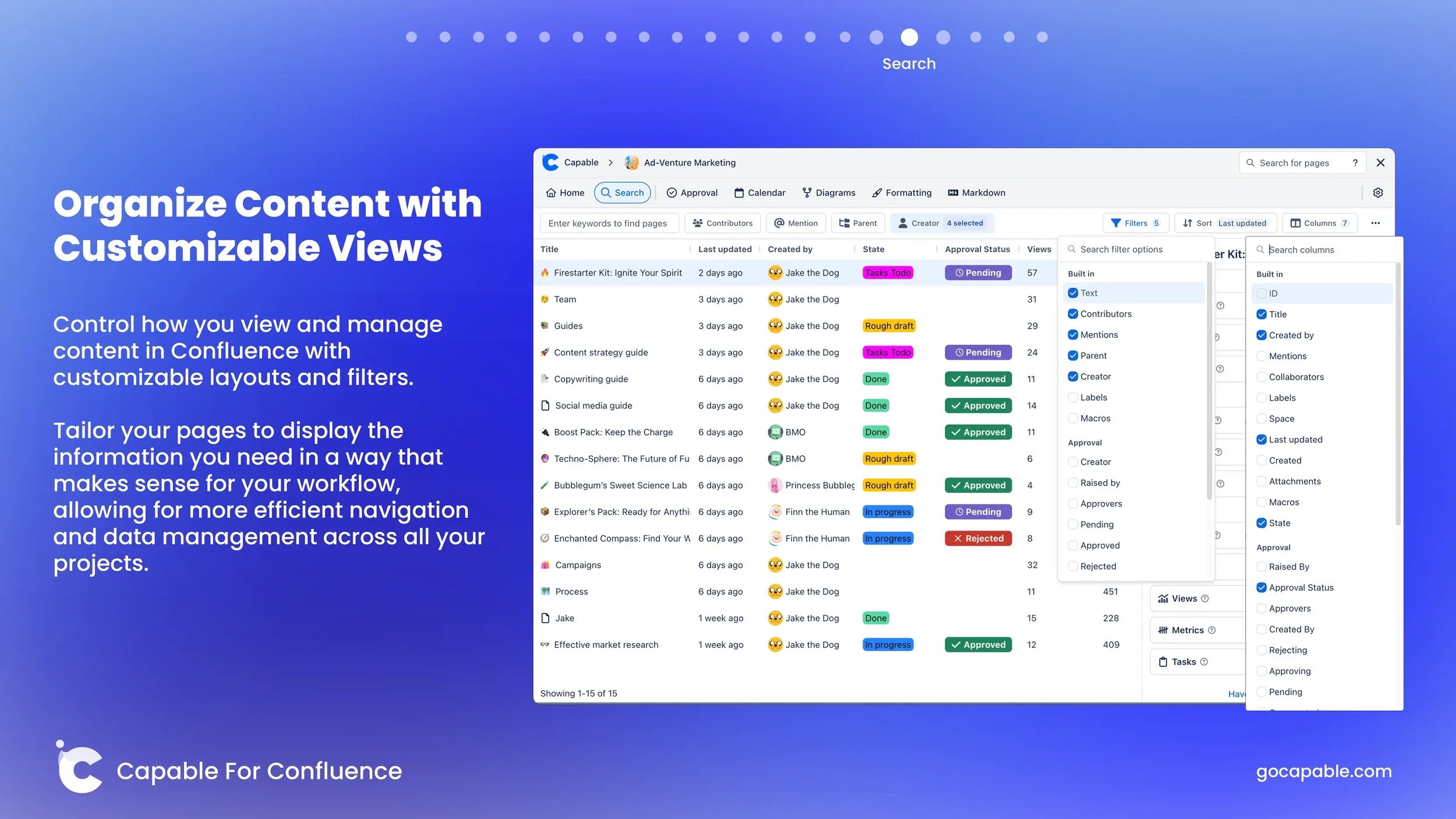
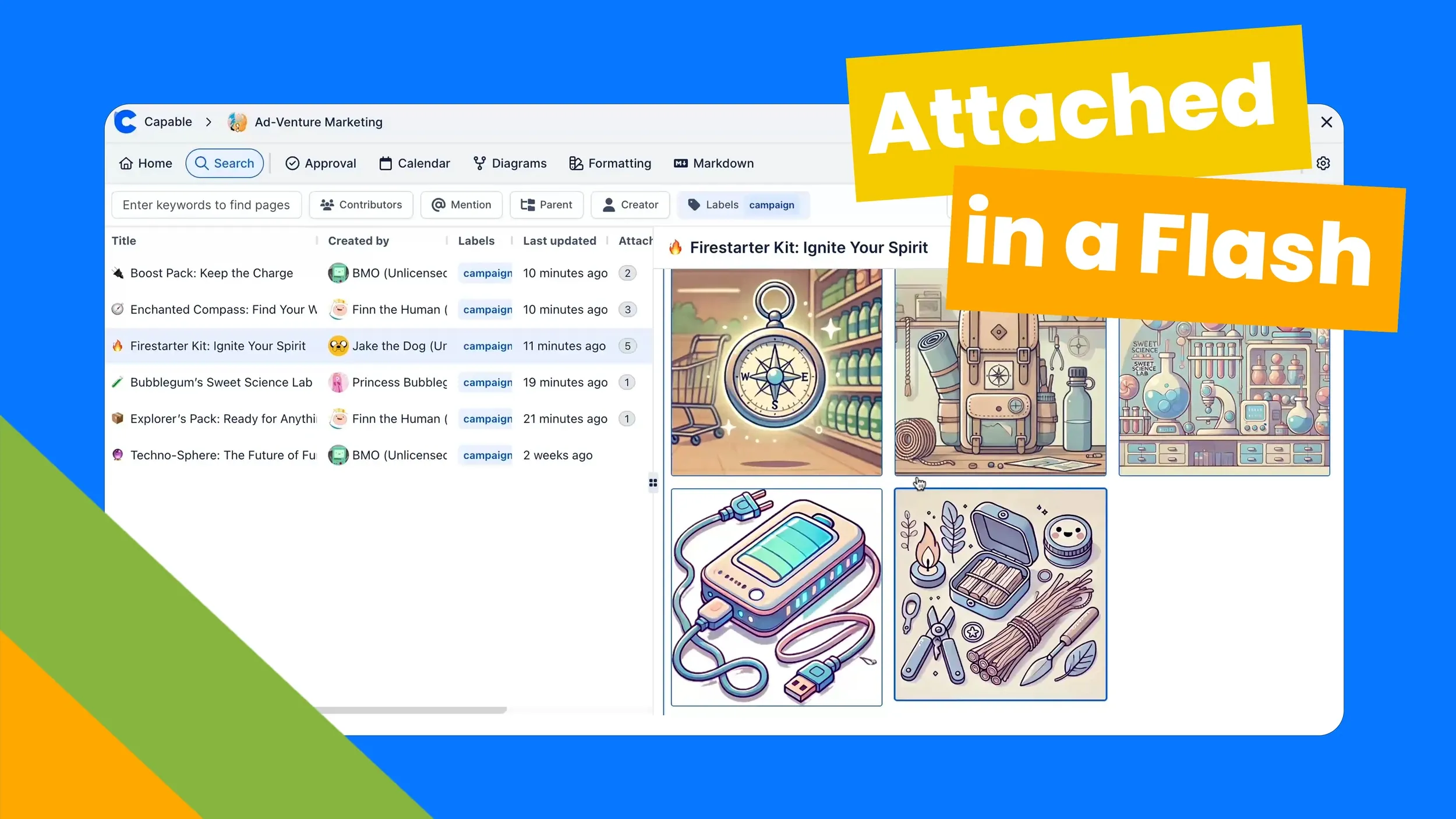
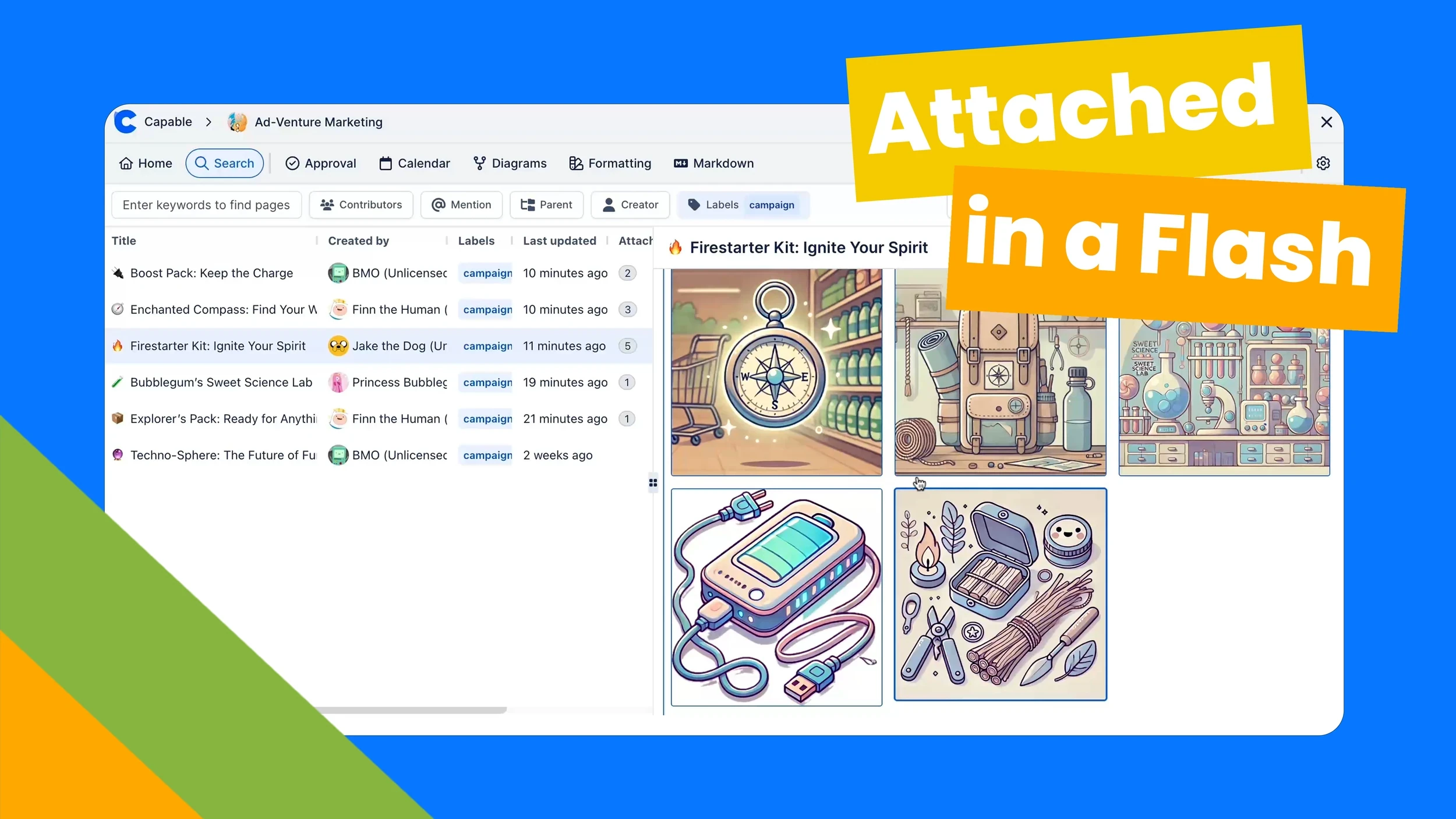
Simply jump onto your Capable dashboard and click on Search, next find the page that has the attachment on. You might want to filter by labels to narrow your search, in this case the required conent is under campaigns. If you’re unsure which page contains the attachment, try enabling the attachments column. This feature allows you to view which pages have attachments, which don’t, and even the number of attachments on each page. Once you locate the page, simply select it from the list to see detailed information on the right. Click on “Attachments,” and all the files will be displayed clearly, ready for you to open and view in full size with just a click. You can even download every attachments on that page all at once, all ready to view in one folder.
Try the attachment panel out today alongside a host of recently updated features!