How to Save a Confluence Page Without Publishing It
Confluence saves as you type, so the trick is knowing how to leave. Drafts, unpublished changes, scheduled publishing, and getting a page back to draft.


You've started a page that isn't ready: the numbers aren't in, or the wording needs a second look. You go looking for a Save button and find only Publish. That's because Confluence saves as you type. To save a Confluence page without publishing it, all you have to do is leave the right way.
This guide covers drafts of new pages, unpublished changes to published pages, scheduling a publish for later, marking a page as a draft, and why a published page can't go back to being a draft. Every step was checked against Atlassian's documentation and a Confluence Cloud site in October 2026.
How to save a Confluence page without publishing it
- Create the page: select Create at the top, then Page, or + beside Content in the space sidebar. A new page starts as a draft.
- Write. Confluence autosaves as you go; the editor shows Saved at the top right.
- When you want to stop, select Close instead of Publish…. Its tooltip says what it does: "Saves changes without publishing".
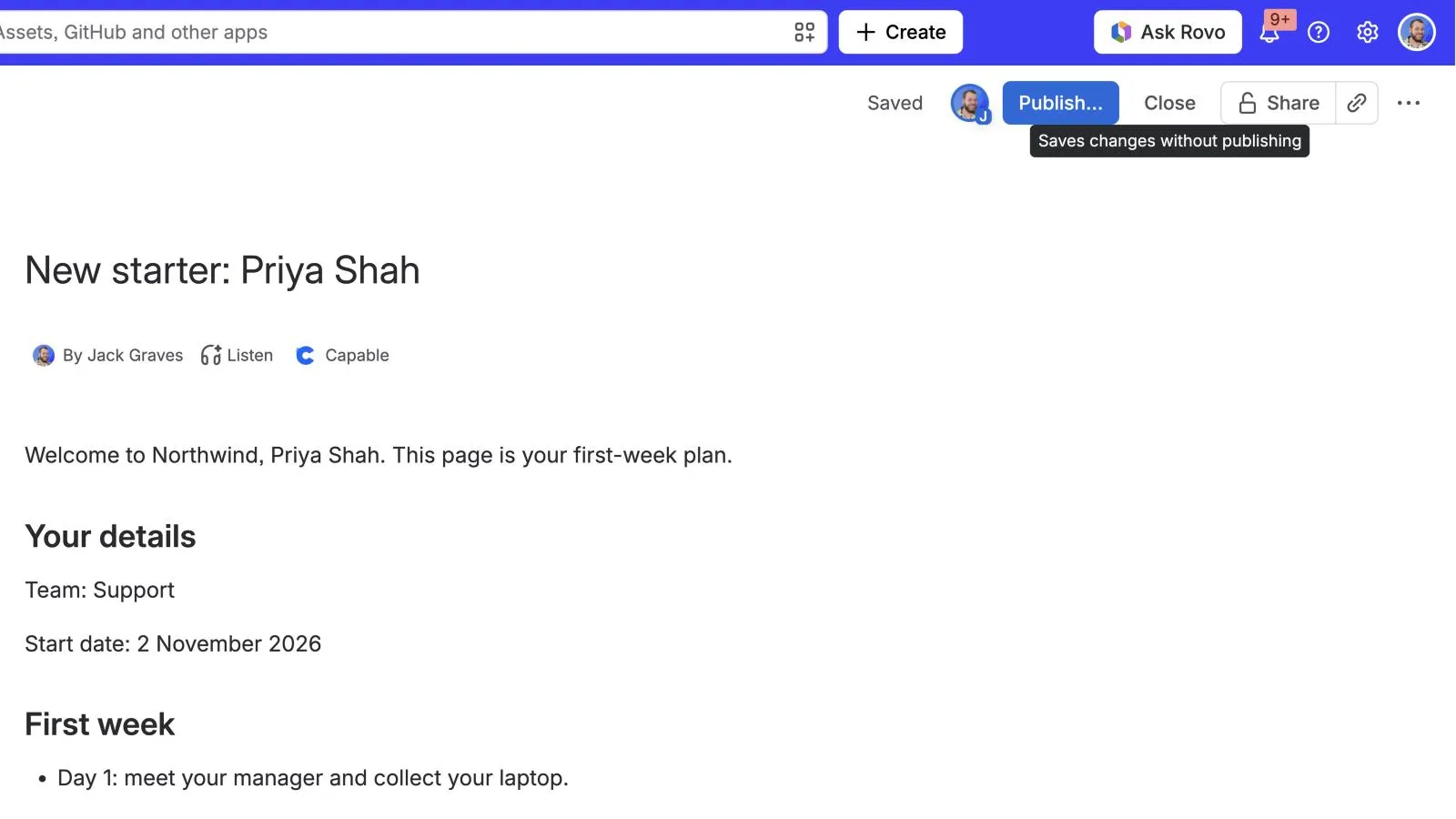
The page is now a draft: "an unpublished page or blog post that you can get back to at any time", in Atlassian's words. Nobody else can see it unless you invite them or share the link.
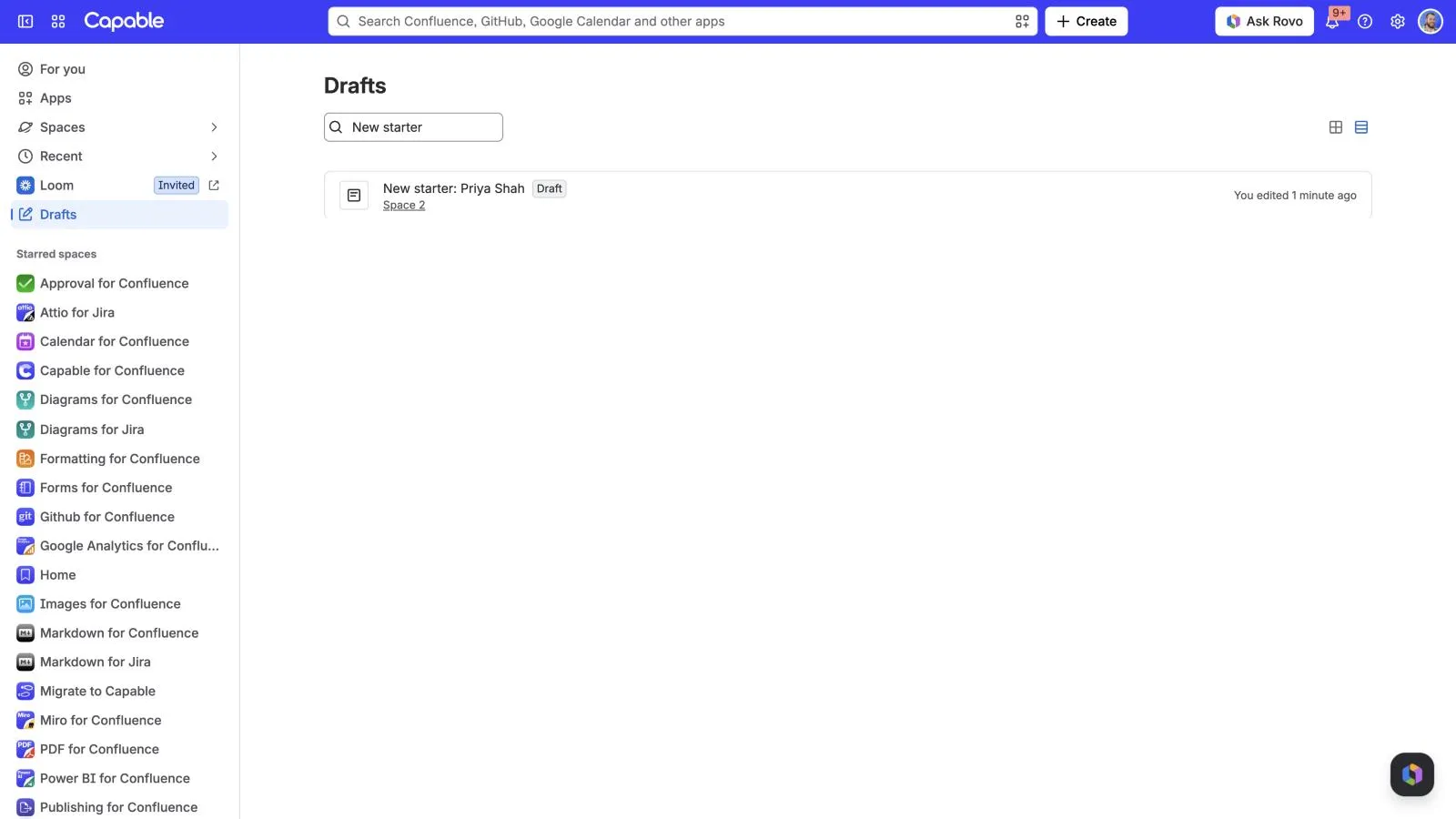
How to find your Confluence drafts
- At the bottom of the sidebar, select More.
- Select Drafts. It lists your drafts across every space, and Filter by title narrows the list.
A draft also sits in the content tree where you started it, marked Draft. Drafts with no title show as Untitled. To get rid of one, open it and choose Delete unpublished page from More actions; that can't be undone.
How to edit a published page without publishing the changes
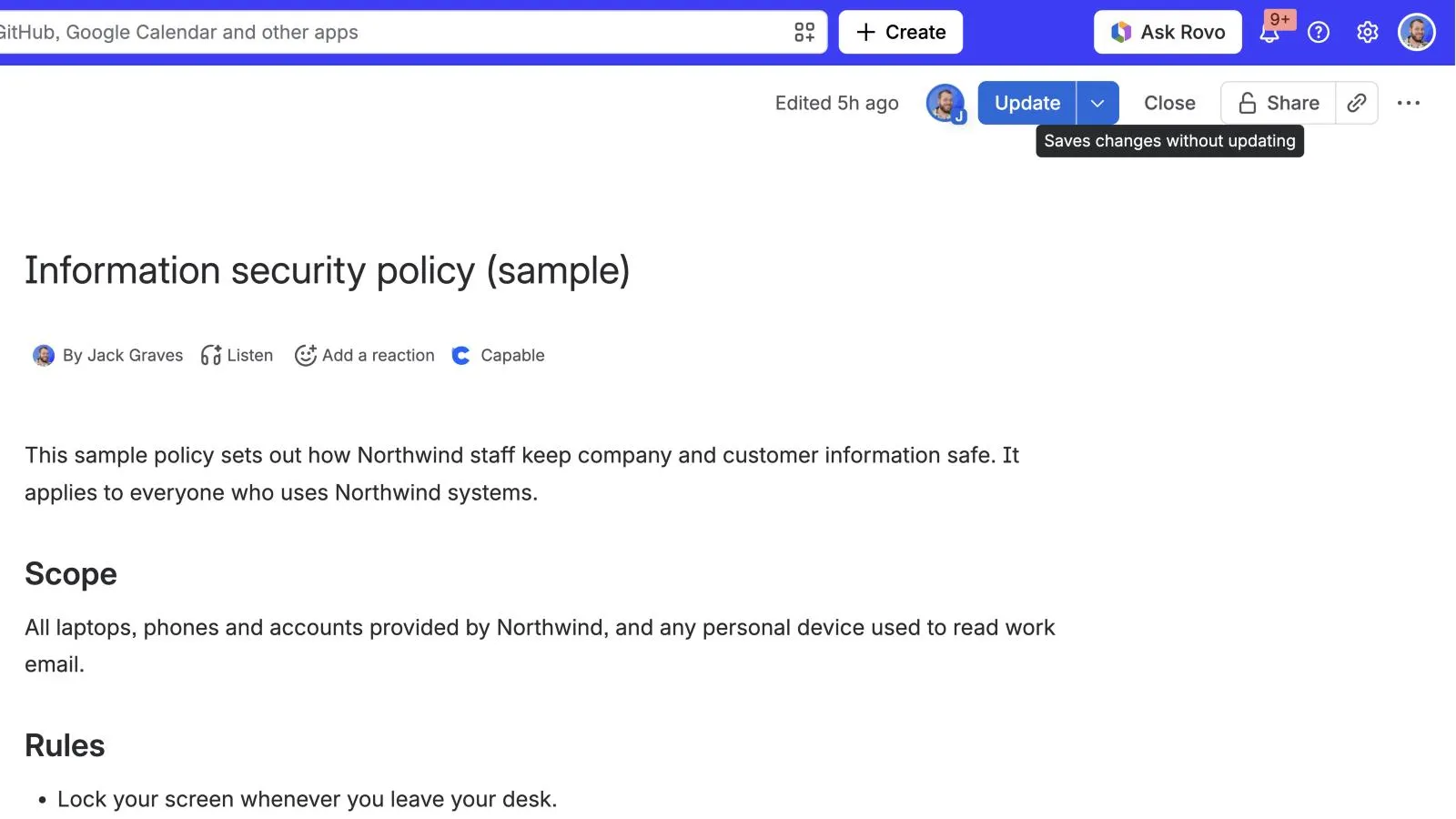
The same autosave applies to a page that's already live. Edit the page and your changes save as you type, but readers keep seeing the published version until you select Update.
- To stop without publishing, select Close. Its tooltip says it "Saves changes without updating".
- Unpublished changes appears at the top of the page, beside Edit, for the people who made them.
- More actions, then View changes, compares your changes with the published version.
- Revert to previous version throws your changes away for good.
One catch: unpublished changes aren't private. Anyone else who edits the page sees them too, so two people can't keep separate drafts of the same page.
How to publish a Confluence page later
If the page is ready but shouldn't go live yet, schedule it:
- Open the publish options: on a new page select Publish…; on a published page select the arrow beside Update, then Adjust update settings. Ctrl+Shift+Enter (Cmd+Shift+Enter on a Mac) also opens them.
- Open Schedule publish (Schedule update on a published page), which starts at Immediately, pick a date and time and select OK.
- Select Schedule to confirm.
The button changes to Scheduled until then.
How to mark a Confluence page as a draft
"Mark as draft" in Confluence means a content status. While editing, choose Status above the title and pick Rough draft (or In progress, or Ready for review). Readers see the status once the page is published, so it's a label that says "not final yet". It doesn't hide the page. Atlassian's guide to statuses covers custom ones.
Where the native way runs out
- No unpublish. Once a page is published there's no way back to draft. The request, CONFCLOUD-76140, had 88 votes and was still gathering interest in October 2026. Community answers suggest deleting or restricting the page instead.
- Unpublished changes are shared with everyone else who edits the page. A request for private changes (CONFCLOUD-72629) is also still open.
- Live docs have no drafts. Changes show to collaborators instantly.
- Restrictions hide, they don't stage. Restricting a page keeps readers out, but the restricted version is still the live page, and restrictions aren't on the Free plan.
For a single page, this is fine. For a handbook or a policy library, where every change needs to be prepared, checked and released together, teams end up wanting what Confluence doesn't have: a draft version of the whole space that readers never see. Our earlier post on Confluence publishing workflows explains why.
The shorter way: a draft space and a live space with Capable Publishing
Capable Publishing doesn't add a Save button. It moves the line between draft and live from the page to the space: your team writes in one space, readers read another, and nothing reaches readers until you publish it.
- As an admin of both spaces, open the app under Space apps in the draft space's sidebar (in Capable for Confluence, Capable, then Publishing) and go to Space settings. On the Setup tab, turn on Enable publishing, choose the Target space, leave Allow manual publishing on (it puts Publish in the byline) and select Save.
- On a page, open Publishing from the byline (in Capable for Confluence, under Capable), select Publish and confirm. The copy appears in the live space within a few minutes.
- Keep editing the draft. The byline shows Outdated until you select Update, which replaces the live copy with a new version rather than a second page.
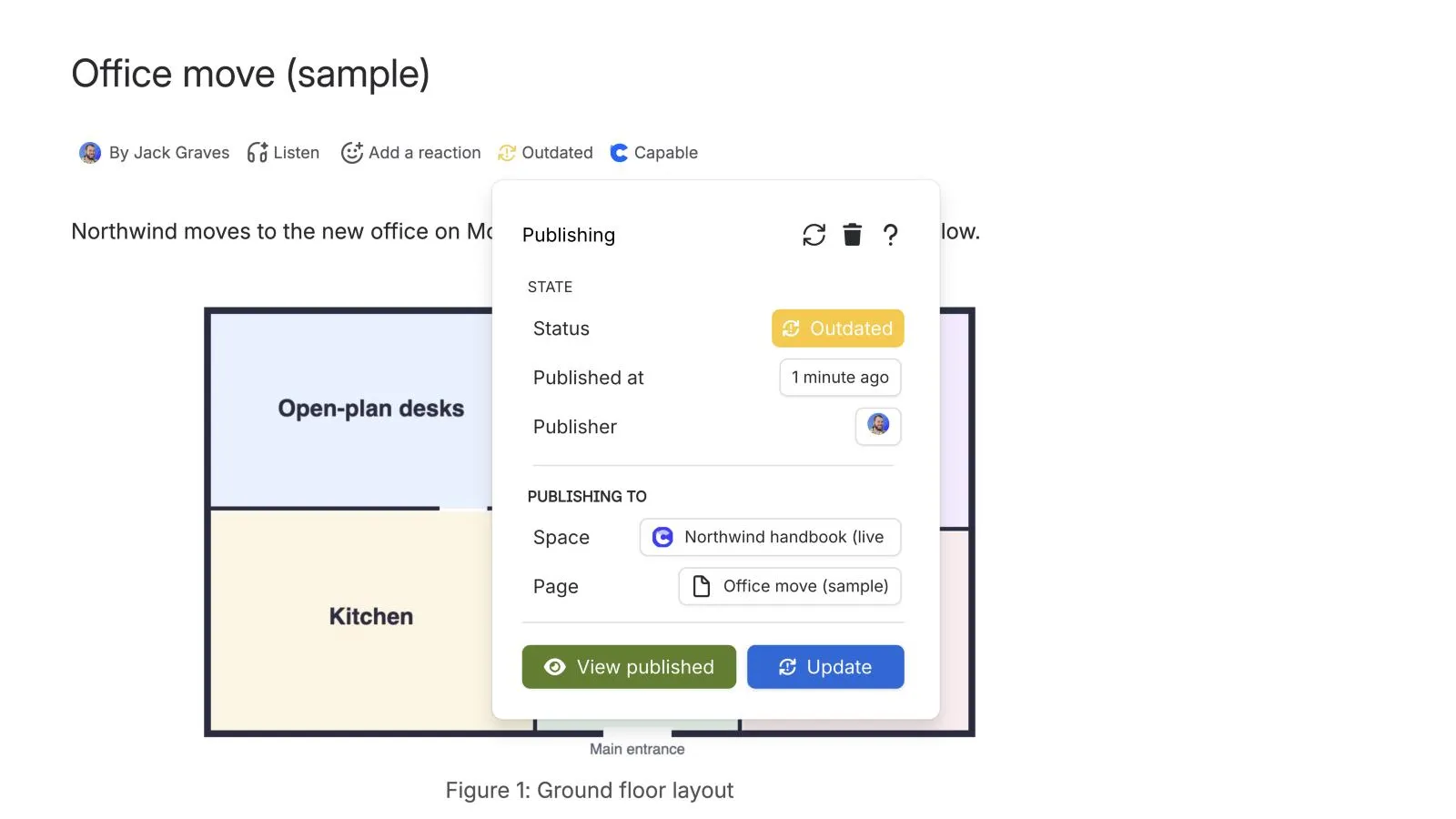
What that gives you:
- Edit published pages privately. Readers see the live copy; your changes stay in the draft space until you update.
- Release in bulk. Publish all or the publishing dashboard pushes every outdated page at once.
- Control who publishes. Limit publishing to named people (up to 50), require a comment on each publish, or keep a page out with the
capable_never_publishlabel.
Copies include attachments and labels; page restrictions and content properties aren't copied. Capable Publishing doesn't schedule, unpublish or send notifications, so use Confluence's own Schedule publish for timing. Publish pages from a draft space to a live space in the docs covers set-up.
Try Capable Publishing free on the Atlassian Marketplace
See everything Capable Publishing does
Frequently asked questions
How do I save a Confluence page without publishing it?
Just stop: Confluence autosaves as you type. Select Close (its tooltip says "Saves changes without publishing") and the page stays an unpublished draft that only you can see. On a published page, Close keeps your changes unpublished in the same way.
Where are my Confluence drafts?
At the bottom of the sidebar, select More, then Drafts, to see your drafts across all spaces, with a filter by title. A draft also appears in the content tree where you started it, marked Draft; one without a title shows as Untitled.
Can other people see my Confluence draft?
Not unless you let them. Atlassian's answer is "Only you!": others can open a draft only if you invite them or share the link and they open it in the editor.
How do I mark a Confluence page as a draft?
Add a content status such as Rough draft while editing, using Status above the title. It's a label for readers, shown once the page is published; it doesn't hide anything.
Can I turn a published Confluence page back into a draft?
Not natively. There's no unpublish action, and the request (CONFCLOUD-76140) was still gathering interest in October 2026. The workarounds are to restrict the page, delete it, or draft in a separate space and publish copies.
Atlassian and Confluence are trademarks of Atlassian Pty Ltd. Capable Works Limited is not affiliated with Atlassian.