Confluence Page Properties Report: Summarise Pages in One Table
Put the key facts in a small table on each page, then list them all in one live report. How it works in Confluence Cloud today, and how to fix an empty report.

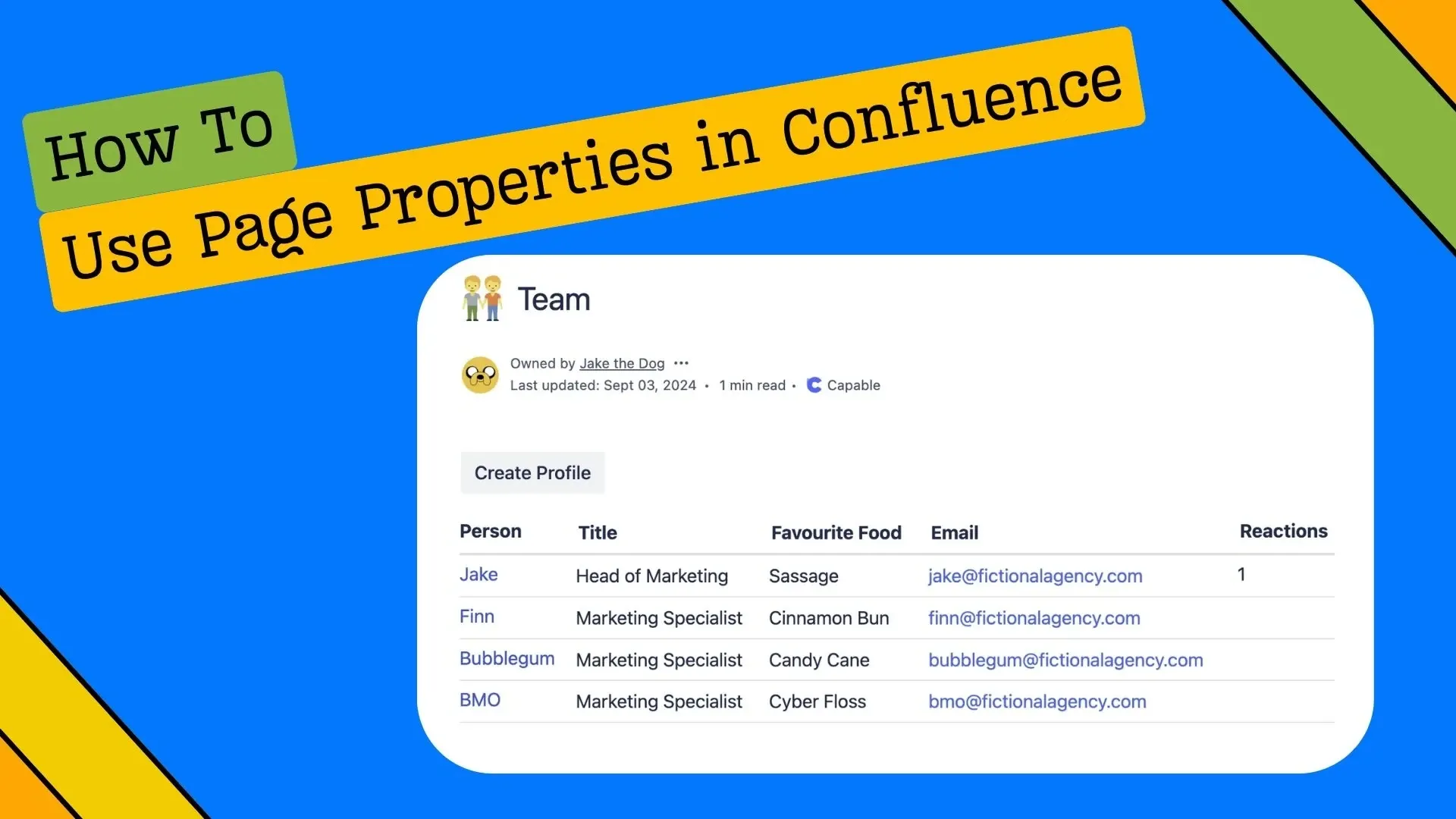
The Confluence page properties report turns scattered pages into one live table. You put the key facts about a page (status, owner, due date) in a small table on that page, label it, and a report on another page lists every labelled page with those facts in columns. Change a page and the report changes with it.
It's one of the most useful native macros in Confluence, and one of the most confusing, partly because Atlassian has renamed it. This guide covers how it works in Confluence Cloud today, how to filter and sort it, and what to check when the report comes up empty.
What the Confluence page properties report does
Two macros work together:
- The properties macro sits on each page and holds a two-column table: keys on the left (Status, Owner, Due date), values on the right.
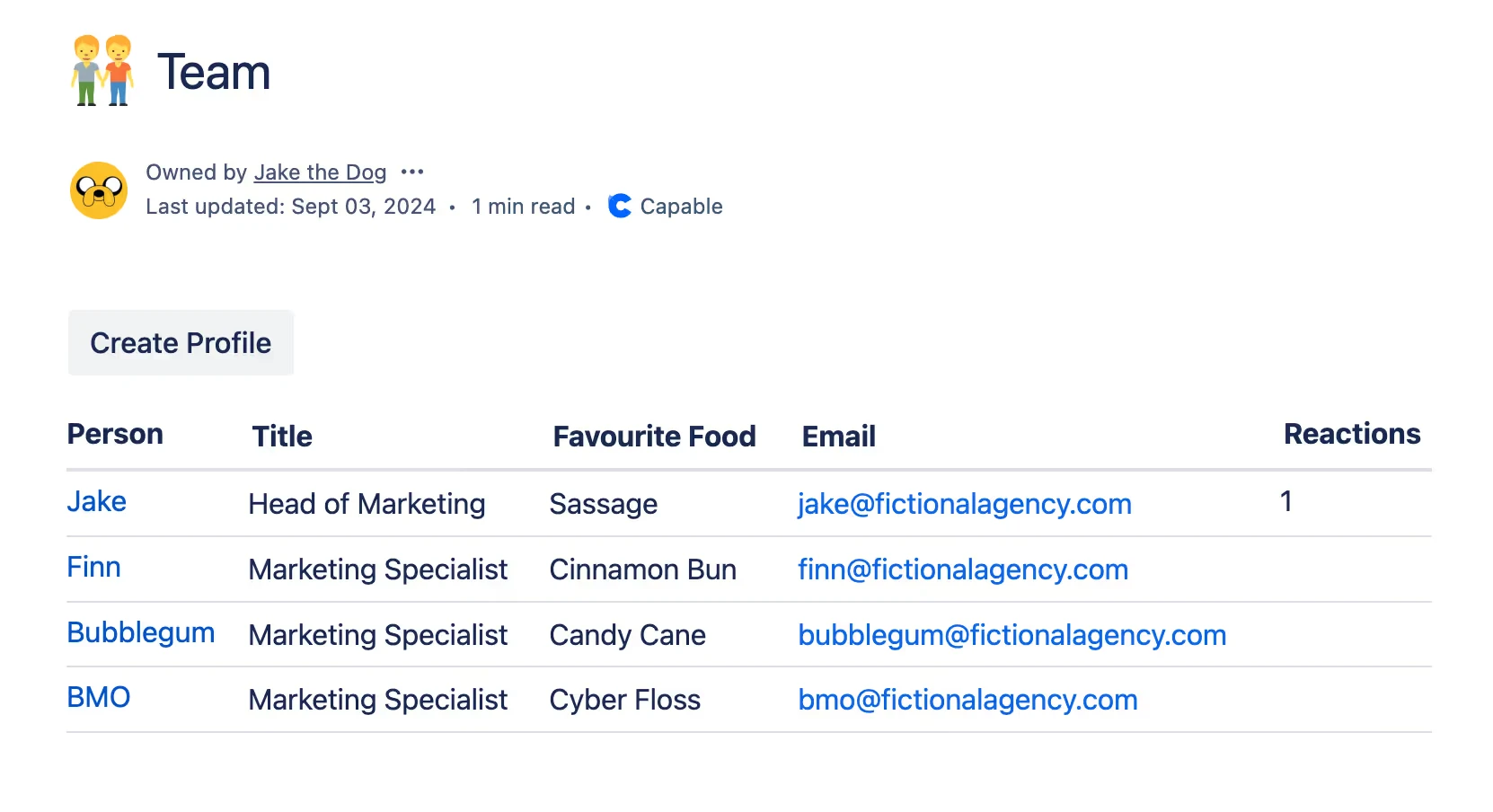
- The report macro sits on a summary page. It finds pages by label and shows one table, with the page title in the first column and each key as a column.
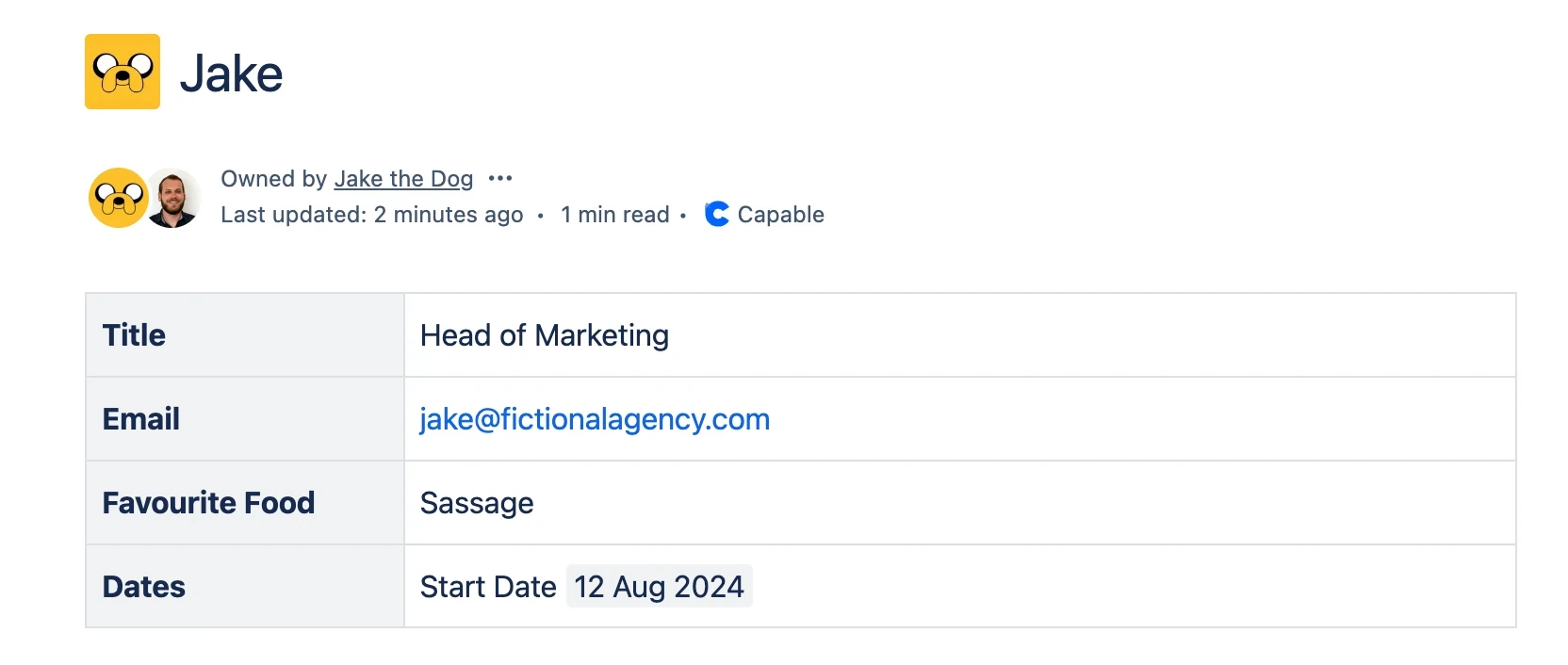
The result is a dashboard you never have to update by hand: a project list, a decision log, a knowledge base index.
Page properties is now content properties in Confluence Cloud
If you search the macro menu for "page properties" and find nothing, that's why. In Confluence Cloud, Atlassian's documentation now calls the pair the content properties macro and the content properties report macro. They work the same way, and they work on live docs as well as pages.
| What people search for | What Confluence Cloud calls it | How to insert it |
|---|---|---|
| Page properties macro | Content properties macro | Type / and start typing "content properties" |
| Page properties report | Content properties report macro | Type /contentpropertiesreport |
We use the familiar names in this guide, since that's what most teams still call them.
How to set up the page properties table
- Open the page you want to report on and insert the properties macro.
- Build a two-column table inside it. The left column holds the keys, which become the report's column headings. The right column holds the values. A horizontal layout also works: two rows, with the heading row style on the first row.
- Keep the left column plain. You can't use macros in the left column, and the table can have a header row or a header column, but not both.
- Add a label to the page (for example
project-status). The report finds pages by this label. - Publish the page.
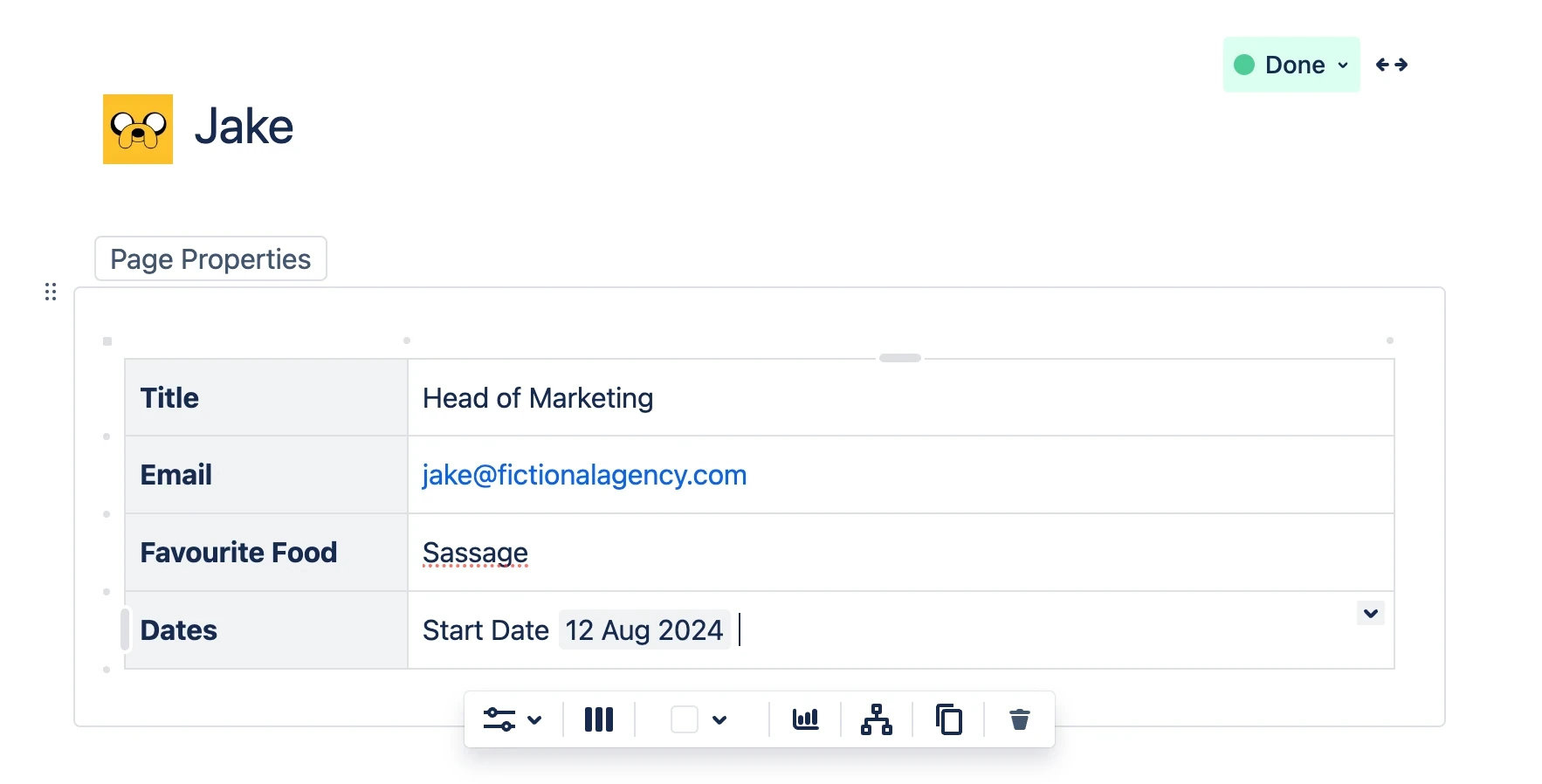
Two settings are worth knowing. Hidden keeps the table off the page itself while the report still shows its values. Content Properties ID names a particular table, which matters when a page has more than one (see filtering, below).
Use the same key names on every page, with the same spelling and capitals. The report makes one column per key, so "Owner" on one page and "Owned by" on another become two half-empty columns.
How to insert the page properties report
- On your summary page, type
/contentpropertiesreport. - Enter the Labels to report on: the label you added to each page.
- Optionally, add filters or a content properties ID to narrow the results.
- Choose Insert.
The report's display options:
| Option | Default | What it does |
|---|---|---|
| Content properties ID | Blank | Blank reads every properties table on each page; an ID reads only tables with that ID |
| Title column heading | Title | Heading of the first column, which links to each page |
| Columns to show | Blank (all) | A comma-separated list of keys; put names with commas or quotes in double quotes |
| Max results per page | 30 | Rows before the table paginates (30 is the maximum) |
| Sort by | Modified | A key, written exactly as it appears in the properties tables |
| Reverse Sort | Off | Flips the sort order |
| Show Comments Count / Show Likes Count | No | Shows those counts for each page |
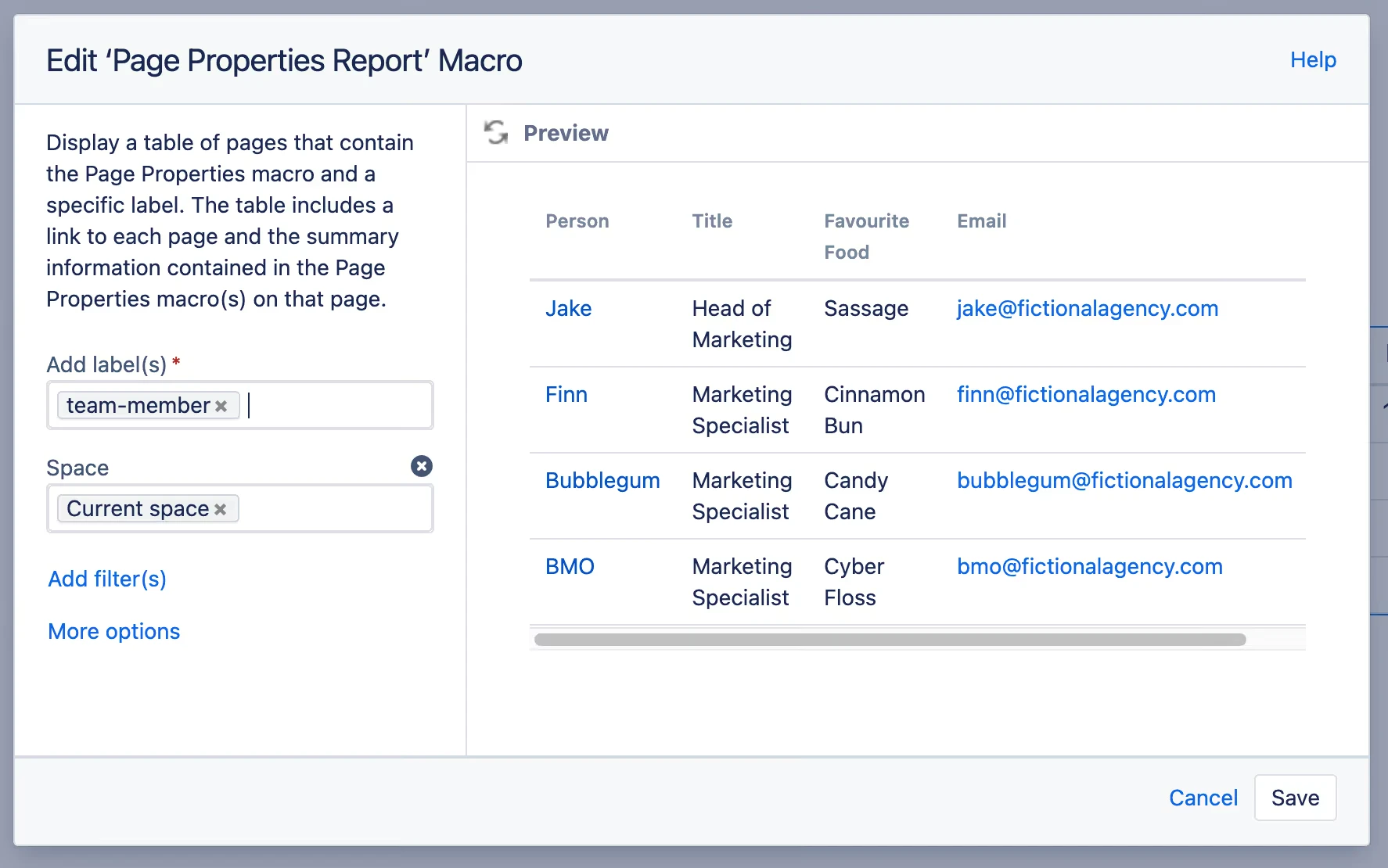
How to filter and sort the report
The label is the one required filter. On top of it you can add With ancestor, With parent, In space, Contributor, Creator, Mentioning user, Including text, With title and Of type.
A few rules decide what you get:
- Several values in one Label filter are OR'd:
project-status, programme-statusshows pages with either label. - Separate Label filters are AND'd: pages must carry both labels.
- A minus sign excludes:
-archiveddrops pages labelled archived. - One content properties ID per report. If a page has several properties tables, give each an ID and point each report at one ID.
To sort by a property, type the key into Sort by exactly as it's written in the tables (Due date, not due-date). Tick Reverse Sort for newest or highest first.
Page properties report vs content report table
They sound alike and both list labelled pages, but they answer different questions.
| Page (content) properties report | Content report table | |
|---|---|---|
| Shows | The values from each page's properties table | The matching pages, as a list |
| Finds content by | Labels, plus filters such as space, parent or creator | One or more labels, optionally limited to spaces |
| Columns | One per key in your tables | Not configurable |
| Sorted by | Any key you choose, or last modified | Last modified, newest first |
| Default size | 30 rows per page of results | 20 items, then a "Find more results" link |
| Best for | Dashboards: status, owner, dates | Indexes: "every page labelled onboarding" |
Sources: Atlassian's content properties report and content report table documentation, checked October 2026.
Three ways teams use it
A project dashboard. Each project page carries Status, Owner, Next milestone and Due date. One report on the programme page lists them all, sorted by Due date. Nobody updates the dashboard; they update their project page.
Meeting decisions and actions. Each meeting-notes page records Date, Decision and Action owner in a hidden properties table. A report filtered by the team's label becomes a running decision log.
A knowledge base index. Each article records Owner, Audience and Review by. The report, sorted by Review by, shows what's due for a check. For more on structuring a knowledge base, see how to build a knowledge-centred Confluence.

Page properties report not working? Check these first
Most empty or patchy reports come down to one of these:
- The label. It must be spelled the same on the report and on every page, and the pages must actually carry it.
- The table. Keys in the left column, values in the right; no macros in the key column; a header row or a header column, not both.
- The filters. A parent, ancestor or space filter that excludes the labelled pages leaves the report empty.
- The ID. If the report has a content properties ID, only tables with that exact ID count.
- The key names. A column that's empty on some rows usually means those pages spell the key differently.
When labels aren't enough
The properties report is at its best when every page follows the same template. It's less suited to questions that cut across templates, like "every page in these three spaces that mentions the supplier and hasn't been edited this year".
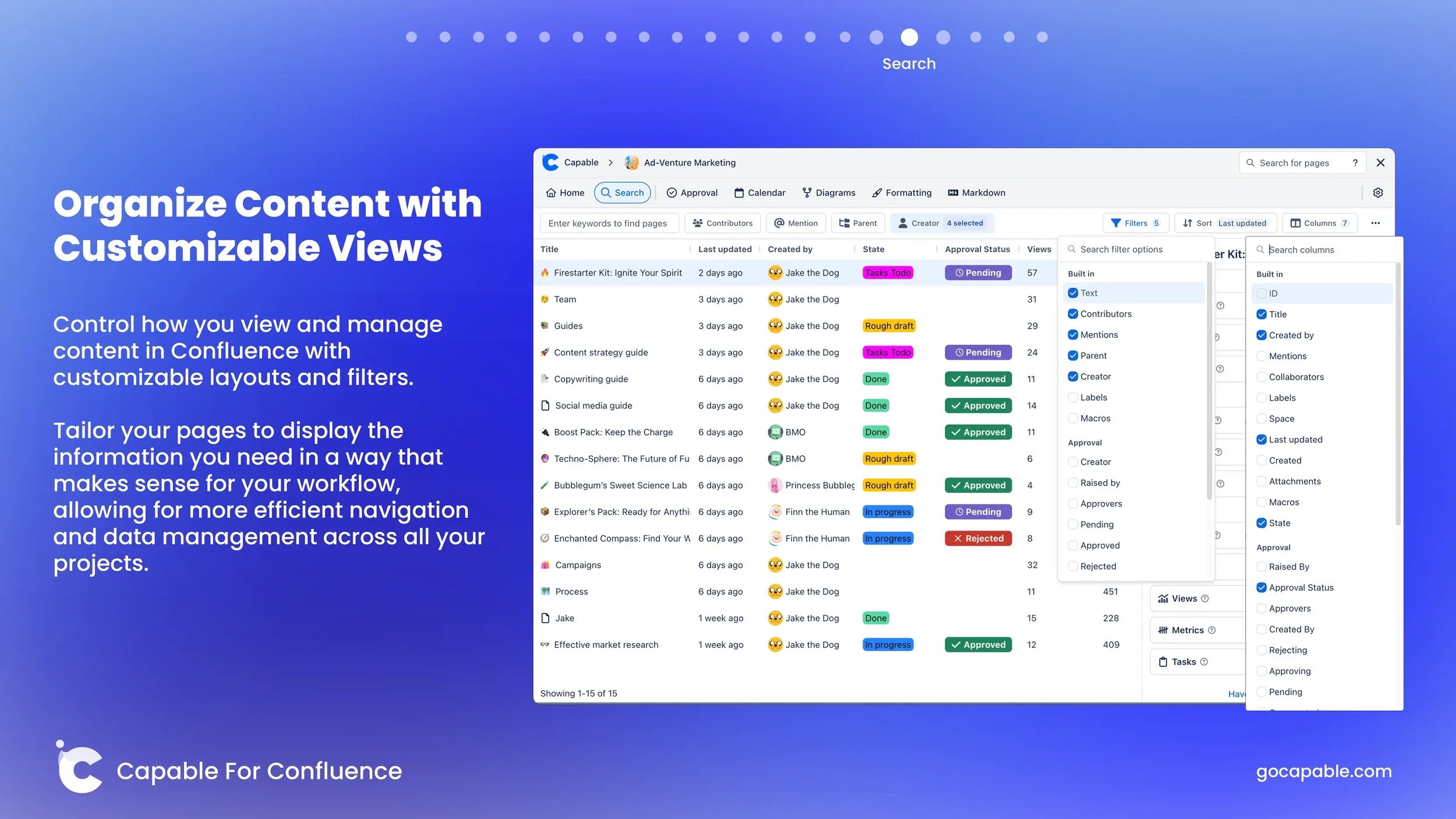
That's a search, not a report. Capable Search for Confluence is our free app for it: a search table with the filters and columns Confluence search lacks, which you can save and put on a page as a live table with its search macros. Use it alongside the properties report rather than instead of it.
Try Capable Search for Confluence, free on the Atlassian Marketplace
If your data has outgrown pages altogether, a Confluence database may be the better home. Our Confluence databases field guide compares the two, and From chaos to clarity covers documentation habits that keep reports like these tidy.
See what Capable Search adds to Confluence
Frequently asked questions
Is the page properties macro still in Confluence Cloud?
Yes, under a new name. Atlassian's Cloud documentation calls it the content properties macro, and the report is the content properties report macro. They work the same way: type /contentpropertiesreport to insert the report.
Why is my Confluence page properties report empty?
Usually it's the label: it must match on the report and on every page. Then check that each page's table has keys in the left column with no macros in them, and that filters such as a parent page or space aren't excluding the labelled pages. Atlassian's notes on the report macro list the same checks.
Can I filter the report by more than one label?
Yes. Several labels in the same Label filter are OR'd, so pages with any of them appear. Add a second Label filter to require both, and put a minus sign before a label to leave those pages out.
How do I sort a page properties report by a column?
Type the column name into Sort by exactly as it's written in the properties tables, for example Due date. The default is last modified; tick Reverse Sort to flip the order.
Can I use page properties as variables elsewhere on the page?
No. Atlassian's documentation says the metadata can't be referenced by its key or elsewhere on the page. The values only appear through the report macro.
Atlassian and Confluence are trademarks of Atlassian Pty Ltd. Capable Works Limited is not affiliated with Atlassian.