Confluence Export to Word and Markdown: What Works Natively
Export a Confluence page to Word in three clicks, a whole space to PDF or HTML, and the new Export to Markdown option some Confluence Cloud sites now show.


Someone outside Confluence needs the page: a client wants the spec as a Word document, legal wants the policy as a file, or a developer wants the docs in Markdown for a Git repository. A Confluence export to Word takes three clicks for a single page. Beyond that, what you can export depends on how much you need and in which format.
This guide covers exporting one page to Word or PDF, exporting a whole space or a selection of pages, getting a page into HTML, and the new Markdown option. Every step was checked against Atlassian's documentation and a Confluence Cloud site in October 2026.
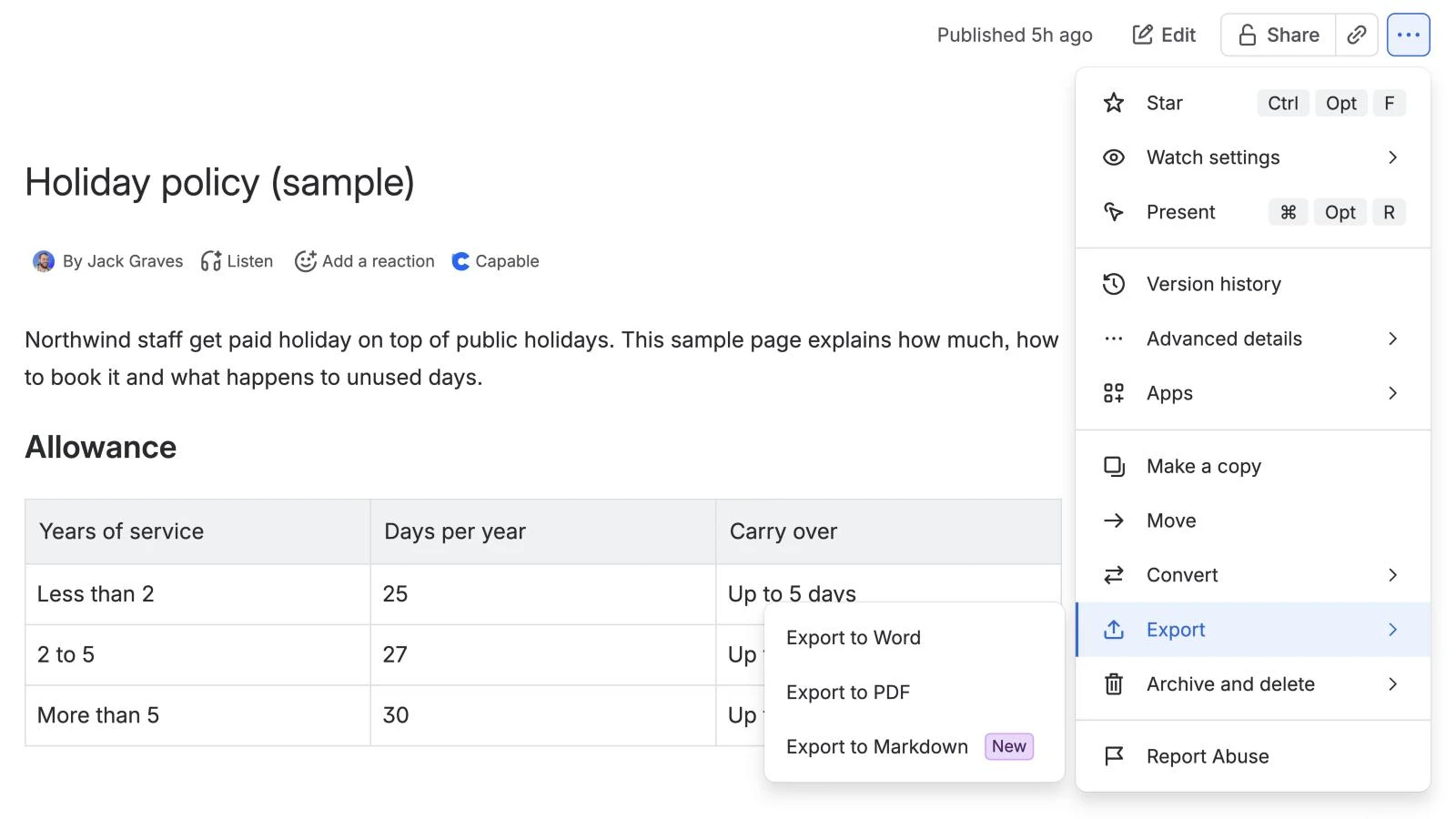
Confluence export to Word, step by step
- Open the page (or live doc, or blog post).
- Select More actions (•••) at the top right.
- Hover over Export.
- Select Export to Word. Confluence downloads the file.
Three things to know, from Atlassian's export documentation:
- Only the published version exports. Unpublished changes are left out, so publish first.
- The file opens in Microsoft Word only. Atlassian says it can't be opened in LibreOffice, OpenOffice or Google Docs.
- It's portrait. Changing the layout means customising the export, which is a space admin setting.
Export to PDF sits in the same menu and works the same way. Some sites now show Export to Markdown there too; more on that below.
How to export a whole Confluence space
Word isn't offered for a whole space. A space admin can export everything, or chosen pages, to PDF, CSV, HTML or XML:
- Next to the space name, select More actions (•••), then Space settings.
- Under General, select Export space.
- Choose PDF or CSV, or open Advanced Options for XML or HTML. For HTML and XML, select Next.
- For PDF, HTML or XML, choose to export everything you can see, or specific content items. CSV has no choice: it exports everything you can see, with attachments and comments by default.
- Select Export space, wait for it to finish, then download the file.
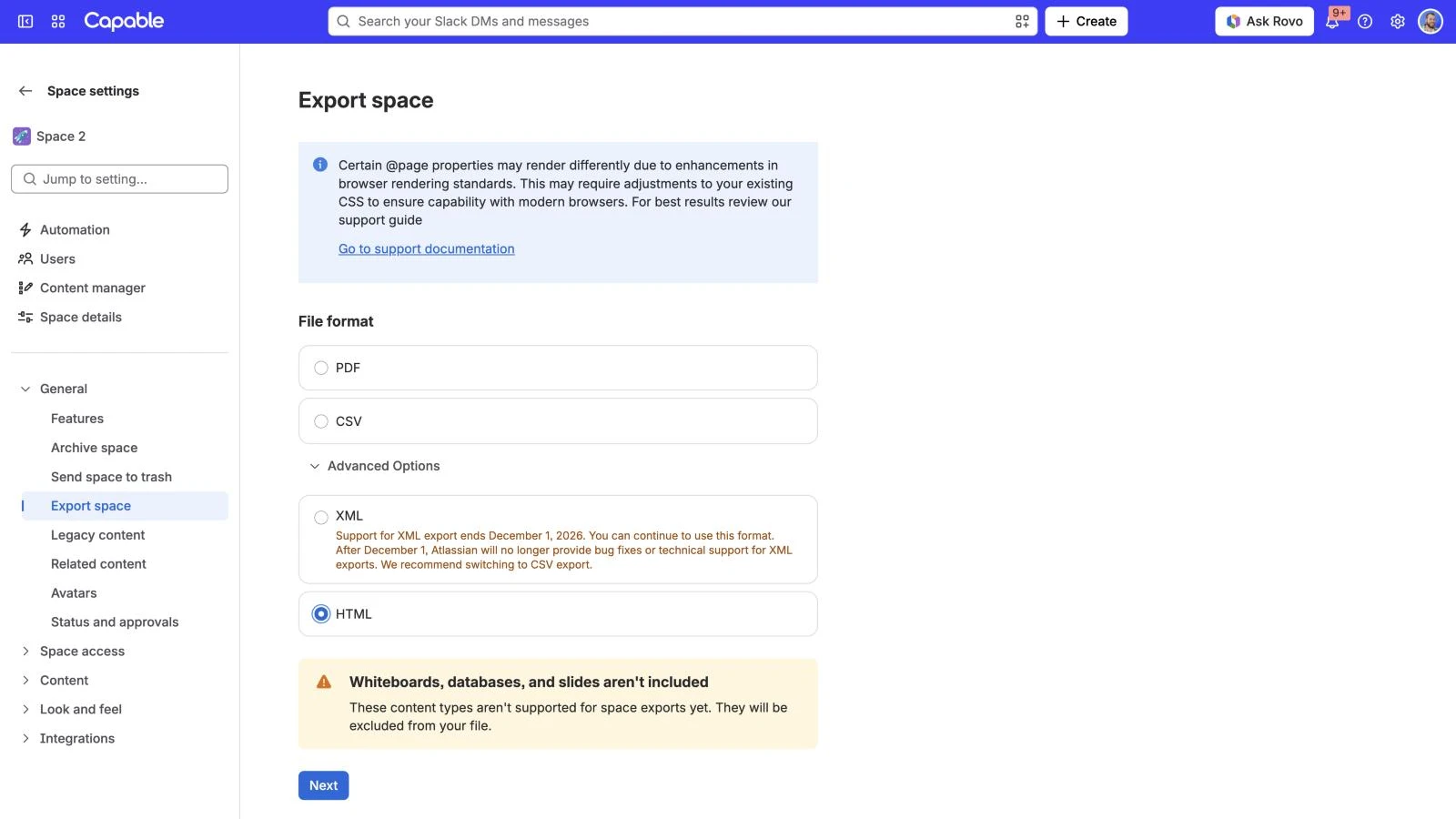
PDF arrives as one file; CSV, HTML and XML arrive as a zip. Atlassian's own guidance: PDF for a manual, CSV to move content to another Cloud site, HTML for a static website and XML for Data Center. A PDF export leaves out blog posts and comments, and an HTML export leaves out comments and blog posts too. You only get content you have permission to see, with one exception: a site admin's CSV or XML export includes all content in the space, so check who you share that file with. Confluence also warns that whiteboards, databases and slides aren't included in space exports yet, and that support for XML export ends on 1 December 2026. It recommends CSV instead, but CSV can't be imported into Confluence Data Center; XML exports keep working without support, and Atlassian asks anyone moving to Data Center to contact its support team. Large PDF exports (over 2,000 pages or 1,000 attachments) fall back to an older exporter, and Atlassian suggests splitting them.
How to export a Confluence page to HTML
There's no HTML option in the page's own Export menu. Use the space export instead and pick just that page:
- In Space settings, under General, select Export space.
- Choose HTML and select Next.
- Choose specific content, and tick the page (and any child pages you want).
- Export and download the zip. Attachments sit in folders named by page ID.
How to export a Confluence page to Markdown
For years the answer was "you can't". That's changing: on our Confluence Cloud test site in October 2026, a page's Export menu had a third option, marked New.
- Open the page.
- Select More actions (•••) and hover over Export.
- Select Export to Markdown.
When we checked, Atlassian's export documentation didn't mention it yet, so it may not have reached your site, and there's no official word on how it handles macros, tables and images. Check the file before you rely on it. It's one page at a time: the space export has no Markdown option.
If your menu doesn't have it, the older workaround still works: export the page to HTML (above) and convert the HTML with a separate converter such as Pandoc. Expect to tidy up macros, tables and image paths by hand. If you're exporting documentation to move or publish it, it pays to tidy the structure first; our Confluence documentation best practices cover that.
Where the native way runs out
- Word is one page at a time. There's no Word export for a space, a page tree or a selection.
- Word files open only in Microsoft Word.
- Space exports need a space admin, and an organisation admin can block exports altogether.
- Markdown is new and undocumented, one page at a time, and may not be on your site yet.
- No way to export just one table from the page. (Attachments you can download from Show details, then Attachments: one file at a time, or Download All as a zip.)
- Things drop out: comments and blog posts in PDF and HTML space exports, whiteboards, databases and slides in every space export, and unpublished changes in Word and PDF.
The shorter way: export any page to Word, Markdown, HTML or text
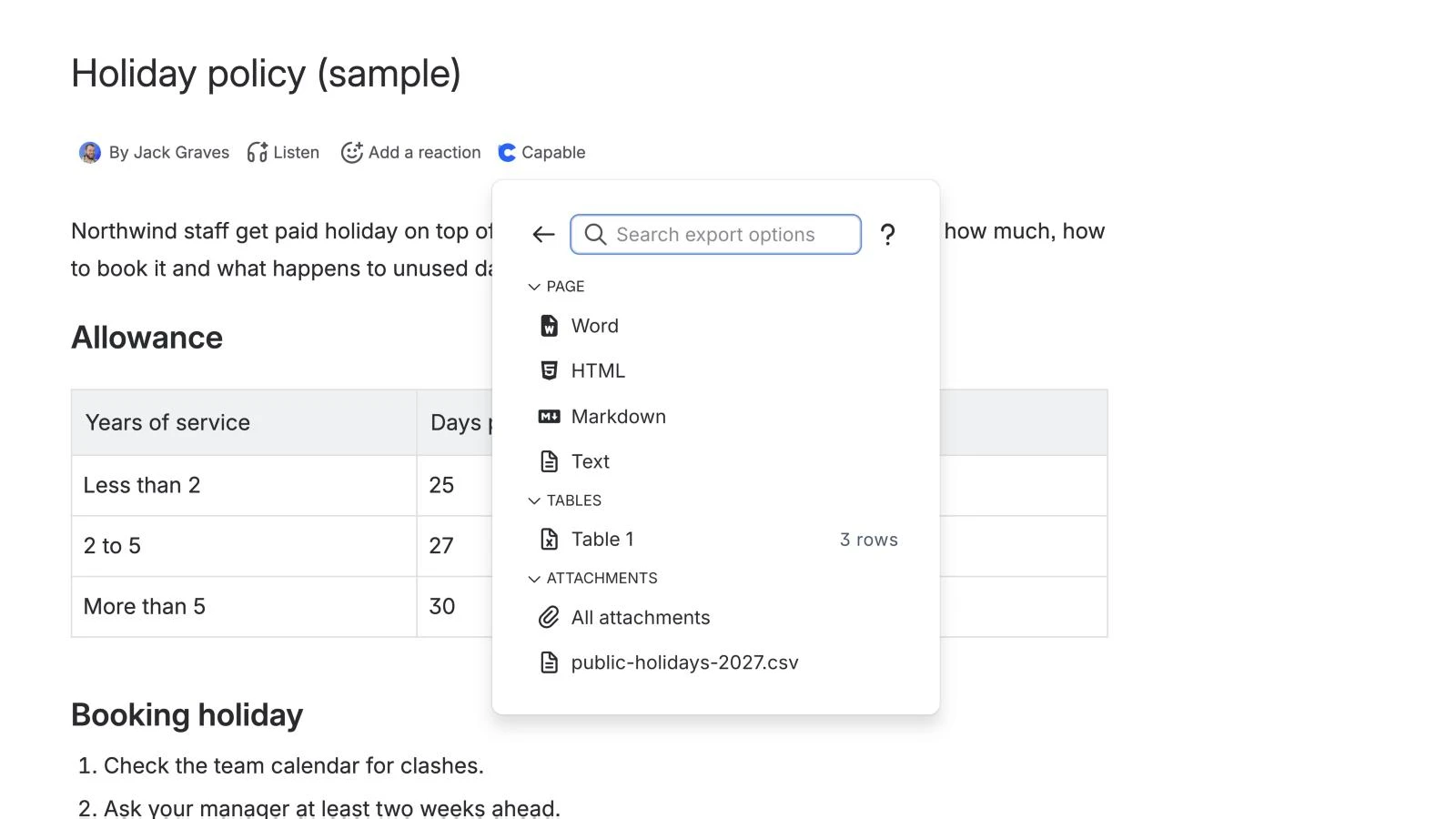
Capable for Confluence adds its own Export panel to every page: Word, HTML, Markdown and plain text from the page itself, with no detour through a space export. It's part of Capable for Confluence, the All-in-One app.
- On the page, open Capable in the byline (or press the comma key).
- Select Tools, then Export.
- Choose Word, HTML, Markdown or Text (plain text) and download.
From the same panel you can also:
- Download each table on its own. Every table on the page is listed with its row count.
- Download the page's attachments, one at a time or all at once.
Export is in both the Standard and Advanced editions of Capable for Confluence; there's no standalone app for it. The suite also makes Capable's own macros render properly in Confluence's native Word and PDF exports. Export in the docs covers each format.
Try Capable for Confluence free on the Atlassian Marketplace
See everything Capable for Confluence does
Frequently asked questions
How do I export a Confluence page to Word?
Open the page, select More actions (•••), hover over Export and select Export to Word. Only the published version exports, and Atlassian notes the file opens only in Microsoft Word.
Can I export a whole Confluence space to Word?
Not natively. Word export works one page at a time. A space admin can export a whole space, or chosen pages, to PDF, CSV, HTML or XML from Space settings.
Can Confluence export to Markdown?
On some sites, yes. In October 2026 our Confluence Cloud test site showed Export to Markdown, marked New, under a page's More actions (•••), Export. Atlassian's export documentation didn't cover it yet, so it may not be on your site. If it isn't, export the page to HTML and convert it with a tool such as Pandoc, or use a Marketplace app; Capable for Confluence exports a page to Markdown.
How do I export multiple Confluence pages?
As a space admin, go to Space settings, General, Export space, choose PDF or HTML, then choose the specific pages you want. You get one PDF or a zip of HTML files.
How do I export a Confluence page to HTML?
Use the space export: choose HTML, select Next, choose specific content and tick the page. Confluence builds a zip with the page and its attachments.
Atlassian and Confluence are trademarks of Atlassian Pty Ltd. Microsoft Word is a trademark of Microsoft Corporation; Google Docs is a trademark of Google LLC. Capable Works Limited is not affiliated with Atlassian, Microsoft or Google.