Introducing Workflow Hub for monday.com
Bring structure to chaos with Workflow Hub for monday.com. Visualize your status-driven processes, guide team actions, and make workflows crystal clear. Built for ops-minded teams who need consistency, without the guesswork.


Today, we’re excited to introduce Workflow Hub, the latest app from Capable, now available on monday.com. We’ve built this to fill a critical gap: the missing visual edge in monday.com’s powerful task-tracking ecosystem. If your team needs clarity, structure, and control over status-driven processes, Workflow Hub is for you.
Why We Built It
While monday.com’s Status columns are great for tracking progress, we saw customers struggling with disorganized workflows and unclear process paths. Workflow Hub brings structure by turning your Status columns into clear, visual workflows, locking down what comes next and making processes intuitive for everyone.
What It Does
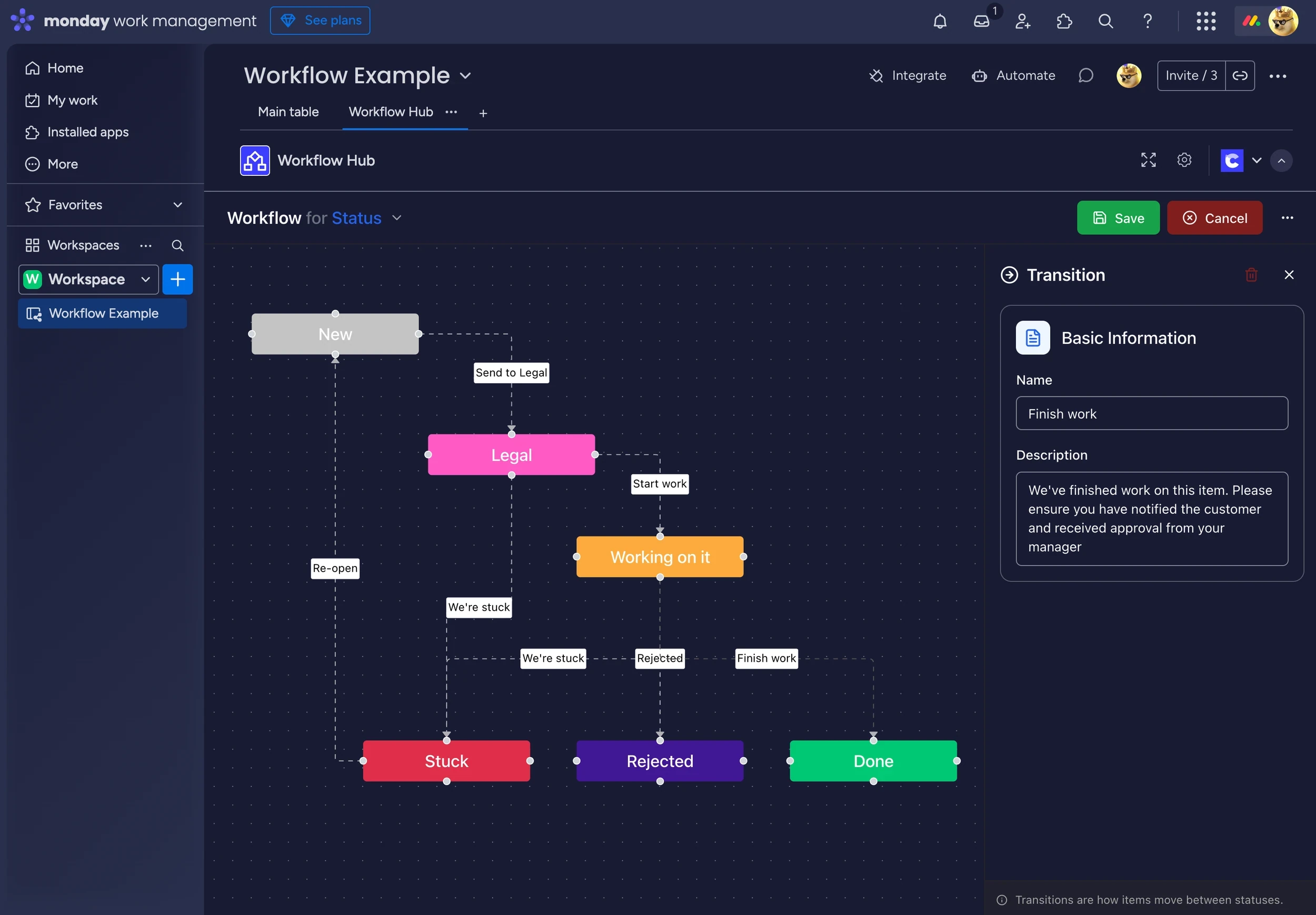
🎯 1. Visual Workflow Builder (Board View)
- Use any Status column as the foundation of your workflow.
- Map transitions between statuses with a simple drag‑and‑drop interface.
- Label each transition (e.g., “Start Review,” “Send to QA”) to give visual clarity and purpose
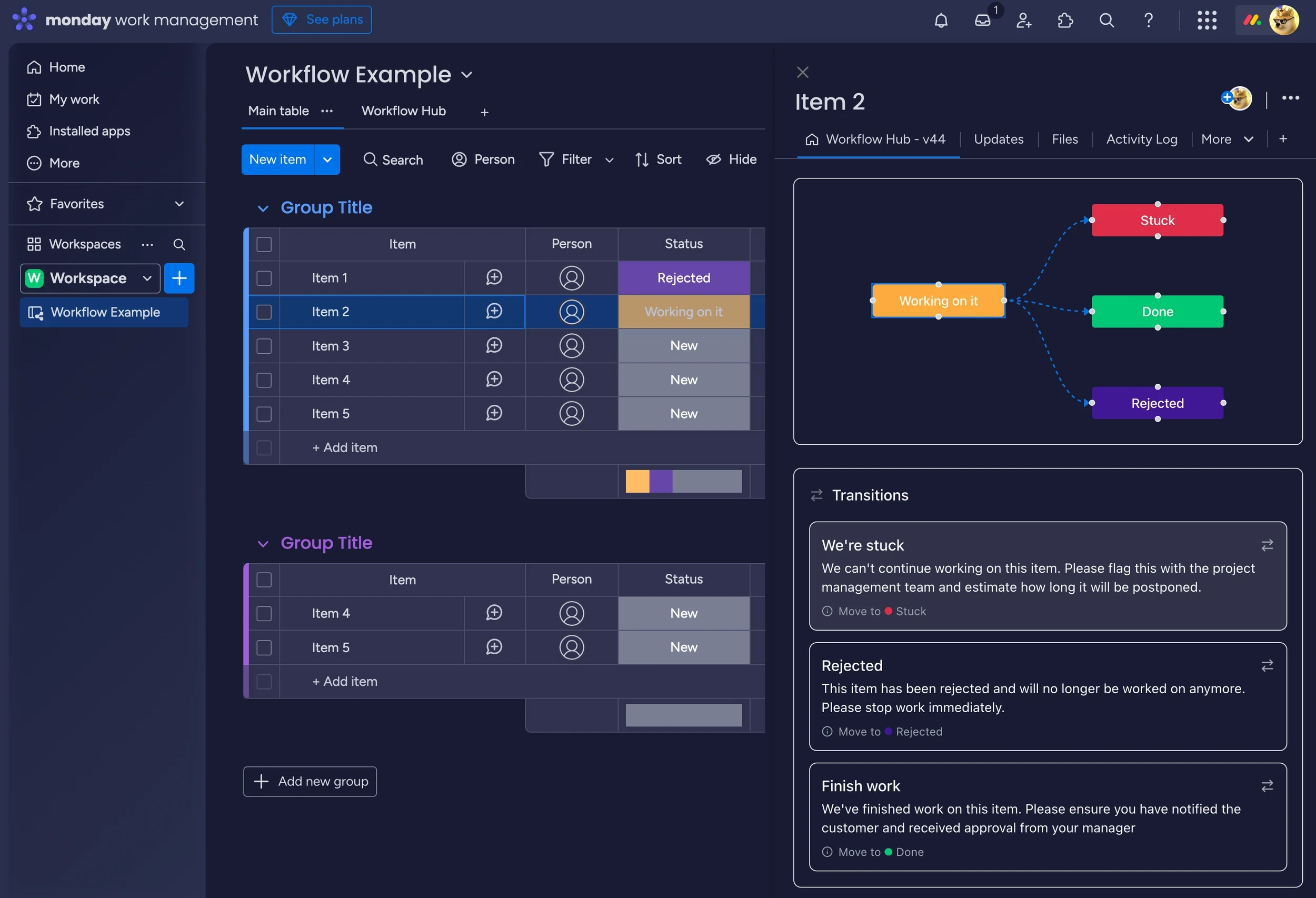
🔄 2. Guided Item-Level Actions (Item View)
- Every task item shows its current status plus an interactive workflow map.
- Team members click the next logical transition to update status and trigger automations.
- It’s like having turn-by-turn directions built directly into your workflow
How It Works: Step by Step
- Set up a Status column
- Add a new Status column (e.g. “Workflow Stage”) or use an existing one.
- Define your steps: “To Do”, “In Progress”, “Under Review”, “Completed”, “Blocked”, etc. Label and color them clearly.
- Map your process in Board View
- Add the “Workflow Hub” app view.
- Click Edit Workflow, choose the Status column, and drag arrows between statuses to define allowed transitions.
- Name each transition, rearrange nodes visually, and save your workflow.
- Use item-level guidance
- Open any item and select the “Workflow Hub” tab.
- See a mini-map of allowed next steps and just click to proceed: status updates and automations follow.
Who It’s For
- Admins & Ops Leads who need consistency across workflows.
- Project & Support Teams managing structured processes with clear paths forward.
- Teams using Status-heavy boards that need an easy, visual way to guide actions. If your workflow’s ever hit a bottleneck or caused confusion, Workflow Hub was designed to fix that.
Why You’ll Love It
- Clear process visualization: no more guessing how things should flow.
- Built into monday.com: no platform hopping required.
- Team adoption made easy: status navigation is intuitive and interactive.
Try It Today!
Workflow Hub is available now in the monday.com app marketplace. Dive into the official documentation for more on setup, best practices, and troubleshooting.
We’d love your feedback. Hit us up for a demo, share your ideas, or tell us where you're stuck. We’re listening and ready to help you work better.
Let’s make your workflows truly work!