Microsoft Teams notifications for Confluence
Microsoft Teams notifications for Confluence reach reviewers when a page needs approval. Connect once, then turn on Approve and Reject.

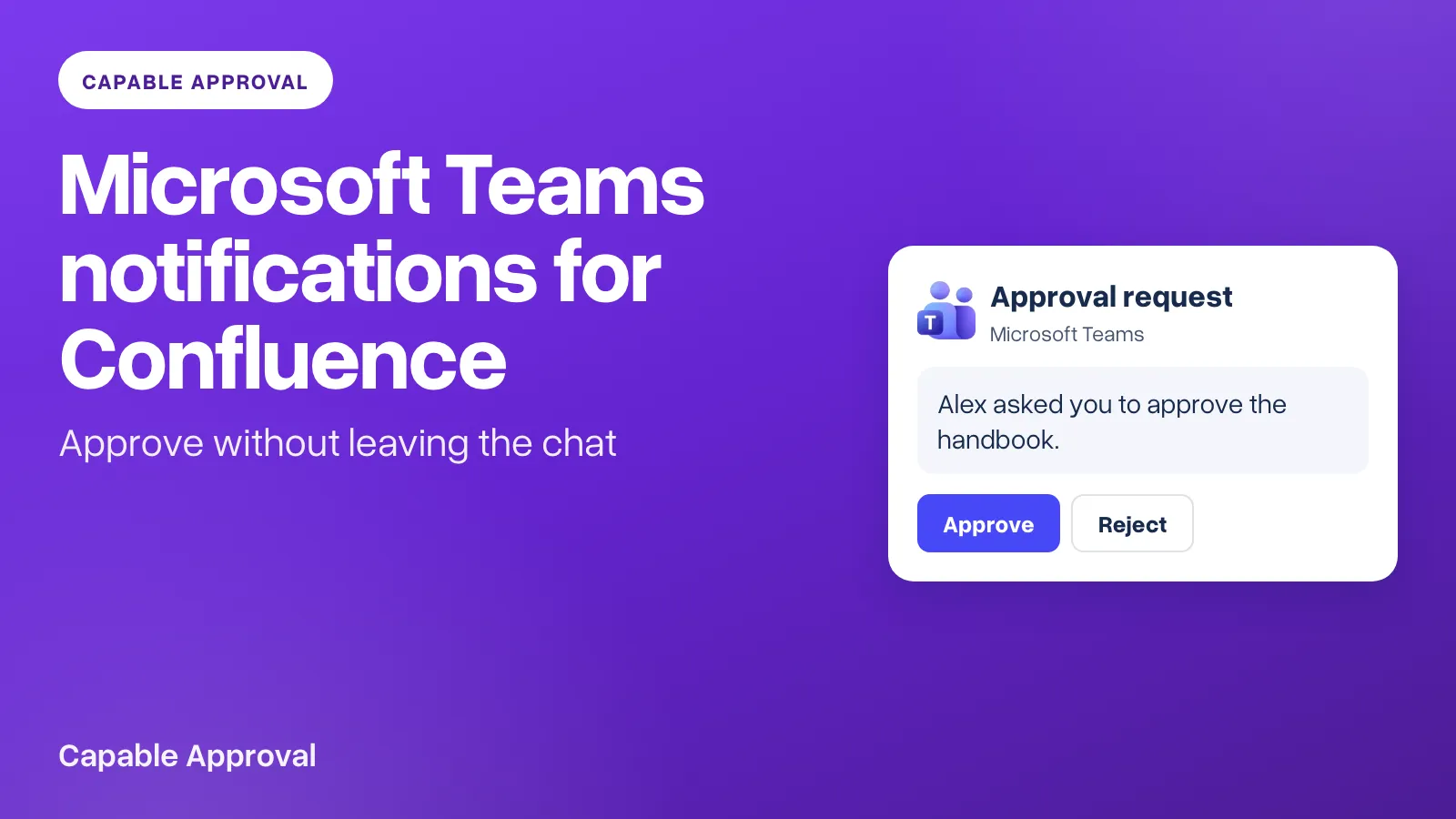
Microsoft Teams notifications for Confluence reach the reviewer in the chat they already have open. Email stays on unless you turn it off, and Slack already covers teams that live there. The same request goes out from Capable Approval for Confluence and from Capable for Confluence.
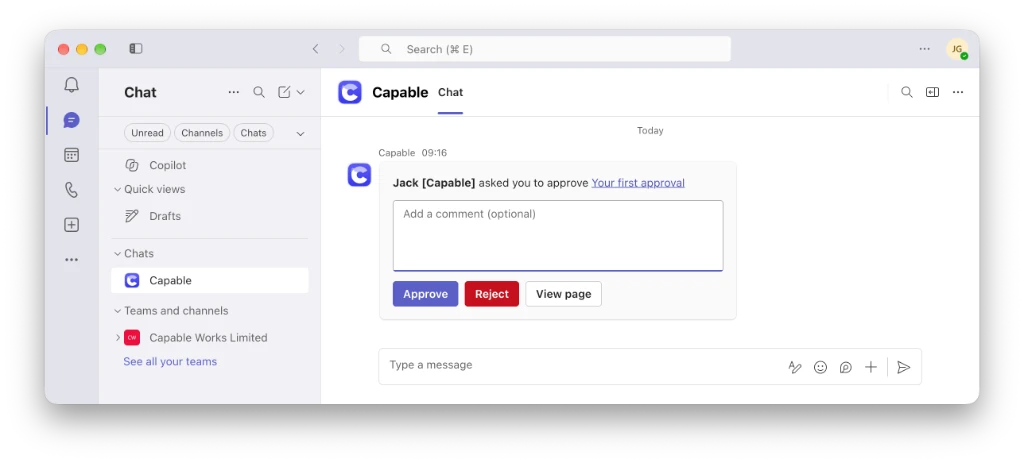
The message names the page and who asked. With approval actions on, it also has a comment box and Approve and Reject. The answer is recorded on the page, in the same history as an answer given in Confluence.
Connect Microsoft Teams to Confluence
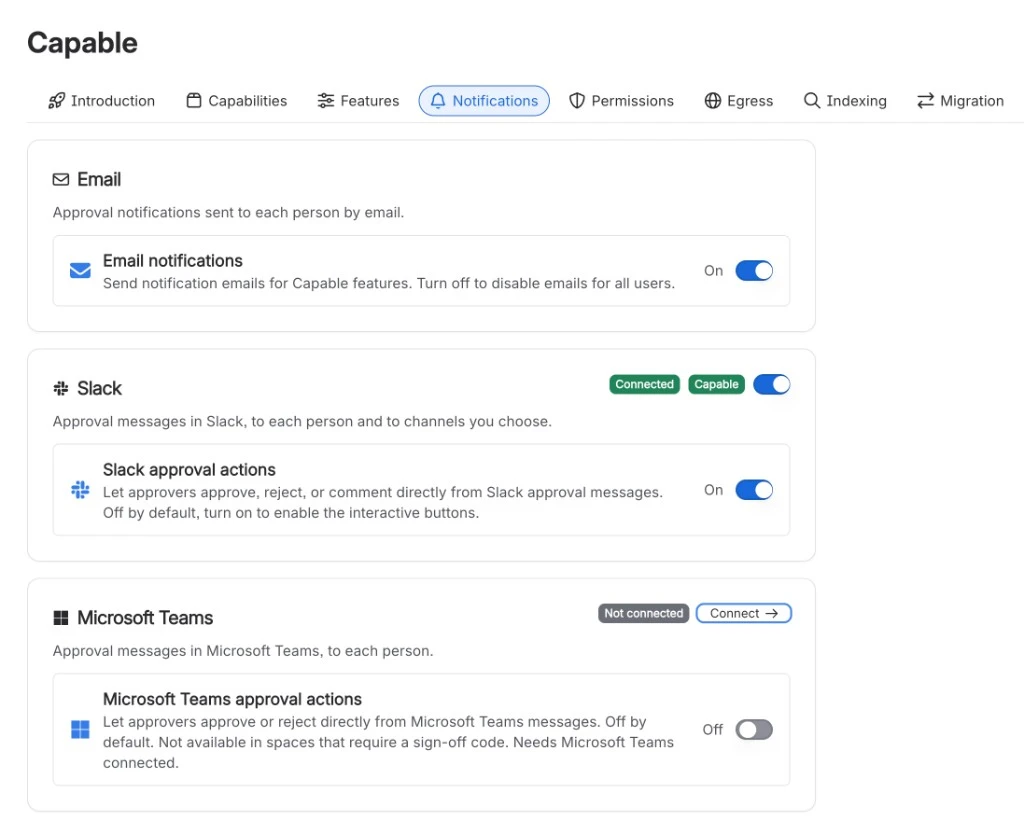
A Confluence site administrator connects Teams from Global settings, on the Notifications tab. You can open that from Manage in the Approval sidebar, or from Confluence administration. On the Microsoft Teams card, choose Connect.
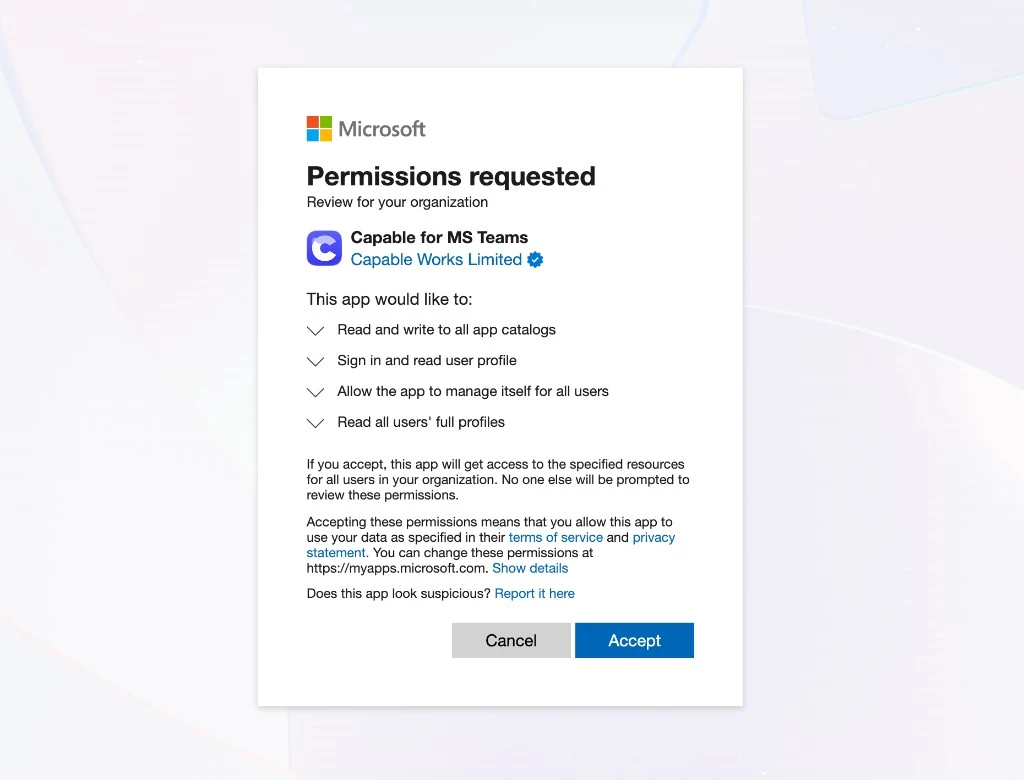
The first connection needs a Microsoft 365 Global Administrator (or a Privileged Role Administrator) to accept one consent screen for the organisation. A Teams Administrator who is not one of those is asked to request approval, and can connect on their own after the consent is in place. Personal Microsoft accounts cannot be used.
Capable adds its app to your organisation's Teams catalogue while you connect. Nobody installs it by hand. Back in Confluence, the card shows Connected and the organisation's name.
The permissions on that screen are the ones in the Microsoft Teams reference: sign-in and profile, so Capable can confirm who is connecting; reading users, so it can find each approver by the email on their Confluence account; managing its own app for those users, so the first message can arrive; and the app catalogue, used only during the connection.
If the organisation was connected before 21 October 2026, turn the connect switch off and on again. Earlier connections did not ask for the permissions Capable now uses to reach approvers itself. The setup steps, and what to do when Microsoft refuses the connection, are in Set up Microsoft Teams notifications.
Let people answer in the chat
Microsoft Teams approval actions is a separate switch on the same card, and it is off until you turn it on. Without it, the message still arrives, with View page, and the reviewer answers in Confluence.
With it on, the reviewer can add a comment of up to 500 characters and choose Approve or Reject. The card shows the outcome, and once the request is decided the buttons disappear from every approver's copy. What they see, and the messages when an answer cannot be applied, are in Respond to Confluence approvals from Microsoft Teams.
Buttons are not offered in a space that requires a sign-off code. A code cannot be collected from Teams, so those reviews stay on the page.
Who actually receives one
Capable finds each person in Microsoft 365 by matching their Confluence email to their work account. If the two addresses differ, no Teams message is sent, and nothing says so. Email still goes out. The same is true when a Teams policy blocks custom apps for that person.
The first request to someone usually arrives within a minute. After that, messages land in their chat with Capable. They hear about the same events as email: a new request, a request sent again, a response on something they asked for, the final approval or rejection, and expiry.
Each person can turn their own Teams messages off under Notifications in the Approval sidebar. Until an admin has connected Teams, that switch reads Not connected. An admin can turn Teams off for the whole site, which beats any personal switch. One Microsoft 365 organisation is connected per Confluence site. Disconnecting turns Teams off for everybody.
Try Capable Approval free on the Atlassian Marketplace →
Atlassian and Confluence are trademarks of Atlassian Pty Ltd. Microsoft and Microsoft Teams are trademarks of the Microsoft group of companies. Capable Works Limited is not affiliated with, endorsed by or sponsored by Atlassian or Microsoft.